

- Manuals
- Brands
- Lenovo Manuals
- Laptop
- IdeaPad L340 Series
- User manual
-
Contents
-
Table of Contents
-
Bookmarks
Quick Links
Lenovo IdeaPad L340 Series
User Guide
Related Manuals for Lenovo IdeaPad L340 Series
Summary of Contents for Lenovo IdeaPad L340 Series
-
Page 1
Lenovo IdeaPad L340 Series User Guide… -
Page 2
• Setup Guide First Edition (December 2018) © Copyright Lenovo 2018. LIMITED AND RESTRICTED RIGHTS NOTICE: If data or software is delivered pursuant to a General Services Administration “GSA” contract, use, reproduction, or disclosure is subject to restrictions set forth in Contract No. GS-… -
Page 3: Table Of Contents
Chapter 3. Explore your computer . . 21 Call Lenovo ….Manage power ….
-
Page 4
Lenovo IdeaPad L340 Series User Guide… -
Page 5: About This Documentation
• Depending on the version of operating systems, some user interface instructions might not be applicable to your computer. • Documentation content is subject to change without notice. Lenovo makes constant improvements on the documentation of your computer, including this User Guide. To get the latest documentation, go to https:// support.lenovo.com…
-
Page 6
Lenovo IdeaPad L340 Series User Guide… -
Page 7: Chapter 1. Meet Your Computer
If the indicator is on, the camera is in use. 3. Camera indicator Send and receive radio waves for the wireless LAN/Bluetooth module. 4. Wireless LAN/Bluetooth antennas Note: The antennas are not visible from outside of the computer. © Copyright Lenovo 2018…
-
Page 8
5. Microphones Capture or record sound and voice. Displays text, graphics, and videos. Select models support multi-touch function. 6. Screen Lenovo IdeaPad L340 Series User Guide… -
Page 9: Top
Dissipate internal heat. 1. Ventilation slots 2. Touchpad Perform finger touch and all the functions of a traditional mouse. Chapter 1 Meet your computer…
-
Page 10: Bottom
Bottom The ventilation slots and internal fan enable air to circulate in the computer to 1. Ventilation slots ensure proper cooling, especially the cooling of the microprocessor. 2. Speakers Produce sound. Lenovo IdeaPad L340 Series User Guide…
-
Page 11: Left
Left 1. ac power connector Connects to the ac power adapter. 2. Battery/Charging status Indicates the ac power and battery power status of the computer. indicator White: connected to ac power (battery power 91%–100%) Amber: connected to ac power (battery power 1%–90%) Off: not connected to ac power 3.
-
Page 12
Indicates whether the computer is on, off or on sleep mode. * USB-C is designed with 5V/1.5A power specifications. Ensure that the power specification of the device connected to this port is within these power limits. Lenovo IdeaPad L340 Series User Guide… -
Page 13: Right
Right Allows to perform read/write data operation in a CD/DVD. 1. CD/DVD drive Lock your computer to a desk, table, or other fixtures through a compatible 2. Mini security-lock slot security cable lock. Chapter 1 Meet your computer…
-
Page 14: Features And Specifications
– 15IWL models: 1920 x 1080 pixels FHD, 1366 x 768 pixels HD – 17IWL models: 1920 x 1080 pixels FHD, 1600 x 900 pixels HD+ • Function keys Keyboard • Numeric keypad • Six-row keyboard Lenovo IdeaPad L340 Series User Guide…
-
Page 15: Statement On Usb Transfer Rate
• ac power connector • Audio connector • Ethernet connector Connectors and slots • Two USB 3.0 connectors • HDMI connector • USB-C connector • Password Security features • Security-lock slot • Bluetooth Wireless features • Wireless LAN • Camera with shutter •…
-
Page 16
Lenovo IdeaPad L340 Series User Guide… -
Page 17: Chapter 2. Get Started With Your Computer
With a Microsoft account, you can: • Enjoy one-time signing in if you are using other Microsoft services, such as OneDrive, Skype, and Outlook. com. • Sync personalized settings across other Windows-based devices. © Copyright Lenovo 2018…
-
Page 18: Windows User Interface
Display the latest notifications from apps and provide quick access to some 10. Action center features. Open the Start menu • Click the Start button. • Press the Windows logo key on the keyboard. Lenovo IdeaPad L340 Series User Guide…
-
Page 19: Windows Label
Access Control Panel • Open the Start menu and click Windows System ➙ Control Panel. • Use Windows search. Launch an app • Open the Start menu and select the app you want to launch. • Use Windows search. Windows label Your computer might have a Windows 10 Genuine Microsoft label affixed to its cover depending on the following factors: •…
-
Page 20: Use Lenovo Vantage
Access Lenovo Vantage Open the Start menu and click Lenovo Vantage. You also can type Lenovo Vantage in the search box. To download the latest version of Lenovo Vantage, go to Microsoft Store and search by the app name.
-
Page 21: Hotkeys
Hotkeys Some keys on the keyboard are printed with icons. These keys are called hotkeys and can be pressed alone or in combination with the Fn key to access certain Windows functions or settings quickly. The functions of hotkeys are symbolized by the icons printed on them. Hotkey Function Mute/Unmute the sound.
-
Page 22: Use The Multi-Touch Screen
• Swipe in from the top edge to the bottom edge (when your computer is in the tablet mode) Close the current app. Tips • Turn off the computer before cleaning the multi-touch screen. Lenovo IdeaPad L340 Series User Guide…
-
Page 23: Use Multimedia
To configure the camera settings: 1. Open the Start menu and then click Lenovo Vantage ➙ Hardware Settings ➙ Audio/Visual. 2. Locate the Camera section and then follow the on-screen instructions.
-
Page 24
You can change the settings for both the computer display and the external display. For example, you can define which one is the main display and which one is the secondary display. You can also change the resolution and orientation. Lenovo IdeaPad L340 Series User Guide… -
Page 25
Note: If you set a higher resolution for the computer display than the external display, only part of the screen can be displayed on the external display. Chapter 2 Get started with your computer… -
Page 26
Lenovo IdeaPad L340 Series User Guide… -
Page 27: Chapter 3. Explore Your Computer
95%. Check the battery temperature 1. Open Lenovo Vantage. See “Use Lenovo Vantage” on page 14. 2. Click Hardware Settings ➙ Power. 3. Locate the Power Status section and then click Show Details to view the battery temperature.
-
Page 28: Set The Power Plan
When the Airplane mode is enabled, all wireless features are disabled. To enable or disable the Airplane mode: 1. Open the Start menu. 2. Click Settings ➙ Network & Internet ➙ Airplane mode. 3. Turn on or turn off the Airplane mode switch. Lenovo IdeaPad L340 Series User Guide…
-
Page 29: Chapter 4. Secure Your Computer And Information
Note: You are responsible for evaluating, selecting, and implementing the locking device and security feature. Lenovo makes no comments, judgments, or warranties about the function, quality, or performance of the locking device and security feature. Cable locks for your product are available from Lenovo at https:// www.lenovoquickpick.com/…
-
Page 30: Set Administrator Password
Attention: If you forget the administrator password, a Lenovo authorized servicer cannot reset your password. You must take your computer to a Lenovo authorized servicer or a marketing representative to have the system board replaced. Proof of purchase is required and a fee will be charged for parts and service.
-
Page 31: Enable Power-On Password
Attention: Be extremely careful when setting a hard disk password. If you forget the hard disk password, a Lenovo authorized servicer cannot reset your password or recover data from the hard disk. You must take your computer to a Lenovo authorized servicer or a marketing representative to have the hard disk drive replaced.
-
Page 32: Use Firewalls And Antivirus Programs
A full version of antivirus program is provided with a free 30-day subscription. After 30 days, you must renew the license to continue receiving the antivirus program updates. For more information, see the help system of the program. Lenovo IdeaPad L340 Series User Guide…
-
Page 33: Chapter 5. Configure Advanced Settings
Step 1. Turn on or restart the computer. Step 2. When the Lenovo logo appears on the screen, press F2 repeatedly. Note: For computers with Hotkey mode enabled, press Fn + F2. Navigate in the BIOS interface You can navigate in the BIOS interface by pressing the following keys: Displays the General Help screen.
-
Page 34: Set The System Date And Time
Enabled. Select Exit ➙ Exit saving changes. Step 3. Note: If Lenovo Vantage (software) is pre-installed on your computer, you can also enable/disable always-on in it. Update UEFI BIOS When you install a new program, device driver, or hardware component, you might need to update UEFI/ BIOS.
-
Page 35: Reset Your Computer
Restore system files and settings to an earlier point 1. Go to Control Panel and view by Large icons or Small icons. 2. Click Recovery ➙ Open System Restore. Then, follow the on-screen instructions. Restore your files from a backup Note: If you use the File History tool to restore your files from a backup, ensure that you backed up your data earlier with the tool.
-
Page 36
Lenovo Customer Support Center and purchase one from Lenovo. For a list of the Lenovo Support phone numbers for your country or region, go to: https://pcsupport.lenovo.com/supportphonelist Create a recovery USB drive Attention: The creation process deletes anything stored on the USB drive. To avoid data loss, make a backup copy of all the data that you want to keep. -
Page 37: Chapter 6. Help And Support
3. Wait until you are certain that all the liquid is dry before turning on your computer. • From Lenovo Vantage. See “Use Lenovo Vantage” on page 14. Where can I get the latest device drivers and UEFI/BIOS? •…
-
Page 38: Self-Help Resources
Use Lenovo Vantage to: • Download and install the latest drivers and firmware. • Configure hardware settings. • Open the Start menu and click Lenovo Vantage. • Diagnose computer hardware problems. • Use Windows search. • Check the computer warranty status.
-
Page 39: Call Lenovo
Call Lenovo If you have tried to correct the problem yourself and still need help, you can call Lenovo Customer Support Center. Before you contact Lenovo Prepare the following before you contact Lenovo: 1. Record the problem symptoms and details: •…
-
Page 40: Purchase Additional Services
• Lenovo hardware repair — If the problem is determined to be caused by Lenovo hardware under warranty, trained service personnel are available to provide the applicable level of service.
-
Page 41: Appendix A. Important Safety Information
• Avoid keeping your hands, your lap, or any other part of your body in contact with a hot section of the computer for any extended time. • Periodically take hands from using the keyboard by lifting your hands from the palm rest. © Copyright Lenovo 2018…
-
Page 42
Before moving a computer equipped with a hard disk drive, do one of the following: • Turn it off. • Put it in sleep mode. • Put it in hibernation mode. This helps to prevent damage to the computer, and possible loss of data. Lenovo IdeaPad L340 Series User Guide… -
Page 43
Customer Support Center for further guidance. For a list of Service and Support phone numbers, see the following Web site: https://pcsupport.lenovo.com/supportphonelist Frequently inspect your computer and its components for damage or wear or signs of danger. If you have any question about the condition of a component, do not use the product. Contact the Customer Support Center or the product manufacturer for instructions on how to inspect the product and have it repaired, if necessary. -
Page 44
Note: If you notice these conditions with a product (such as an extension cord) that is not manufactured for or by Lenovo, stop using that product until you can contact the product manufacturer for further instructions, or until you get a suitable replacement. -
Page 45
When replacing CRUs, be cautious of sharp edges or corners that might cause injury. If you suffer an injury, seek medical care immediately. Power cords and power adapters DANGER Use only the power cords and power adapters supplied by the product manufacturer. The power cords shall be safety approved. -
Page 46
1394 cables while the computer power is on; otherwise, you might damage your computer. To avoid possible damage to attached devices, wait at least five seconds after the computer is shut down to disconnect external devices. Lenovo IdeaPad L340 Series User Guide… -
Page 47
Batteries supplied by Lenovo for use with your product have been tested for compatibility and should only be replaced with approved parts. A battery other than the one specified by Lenovo, or a disassembled or modified battery is not covered by the warranty. -
Page 48
If the coin-cell battery is not a CRU, do not attempt to replace the coin-cell battery. Replacement of the battery must be done by a Lenovo-authorized repair facility or technician. The Lenovo-authorized repair facilities or technicians recycle Lenovo batteries according to local laws and regulations. -
Page 49
Heat and product ventilation DANGER Computers, ac power adapters, and many accessories can generate heat when turned on and when batteries are charging. Notebook computers can generate a significant amount of heat due to their compact size. Always follow these basic precautions: •… -
Page 50
The power cord may be reconnected to the wall outlet or receptacle only after all other electrical cables have been connected to the computer. DANGER During electrical storms, do not perform any replacement and do not connect the telephone cable to or disconnect it from the telephone outlet on the wall. Lenovo IdeaPad L340 Series User Guide… -
Page 51
2 can be dangerous due to excessive sound pressure levels. If your Lenovo computer came with headphones or earphones in the package, as a set, the combination of the headphones or earphones and the computer already complies with the specifications of EN 50332-1. If different headphones or earphones are used, ensure that they comply with EN 50332-1 (Clause 6.5… -
Page 52
When this is not possible, place the static-protective packaging on a smooth, level surface and place the part on it. • Do not place the part on the computer cover or other metal surface. Lenovo IdeaPad L340 Series User Guide… -
Page 53
• When picking up your open computer, hold it by the bottom. Do not pick up or hold your computer by the display. • Only an authorized Lenovo repair technician should disassemble and repair your computer. • Do not modify or tape the latches to keep the display open or closed. -
Page 54
Wipe or dust the stain gently with a soft, dry cloth. If the stain remains, moisten a soft, lint-free cloth with water or eyeglass cleaner, but do not apply liquids directly to your computer screen. Ensure that the computer screen is dry before closing it. Lenovo IdeaPad L340 Series User Guide… -
Page 55: Appendix B. Accessibility And Ergonomic Information
This chapter provides information about accessibility and ergonomics. Accessibility information Lenovo is committed to providing users who have hearing, vision, and mobility limitations with greater access to information and technology. This section provides information about the ways these users can get the most out of their computer experience.
-
Page 56
You can make the items on your screen easier to read by changing the item size. • To change the item size temporarily, use the Magnifier tool in Ease of Access Center. • To change the item size permanently: Lenovo IdeaPad L340 Series User Guide… -
Page 57
Your computer provides industry-standard connectors that enable you to connect assistive devices. Documentation in accessible formats Lenovo provides electronic documentation in accessible formats, such as properly tagged PDF files or HyperText Markup Language (HTML) files. Lenovo electronic documentation is developed to ensure that visually impaired users can read the documentation through a screen reader. -
Page 58
Any concentrated and sustained visual activity can be tiring. If you have questions on eye fatigue or visual discomfort, consult a vision-care specialist for advice. Lenovo IdeaPad L340 Series User Guide… -
Page 59: Appendix C. Compliance Information
Lenovo cannot accept responsibility for any failure to satisfy the protection requirements resulting from a non-recommended modification of the product, including the installation of option cards from other manufacturers. This product has been tested and found to comply with the limits for Class B equipment according to European Standards harmonized in the Directives in compliance.
-
Page 60
Lenovo encourages owners of information technology (IT) equipment to responsibly recycle their equipment when it is no longer needed. Lenovo offers a variety of programs and services to assist equipment owners in recycling their IT products. For information about recycling Lenovo products, go to: https://www.lenovo.com/recycling… -
Page 61
Collecting and recycling a disused Lenovo computer or monitor If you are a company employee and need to dispose of a Lenovo computer or monitor that is the property of the company, you must do so in accordance with the Law for Promotion of Effective Utilization of Resources. -
Page 62
Lenovo sales, service, or marketing, and follow that person’s instructions. You also can refer to the instructions at: https://www.lenovo.com/jp/ja/environment/recycle/battery/ If you use a Lenovo notebook computer at home and need to dispose of a battery, you must comply with local ordinances and regulations. You also can refer to the instructions at: https://www.lenovo.com/jp/ja/environment/recycle/battery/ Recycling information for Brazil Declarações de Reciclagem no Brasil… -
Page 63
If the battery needs to be replaced, contact your place of purchase or contact Lenovo for service. If you need to dispose of a lithium battery, insulate it with vinyl tape, contact your place of purchase or a waste-disposal operator, and follow their instructions. -
Page 64
For more information about Lenovo worldwide compliance on RoHS, go to: https://www.lenovo.com/rohs-communication Turkish RoHS The Lenovo product meets the requirements of the Republic of Turkey Directive on the Restriction of the Use of Certain Hazardous Substances in Waste Electrical and Electronic Equipment (WEEE). Ukraine RoHS India RoHS RoHS compliant as per E-Waste (Management) Rules. -
Page 65
Appendix C. Compliance information… -
Page 66
Federal Communications Commission (FCC) Supplier’s Declaration of Conformity The following information refers to Lenovo IdeaPad L340–15IWL, Lenovo IdeaPad L340–15IWLTouch, and Lenovo IdeaPad L340–17IWL, machine type(s): 81LG, 81LH, and 81M0. This equipment has been tested and found to comply with the limits for a Class B digital device, pursuant to Part 15 of the FCC Rules. -
Page 67
• Connect the equipment into an outlet on a circuit different from that to which the receiver is connected. • Consult an authorized dealer or service representative for help. Lenovo is not responsible for any radio or television interference caused by using other than recommended cables and connectors or by unauthorized changes or modifications to this equipment. Unauthorized changes or modifications could void the user’s authority to operate the equipment. -
Page 68
Klasse B. Dieses Gerät ist berechtigt, in Übereinstimmung mit dem Deutschen EMVG das EG-Konformitätszeichen — CE — zu führen. Verantwortlich für die Konformitätserklärung nach Paragraf 5 des EMVG ist die Lenovo (Deutschland) GmbH, Meitnerstr. 9, D-70563 Stuttgart. Japan VCCI Class B compliance statement… -
Page 69
Lenovo encourages you to make efficient use of energy an integral part of your day-to-day operations. To help in this endeavor, Lenovo has preset a default power plan. To change the power plan, see “Set the power plan” on page 22. -
Page 70
Lenovo IdeaPad L340 Series User Guide… -
Page 71: Appendix D. Notices And Trademarks
Lenovo representative for information on the products and services currently available in your area. Any reference to a Lenovo product, program, or service is not intended to state or imply that only that Lenovo product, program, or service may be used. Any functionally equivalent product, program, or service that does not infringe any Lenovo intellectual property right may be used instead.
-
Page 72
Actual results may vary. Users of this document should verify the applicable data for their specific environment. This document is copyrighted by Lenovo and is not covered by any open source license, including any Linux agreement(s) which may accompany software included with this product. Lenovo may update this document at any time without notice.

Руководство пользователя Lenovo IdeaPad серии L340
Прочтите вначале
Прежде чем использовать этот документ и сам продукт, обязательно ознакомьтесь со следующими разделами:
•Приложение A «Важная информация по технике безопасности» на странице 39
•Руководство по технике безопасности и гарантии
•Руководство по установке
Первое издание (Декабрь 2018 г.)
© Copyright Lenovo 2018.
УВЕДОМЛЕНИЕ ОБ ОГРАНИЧЕНИИ ПРАВ: Если данные или программное обеспечение предоставляются в соответствии с контрактом Управления служб общего назначения США (GSA), на их использование, копирование и разглашение распространяются ограничения, установленные соглашением № GS-35F-05925.

Содержание
Об этой документации . . . . . . . . .iii
Глава 1. Знакомство с компьютером . . . . . . . . . . . . . . 1
Вид спереди . . . . . . . . . .
Вид сверху . . . . . . . . . .
Вид снизу . . . . . . . . . . .
Вид слева . . . . . . . . . . .
Вид справа . . . . . . . . . .
Компоненты и спецификации . . .
|
. |
. |
. . . . |
. |
1 |
|
. |
. |
. . . . |
. |
3 |
|
. |
. |
. . . . |
. |
4 |
|
. |
. |
. . . . |
. |
5 |
|
. |
. |
. . . . |
. |
7 |
|
. |
. |
. . . . |
. |
8 |
Глава 2. Начало работы с компьютером . . . . . . . . . . . . . 11
|
Начало работы с Windows 10 . . . . . . . . . |
11 |
|
Учетная запись Windows . . . . . . . . . |
11 |
|
Пользовательский интерфейс Windows. . . |
12 |
|
Наклейка Windows . . . . . . . . . . . |
13 |
|
Подключение к сетям . . . . . . . . . . . . |
13 |
|
Подключение к проводным сетям . . . . . |
13 |
|
Подключение к сетям Wi-Fi . . . . . . . . |
13 |
|
Использование Lenovo Vantage . . . . . . . . |
14 |
|
Взаимодействие с компьютером . . . . . . . |
15 |
|
Горячие клавиши . . . . . . . . . . . . |
15 |
|
Использование мультисенсорного |
|
|
экрана . . . . . . . . . . . . . . . . |
16 |
|
Использование мультимедиа . . . . . . . . . |
17 |
|
Использование звука . . . . . . . . . . |
17 |
|
Использование камеры . . . . . . . . . |
18 |
|
Подключение к внешнему дисплею . . . . |
18 |
Глава 3. Подробнее о компьютере . . . . . . . . . . . . . . 21
|
Управление питанием . . . . . . . . . . . . |
21 |
|
Проверка состояния аккумулятора . . . . |
21 |
|
Зарядка аккумулятора. . . . . . . . . . |
21 |
|
Проверка температуры аккумулятора . . . |
21 |
|
Обеспечение максимальной |
|
|
продолжительности срока службы |
|
|
аккумулятора . . . . . . . . . . . . . |
21 |
|
Настройка поведения кнопки питания . . . |
22 |
|
Настройка плана электропитания . . . . . |
22 |
|
Передача данных. . . . . . . . . . . . . . |
22 |
|
Подключение устройства с поддержкой |
|
|
Bluetooth . . . . . . . . . . . . . . . |
22 |
|
Режим «в самолете» . . . . . . . . . . . . |
23 |
Глава 4. Защита компьютера и информации . . . . . . . . . . . . . . 25
|
Блокировка компьютера. . . . . . . . . . . |
25 |
|
Использование паролей . . . . . . . . . . . |
25 |
|
Типы паролей . . . . . . . . . . . . . |
25 |
|
Задание пароля администратора . . . . . |
26 |
|
Изменение и удаление пароля |
|
|
администратора . . . . . . . . . . . . |
26 |
|
Задание пароля пользователя . . . . . . |
27 |
|
Включение пароля на включение |
|
|
компьютера . . . . . . . . . . . . . . |
27 |
|
Задание пароля на доступ к жесткому |
|
|
диску . . . . . . . . . . . . . . . . . |
27 |
|
Изменение или удаление пароля на доступ |
|
|
к жесткому диску . . . . . . . . . . . . |
28 |
|
Использование брандмауэров и антивирусных |
|
|
программ . . . . . . . . . . . . . . . . . |
28 |
|
Глава 5. Настройка |
|
|
дополнительных параметров . . . . |
29 |
|
UEFI/BIOS . . . . . . . . . . . . . . . . . |
29 |
|
Что такое UEFI/BIOS Setup Utility . . . . . |
29 |
|
Запуск программы UEFI/BIOS Setup |
|
|
Utility . . . . . . . . . . . . . . . . . |
29 |
|
Переход в интерфейс BIOS . . . . . . . . |
29 |
|
Изменение последовательности |
|
|
загрузки. . . . . . . . . . . . . . . . |
29 |
|
Установка системной даты и времени . . . |
30 |
|
Изменение режима горячих клавиш . . . . |
30 |
|
Включение и отключение функции Always- |
|
|
On . . . . . . . . . . . . . . . . . . |
30 |
|
Обновление UEFI BIOS. . . . . . . . . . |
30 |
|
Информация о восстановлении . . . . . . . . |
31 |
|
Переустановка компьютера . . . . . . . |
31 |
|
Использование дополнительных |
|
|
параметров . . . . . . . . . . . . . . |
31 |
|
Автоматическое восстановление |
|
|
Windows . . . . . . . . . . . . . . . |
32 |
|
Создание и использование USB- |
|
|
устройства восстановления . . . . . . . |
32 |
|
Глава 6. Справка и поддержка . . . |
35 |
|
Часто задаваемые вопросы . . . . . . . . . |
35 |
|
Ресурсы для самостоятельного устранения |
|
|
неполадок. . . . . . . . . . . . . . . . . |
36 |
|
Как обратиться в центр поддержки клиентов |
|
|
Lenovo . . . . . . . . . . . . . . . . . . |
37 |
|
Перед тем как связаться с Lenovo . . . . . |
37 |
|
Центр поддержки клиентов Lenovo . . . . |
37 |
|
Приобретение дополнительных услуг . . . . . |
38 |
|
© Copyright Lenovo 2018 |
i |
|
Приложение A. Важная информация |
Приложение C. Информация о |
|
|
по технике безопасности . . . . . . |
39 |
соответствии . . . . . . . . . . . . . 61 |
|
Приложение B. Информация о |
Приложение D. Замечания и |
|
|
специальных возможностях и |
товарные знаки . . . . . . . . . . . . 73 |
|
|
эргономике . . . . . . . . . . . . . . |
55 |
ii Руководство пользователя Lenovo IdeaPad серии L340
Об этой документации
•Рисунки в этом документе могут отличаться от вашего продукта.
•В зависимости от модели компьютера некоторые дополнительные компоненты, функции и программы могут быть недоступны.
•В зависимости от версии операционной системы некоторые инструкции пользовательского интерфейса могут не применяться к вашему компьютеру.
•Содержимое документа может быть изменено без уведомления. Lenovo постоянно улучшает документацию по компьютеру, в том числе это Руководство пользователя Документы последних версий можно скачать по адресу https://support.lenovo.com.
•Корпорация Microsoft® периодически вносит изменения в функции операционной системы Windows® через Центр обновления Windows. В результате некоторые сведения в этой документации становятся устаревшими. Для получения самой актуальной информации см. ресурсы корпорации Майкрософт.
•Эта документация относится к следующим моделям продуктов:
|
Название модели |
Тип компьютера (MT) |
|
Lenovo IdeaPad L340-15API |
|
|
Lenovo IdeaPad L340-15API U |
|
|
Lenovo IdeaPad L340E-15API U |
|
|
Lenovo IdeaPad L340H-15API |
81LW |
|
Lenovo IdeaPad L340L-15API |
|
|
Lenovo IdeaPad L340E-15API |
|
|
Lenovo IdeaPad L340R-15API |
|
|
Lenovo IdeaPad L340-15APITouch |
81LX |
|
Lenovo IdeaPad L340-17API |
|
|
Lenovo IdeaPad L340H-17API |
|
|
Lenovo IdeaPad L340L-17API |
81LY |
|
Lenovo IdeaPad L340E-17API |
|
|
Lenovo IdeaPad L340R-17API |
|
© Copyright Lenovo 2018 |
iii |
iv Руководство пользователя Lenovo IdeaPad серии L340
Глава 1. Знакомство с компьютером
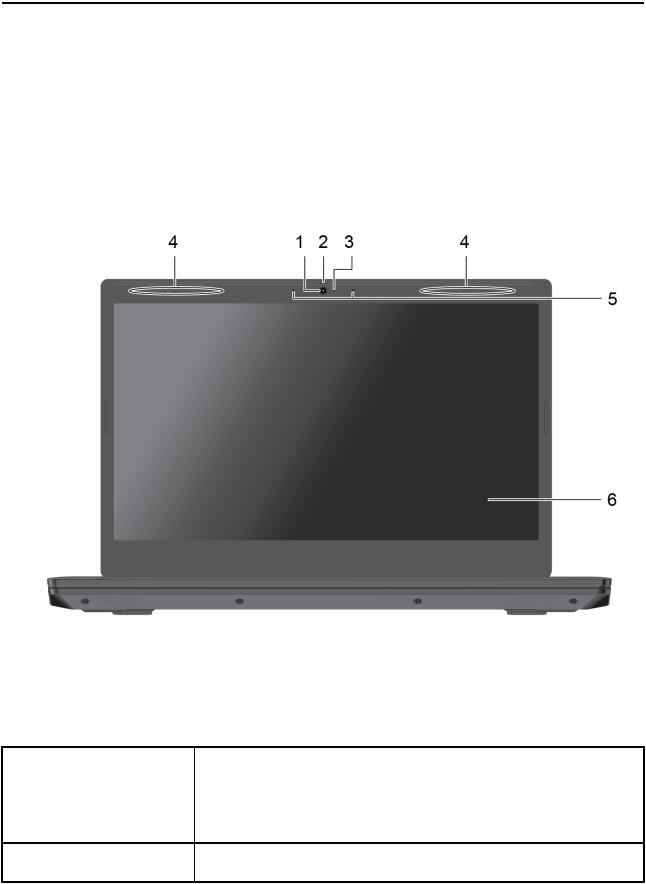
Вид спереди
Съемка фотографий и запись видео (нажмите Камера в меню «Пуск»).
Если вы используете другие приложения, поддерживающие фотографирование, видеочат и видеоконференцию, камера запускается автоматически при включении функции, требующей использования камеры, в приложении.
Сдвиньте шторку, чтобы закрыть или открыть объектив камеры. Шторка помогает сохранить вашу конфиденциальность.
|
© Copyright Lenovo 2018 |
1 |
3.Индикатор камеры
4.Антенны беспроводной локальной сети или Bluetooth
 5. Микрофоны
6. Экран
 Этот индикатор горит, когда камера используется.
Передача и прием радиосигналов беспроводной локальной сети и Bluetooth.
Примечание: Антенны не видны снаружи компьютера.  Улавливание и запись звука и голоса.
Отображение текста, графики и видео. Некоторые модели поддерживают мультисенсорный ввод. См. раздел «Использование мультисенсорного экрана» на странице 16.
2 Руководство пользователя Lenovo IdeaPad серии L340
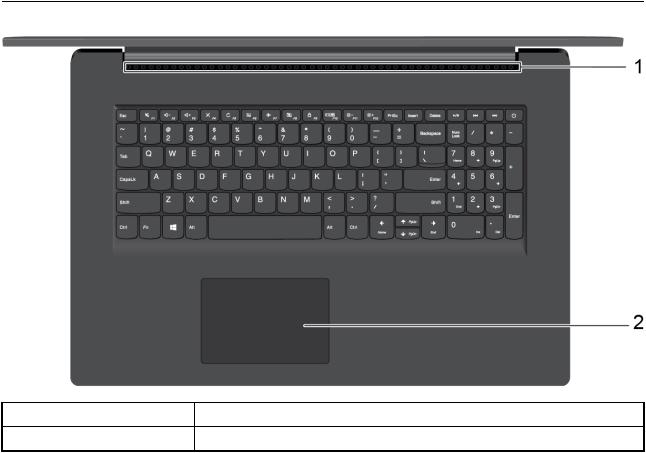
Вид сверху
|
1. |
Вентиляционные отверстия |
Для вывода тепла, образующегося внутри компьютера. |
|
2. |
Сенсорная панель |
Поддержка прикосновений пальцами и всех функций обычной мыши. |
Глава 1. Знакомство с компьютером 3
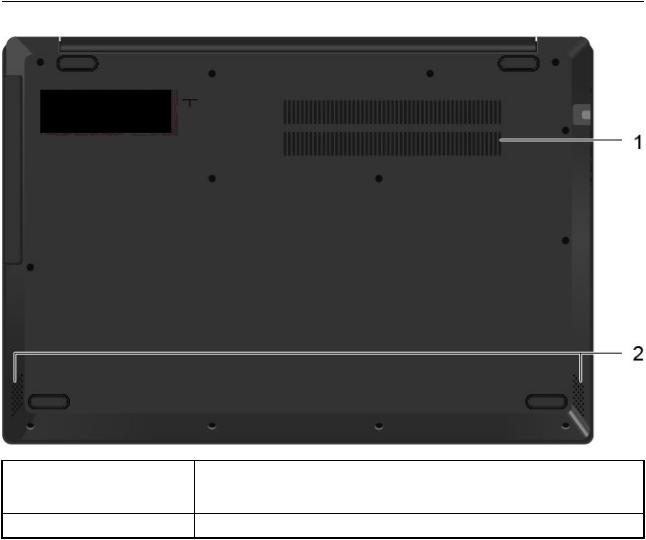
Вид снизу
|
1. |
Вентиляционные отверстия |
Вентиляционные отверстия и внутренний вентилятор обеспечивают |
|
циркуляцию воздуха в компьютере, необходимую для надлежащего |
||
|
охлаждения, особенно для охлаждения микропроцессора. |
||
|
2. |
Динамики |
Воспроизводят звук. |
4 Руководство пользователя Lenovo IdeaPad серии L340
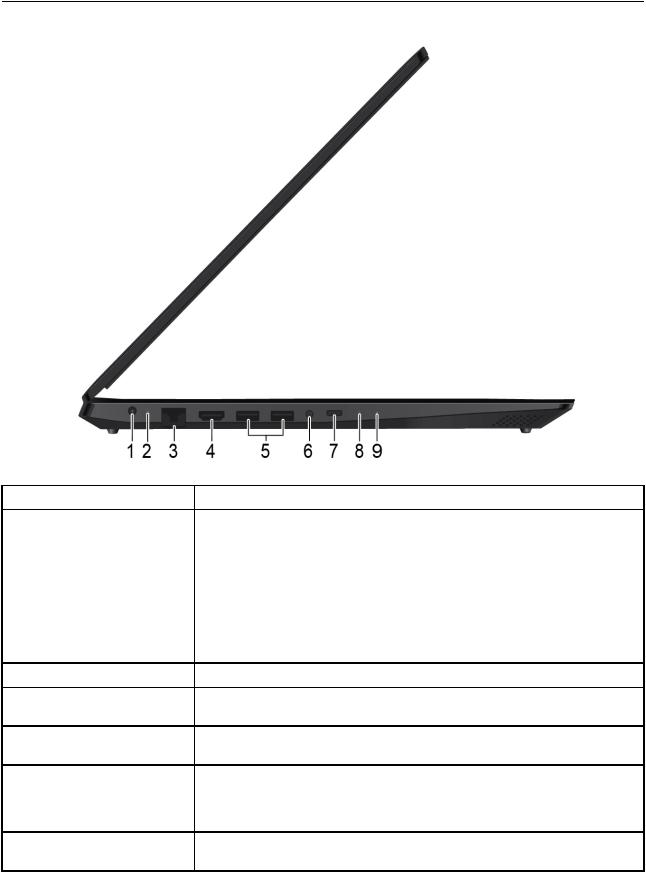
Вид слева
|
1. |
Разъем питания |
Подключение к сети переменного тока с помощью адаптера электропитания. |
|
|
2. |
Индикатор состояния/ |
Показывает состояние питания компьютера от сети переменного тока и |
|
|
зарядки аккумулятора |
заряд аккумулятора. |
||
|
Горит белым светом: компьютер подключен к сети переменного тока |
|||
|
(аккумулятор заряжен на 91–100%). |
|||
|
Горит желтым светом: компьютер подключен к сети переменного тока |
|||
|
(аккумулятор заряжен на 1–90%). |
|||
|
Не горит: компьютер не подключен к сети переменного тока |
|||
|
3. |
Разъем Ethernet |
Служит для подключения компьютера к локальной сети. |
|
|
4. |
Разъем HDMI |
Используется для подключения™ |
совместимых цифровых аудиоустройств и |
|
видеомониторов, например HDTV. |
|||
|
5. |
Разъем USB 3.0 |
Подключение устройств, поддерживающих интерфейс USB, например USB- |
|
|
клавиатуры, USB-мыши, USB-накопителя или USB-принтера. |
|||
|
6. |
Аудиоразъем |
Подключение наушников или гарнитуры с 3,5-миллиметровым |
|
|
четырехконтактным разъемом для прослушивания звука с компьютера. |
|||
|
Примечание: Обычный микрофон не поддерживается. |
|||
|
7. |
Разъем USB-CTM* |
Служит для подключения аксессуаров с разъемом USB-C с целью |
|
|
расширения функциональных возможностей компьютера, передачи данных |
Глава 1. Знакомство с компьютером 5

|
или зарядки устройств. |
||
|
Примечание: Если заряд аккумулятора ниже 10%, подключенные |
||
|
аксессуары с разъемом USB-C могут работать неправильно. |
||
|
8. |
Кнопка Novo |
Когда компьютер выключен, нажмите эту кнопку, чтобы либо запустить |
|
восстановление системы или BIOS Setup Utility, либо чтобы войти в меню |
||
|
загрузки. |
||
|
9. |
Светодиодный индикатор |
Указывает на состояние компьютера: включен, выключен, в спящем режиме. |
|
питания |
* Порт USB-C разработан с учетом спецификаций питания 5 В/1,5 А. Убедитесь, что спецификации питания, подключенного к этому порту, находятся в указанных пределах.
6 Руководство пользователя Lenovo IdeaPad серии L340
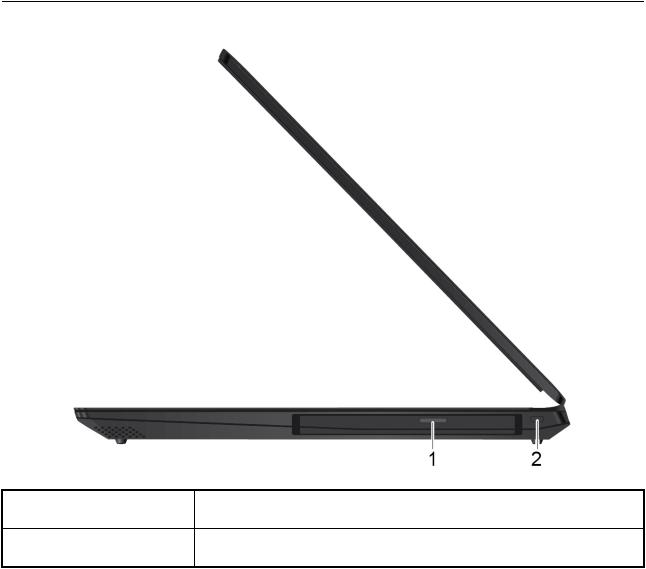
Вид справа
|
1. |
Дисковод для CD/DVD- |
Позволяет выполнять операции чтения и записи данных на диск CD/DVD. |
|
|
дисков |
|||
|
2. |
Мини-гнездо для защитного |
Закрепление компьютера на столе или другом предмете с помощью |
|
|
замка |
совместимого защитного замка для троса. |
Глава 1. Знакомство с компьютером 7

Компоненты и спецификации
•Ширина:
–Модели 15API: 254,6 мм
–Модели 17API: 284,6 мм
•Глубина:
–Модели 15API: 363 мм
–Модели 17API: 413 мм
•Толщина:
–Модели 15API: 22,9 мм
–Модели 17API: 24,3 мм
•Адаптер электропитания 65 Вт переменного тока
•Переменный ток (50–60 Гц)
•Входное напряжение адаптера электропитания: 100-240 В переменного тока, 50-60 Гц
|
Аккумуляторный блок |
• |
36 Вт·ч |
|
|
• |
3 ячейки |
||
|
Микропроцессор |
Для просмотра сведений о микропроцессоре своего компьютера щелкните |
||
|
кнопку Пуск и выберите Система |
|||
|
Память |
Модуль памяти с двухрядным расположением выводов (SODIMM) и |
||
|
удвоенной скоростью обмена данными, четвертое поколение (DDR4) |
|||
|
• Твердотельный накопитель SATA шириной 2,5 дюйма |
|||
|
Устройство хранения данных |
• Жесткий диск SATA шириной 2,5 дюйма |
||
|
• Твердотельный накопитель M.2 PCIe |
|||
|
• Дисковод для оптических дисков SATA, 9 мм |
|||
|
• |
Размер дисплея: |
||
|
– Модели 15API: 396,24 мм |
|||
|
Display |
– Модели 17API: 439,42 мм |
||
|
• |
Разрешение дисплея: |
||
|
– Модели без сенсорной панели: до 1920 x 1080 пикселей |
|||
|
– Модели с сенсорной панелью: до 1366 x 768 пикселей |
|||
|
• |
Функциональные клавиши |
||
|
Клавиатура |
• |
Числовая клавиатура |
|
|
• |
Шестирядная клавиатура |
||
|
• Разъем питания от сети переменного тока |
|||
|
• |
Аудиоразъем |
||
|
Разъемы и гнезда |
• |
Разъем Ethernet |
|
|
• Два порта USB 3.0 |
|||
|
• |
Разъем HDMI |
||
|
• |
Один разъем USB-C |
8 Руководство пользователя Lenovo IdeaPad серии L340

|
Функции безопасности |
• |
Пароль |
|
|
• Гнездо для защитного замка |
|||
|
Компоненты для |
• |
Bluetooth |
|
|
беспроводной связи |
• |
Беспроводная локальная сеть |
|
|
• |
Камера со шторкой. |
||
|
Прочие |
• |
Микрофоны |
|
|
• Динамики (2 по 1,5 Вт) |
|||
|
• |
Кнопка Novo |
Примечание: Емкость аккумулятора является типовой или средней емкостью, измеренной в определенной тестовой среде. Емкость, измеренная в других условиях, может отличаться, но она не будет ниже номинальной (см. ярлык изделия).
Глава 1. Знакомство с компьютером 9
10 Руководство пользователя Lenovo IdeaPad серии L340

Глава 2. Начало работы с компьютером
Начало работы с Windows 10
Изучите основные концепции Windows 10 и приступите к работе немедленно. Подробные сведения о Windows 10 см. в справочной информации по Windows.
Учетная запись Windows
Для использования операционной системы Windows требуется учетная запись пользователя. Это может быть учетная запись Windows или учетная запись Майкрософт.
Учетная запись пользователя Windows
При запуске Windows в первый раз будет предложено создать учетную запись пользователя Windows. Первая созданная учетная запись является учетной записью с типом «Администратор». С помощью учетной записи администратора можно создать дополнительные учетные записи пользователей или изменить типы учетных записей следующим образом:
1.Откройте меню «Пуск» и выберите Параметры Учетные записи Семья и другие
пользователи
2.Следуйте инструкциям на экране.
Учетная запись Майкрософт
Для входа в операционную систему Windows также можно использовать учетную запись Майкрософт.
Чтобы создать учетную запись Майкрософт, перейдите на страницу регистрации Майкрософт по адресу https://signup.live.com/ и следуйте инструкциям на экране.
С помощью учетной записи Майкрософт можно:
•Выполнить разовый вход в систему при использовании других служб Майкрософт, таких как OneDrive, Skype и Outlook.com.
•Синхронизировать личные настройки с другими устройствами под управлением Windows.
|
© Copyright Lenovo 2018 |
11 |
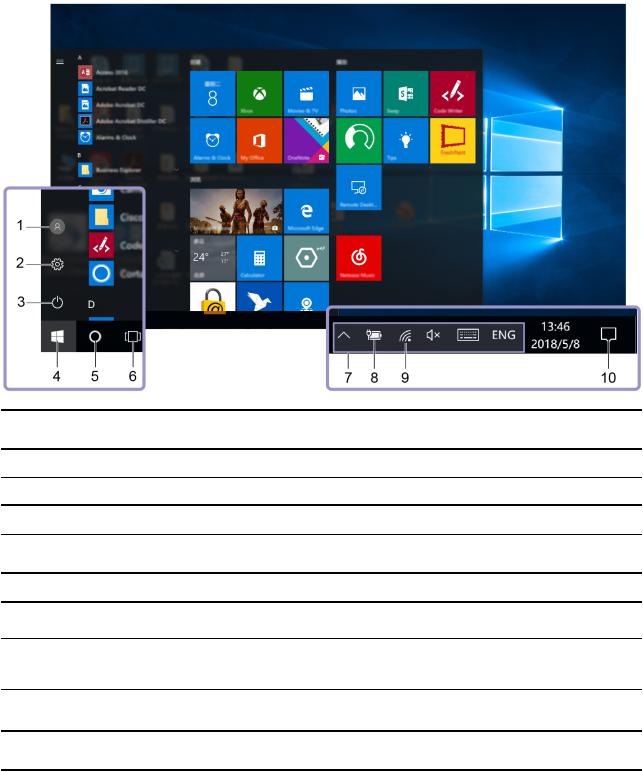
Пользовательский интерфейс Windows
1.Учетная запись 
2.Параметры 
3.Питание 
4.Кнопка «Пуск» 
5.Windows Search 
6.Представление задач 
7.Область уведомлений Windows
8.Значок состояния аккумулятора
9.Значок сети
10.Центр уведомлений 
Открытие меню «Пуск»
Изменение параметров учетной записи, блокировка компьютера или выход из текущей учетной записи.
Запуск параметров.
Завершение работы, перезапуск или перевод компьютера в спящий режим.
Откройте меню «Пуск».
Введите искомый термин в поле поиска и получите результаты на компьютере и в Интернете.
Отображение всех открытых приложений и переключение между ними.
Отображение уведомлений и состояния некоторых функций.
Отображение состояния питания и изменение параметров аккумулятора или питания. Если компьютер не подключен к сети переменного тока, значок изменится на  .
.
Подключение к доступной беспроводной сети и отображение состояния сети. При подключении к проводной сети значок изменится на  .
.
Отображение последних уведомлений из приложений и предоставление быстрого доступа к некоторым функциям.
• Нажмите клавишу с логотипом Windows на клавиатуре.
12 Руководство пользователя Lenovo IdeaPad серии L340

Доступ к панели управления
•Откройте меню «Пуск» и щелкните Служебные — Windows Панель управления
•Используйте Windows Search.
Запуск приложения
•Откройте меню «Пуск» и выберите приложение, которое требуется запустить.
•Используйте Windows Search.
Наклейка Windows
В зависимости от следующих факторов на корпусе вашего компьютера может присутствовать наклейка подлинного ПО Майкрософт Windows 10:
•Ваше географическое местоположение
•Предварительно установленный выпуск Windows 10
Изображения наклеек подлинного ПО Майкрософт различных типов можно посмотреть по адресу https://www.microsoft.com/en-us/howtotell/Hardware.aspx.
•В КНР наклейка подлинного ПО Майкрософт обязательно должна присутствовать на всех моделях компьютеров с предустановленной операционной системой Windows 10 любой версии.
•В других странах и регионах наличие наклейки подлинного ПО Майкрософт требуется только для моделей компьютеров, лицензированных для использования с Windows 10 Pro.
Отсутствие наклейки подлинного ПО Майкрософт не означает, что предустановленная версия Windows не является подлинной. Порядок определения подлинности предустановленного продукта Windows указан на сайте корпорации Майкрософт по адресу:
https://www.microsoft.com/en-us/howtotell/default.aspx
Код продукта или версия Windows, для использования с которой лицензирован компьютер, не указываются в явном виде где-либо на корпусе компьютера. Вместо этого идентификационный код продукта содержится в микропрограмме компьютера. Если на компьютере установлен продукт Windows 10, для завершения активации продукта программа установки проверяет действительность кода продукта, содержащегося в микропрограмме компьютера.
В некоторых случаях на компьютер может быть предустановлена более ранняя версия Windows согласно условиям лицензии Windows 10 Pro в отношении права использования предыдущей версии.
Подключение к сетям
Компьютер можно подключить с помощью проводной или беспроводной сети.
Подключение к проводным сетям
Если компьютер оснащен разъемом Ethernet (RJ-45), его можно подключить к проводной сети кабелем Ethernet.
Подключение к сетям Wi-Fi
1.Щелкните значок сети в области уведомлений Windows. Появится список доступных беспроводных сетей.
2.Выберите сеть, к которой нужно подключиться. Введите необходимую информацию.
Глава 2. Начало работы с компьютером 13

Использование Lenovo Vantage
Lenovo Vantage — это предустановленное настраиваемое комплексное решение, которое помогает поддерживать актуальность ПО компьютера с помощью автоматических обновлений и исправлений, настраивать параметры оборудования и получать персонализированную поддержку.
Доступ к Lenovo Vantage
Откройте меню «Пуск» и щелкните Lenovo Vantage Можно также ввести Lenovo Vantage в поле поиска.
Чтобы загрузить последнюю версию Lenovo Vantage, перейдите в Microsoft Store и выполните поиск по имени приложения.
Ключевые функции
Lenovo Vantage предоставляет периодические обновления функций, которые позволяют повысить эффективность работы с компьютером.
Примечание: Доступные функции различаются в зависимости от модели компьютера.
•System Update
Загрузка и установка обновлений микропрограммы и драйверов для поддержания ПО на компьютере в актуальном состоянии. Можно настроить параметры для автоматической установки обновлений при их доступности.
•Параметры оборудования
Настройка интеллектуальных параметров следующего оборудования для более оптимального использования компьютера:
–Аккумулятор
–Камера
–дисплей компьютера
–Клавиатура
–Микрофон
–Динамики
–Сенсорная панель
•Работоспособность и поддержка
Контроль состояния компьютера и получение персонализированной поддержки для компьютера. Вы можете:
–Сканируйте оборудование компьютера и диагностируйте проблемы с аппаратным обеспечением.
–Проверять состояние гарантии компьютера (в сети).
–Получать доступ к Руководству пользователя.
•Помощник по безопасности
Защита компьютера от вредоносных сетей Wi-Fi.
14 Руководство пользователя Lenovo IdeaPad серии L340
Взаимодействие с компьютером
На компьютере существуют различные способы навигации по экрану.
Горячие клавиши
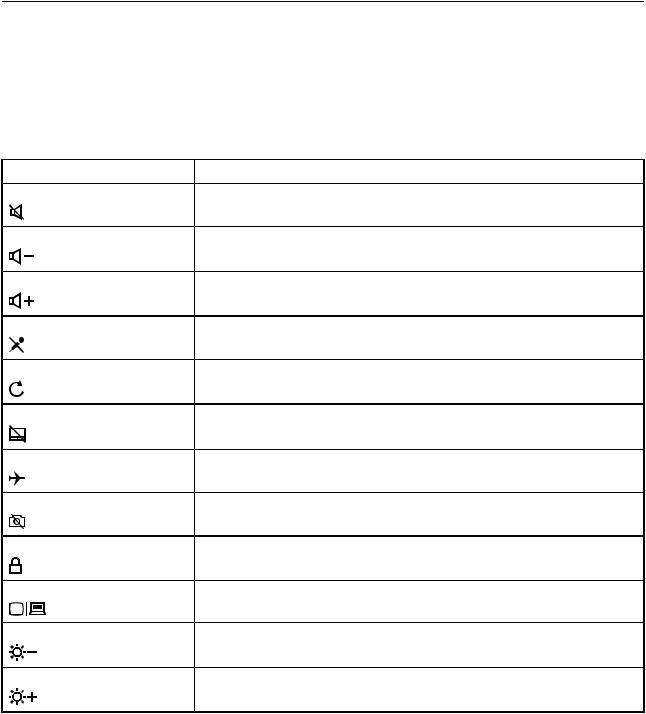
Некоторые клавиши на клавиатуре содержат значки. Эти клавиши называются «горячими». Их можно нажимать отдельно или в сочетании с клавишей Fn для быстрого доступа к некоторым функциям и параметрам Windows. Функции горячих клавиш указываются значками на них.
|
Горячая клавиша |
Функция |
|
Включение/отключение звука. |
|
|
Уменьшение громкости. |
|
|
Увеличение громкости. |
|
|
Включение/отключение встроенного микрофона. |
|
|
Обновление страницы. |
|
|
Включение/отключение сенсорной панели. |
|
|
Включение/отключение режима «в самолете». |
|
|
Включение/отключение встроенной камеры. |
|
|
Блокировка/разблокировка ЖК-экрана. |
|
|
Включение внешнего проектора или внешнего дисплея. |
|
|
Уменьшение яркости дисплея. |
|
|
Увеличение яркости дисплея. |
Режим горячих клавиш
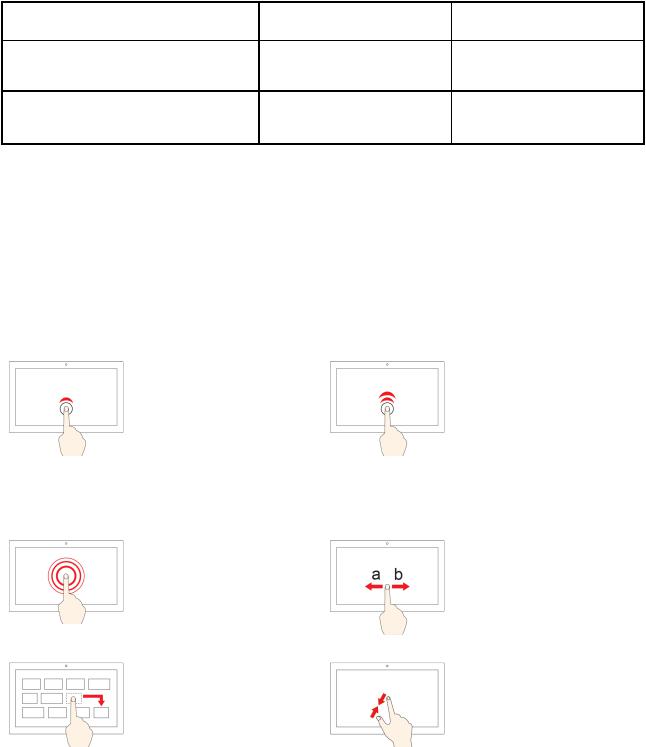
Некоторые горячие клавиши используются вместе с функциональными клавишами (F1–F12). Hotkey Mode — это параметр UEFI/BIOS, с помощью которого можно изменить способ использования горячих (или функциональных) клавиш.
Глава 2. Начало работы с компьютером 15
|
Значение параметра Hotkey Mode |
Использование горячих |
|
клавиш |
|
|
Disabled |
Нажатие и удержание клавиши |
|
Fn и нажатие одной из горячих |
|
|
клавиш. |
|
|
Enabled |
Непосредственное нажатие |
|
горячих клавиш. |
Использование функциональных клавиш
Непосредственное нажатие функциональных клавиш.
Нажатие и удержание клавиши Fn и нажатие одной из функциональных клавиш.
Примечание: На горячие клавиши, которые не используются вместе с функциональными клавишами, параметр режима горячих клавиш не влияет. Такие клавиши всегда следует использовать вместе с клавишей Fn.
Использование мультисенсорного экрана
Если дисплей компьютера поддерживает функцию мультисенсорного ввода, можно переходить по экрану с помощью простых жестов для сенсорной панели.
Примечание: В зависимости от используемого приложения некоторые жесты могут быть недоступны.
|
Коснитесь один раз |
Быстро коснитесь два раза |
|
• В меню «Пуск»: открытие |
Открытие приложения или |
|
приложения или элемента. |
элемента на рабочем столе. |
|
• На рабочем столе: выбор |
|
|
приложения или элемента. |
|
|
• В открытом приложении: |
|
|
выполнение действия, |
|
|
например Копировать |
|
|
Сохранить и Удалить в |
, |
|
зависимости от приложения. |
|
|
Касание и удерживание |
Смещение |
|
Открытие контекстного меню. |
Прокрутка элементов, таких |
|
как списки, страницы и |
|
|
фотографии. |
|
Перетащите элемент в |
Сдвиньте два пальца вместе |
|
нужное место |
|
|
Перенос объекта. |
Уменьшение масштаба. |
16 Руководство пользователя Lenovo IdeaPad серии L340
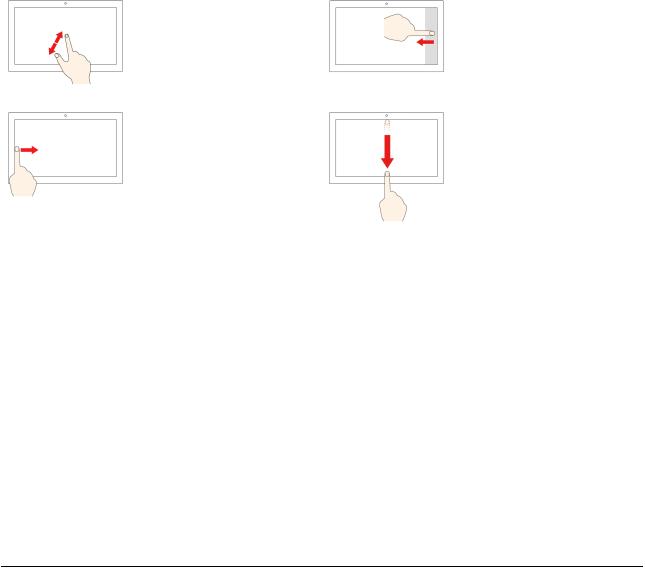
|
Разведите два пальца |
Проведение пальцем от |
|
правого края |
Увеличение масштаба.
Вызов центра уведомлений для просмотра уведомлений и быстрых действий.
Проведение пальцем от левого края
Просмотр всех открытых окон в представлении задач.
Советы
•Быстро проведите пальцем от верхнего края вниз (для приложения в полноэкранном режиме или при работе компьютера в режиме планшета)
Отображение скрытой строки заголовка.
•Проведите пальцем от верхнего края к нижнему (при работе компьютера в режиме планшета)
Закрытие текущего приложения.
•Перед чисткой мультисенсорного экрана выключите компьютер.
•Используйте сухую мягкую безворсовую салфетку или гигроскопическую вату для удаления отпечатков пальцев или пыли с мультисенсорного экрана. Не смачивайте салфетку растворителями.
•Мультисенсорный экран — это стеклянная панель, покрытая пластмассовой пленкой. Не давите на экран и не помещайте на него металлические предметы, которые могут повредить сенсорную панель или вызвать неправильную ее работу.
•Не используйте ногти, пальцы в перчатках или предметы для ввода на экране.
•Периодически калибруйте точность пальцевого ввода во избежание расхождения.
Использование мультимедиа
Используйте встроенные компоненты (камера, динамики и звуковые функции) или подключенные внешние устройства (внешний проектор, монитор и HDTV) для работы или развлечения на компьютере.
Использование звука
Для удобства прослушивания звука подключите динамики, наушники или гарнитуру с 3,5- миллиметровым четырехконтактным разъемом к аудиоразъему.
Изменение параметров звука
1. Откройте панель управления и выберите представление в виде категорий.
|
2. Щелкните Оборудование и звук Звук |
. |
3. Измените необходимые параметры.
Глава 2. Начало работы с компьютером 17

Защита слуха
Использование звуковой смарт-функции помогает избежать потери слуха. Эта функция ограничивает максимальный звук компьютера 130 мВ, когда подключена гарнитура или наушники. Чтобы изменить настройку, выполните следующие действия.
1.Откройте панель управления и настройте просмотр в виде крупных значков.
2.Щелкните SmartAudio В появившемся окне нажмите значок Отключить ограничитель наушников Затем следуйте инструкциям на экране.
Использование камеры
Встроенную камеру можно использовать для фотосъемки или записи видео. Когда камера включится, загорится индикатор рядом с камерой.
Для создания фото и записи видео выполните следующие действия.
1.Откройте меню «Пуск» и щелкните Камера
2.Чтобы сделать фотографию, щелкните значок камеры. Если требуется записать видео, щелкните значок видео для переключения в режим видео.
Если вы используете другие программы, предоставляющие такие функции, как фотографирование, запись видео и видеоконференция, камера запускается автоматически при включении функции, требующей использования камеры.
Чтобы настроить параметры камеры, выполните следующие действия:
1.Откройте меню «Пуск» и щелкните Lenovo Vantage Параметры настройки оборудования
Аудио/Видео
2.Найдите раздел Камера и выполните инструкции на экране.
Подключение к внешнему дисплею
Подключите компьютер к проектору или монитору для представления презентаций или расширения рабочего пространства.
Подключение к проводному дисплею
1.Подключите внешний дисплей к соответствующему видеоразъему на компьютере (например, разъему HDMI).
2.Подключите внешний дисплей к электрической розетке.
3.Включите внешний дисплей.
Если компьютер не может обнаружить внешний дисплей, щелкните правой кнопкой мыши на пустом месте рабочего стола и выберите Параметры дисплея Обнаружить
Поддерживаемое разрешение
В следующей таблице указано максимальное поддерживаемое разрешение внешнего дисплея.
|
Разъем для подключения к внешнему дисплею |
Поддерживаемое разрешение |
|
|
Разъем HDMI |
До 1920 x 1080 пикселей / 60 Гц (для моделей с |
|
|
сенсорной панелью и без нее) |
||
18 Руководство пользователя Lenovo IdeaPad серии L340
 Loading…
 Руководство пользователя Lenovo IdeaPad серии L340
 Руководство пользователя Lenovo IdeaPad серии L340
FAQS
Как включить Lenovo IdeaPad L340?
Чтобы включить Lenovo IdeaPad L340, нажмите кнопку питания, расположенную в верхнем левом углу клавиатуры.
Как настроить яркость экрана на моем Lenovo IdeaPad L340?
Вы можете настроить яркость экрана, нажав клавишу F5, чтобы уменьшить яркость, или клавишу F6, чтобы увеличить яркость.
Как подключиться к Wi-Fi на моем Lenovo IdeaPad L340?
Щелкните значок Wi-Fi, расположенный в правом нижнем углу панели задач, выберите сеть Wi-Fi, к которой вы хотите подключиться, и при необходимости введите пароль.
Как сделать снимок экрана на моем Lenovo IdeaPad L340?
Нажмите клавишу Windows + клавишу Print Screen, чтобы сделать снимок экрана. Скриншот будет сохранен в папке «Изображения».
Как восстановить заводские настройки Lenovo IdeaPad L340?
Перейдите в «Настройки» > «Обновление и безопасность» > «Восстановление» > «Сбросить этот компьютер». Выберите «Удалить все» и следуйте инструкциям на экране, чтобы восстановить заводские настройки устройства.
Как обновить драйверы на моем Lenovo IdeaPad L340?
Перейдите в Диспетчер устройств, щелкните правой кнопкой мыши устройство, которое хотите обновить, и выберите «Обновить драйвер». Вы также можете загрузить и установить последние версии драйверов с веб-сайта Lenovo. webсайт.
Как использовать сенсорную панель на моем Lenovo IdeaPad L340?
Используйте один палец для перемещения курсора и два пальца для прокрутки вверх и вниз или увеличения и уменьшения масштаба. Вы также можете настроить параметры сенсорной панели в меню «Настройки» > «Устройства» > «Сенсорная панель».
Как подключить внешний дисплей к моему Lenovo IdeaPad L340?
Подключите внешний дисплей к порту HDMI или VGA на вашем устройстве с помощью совместимого кабеля. Нажмите клавишу Windows + P, чтобы выбрать, как вы хотите использовать внешний дисплей.
Как включить/отключить webкамера на моем Lenovo IdeaPad L340?
Нажмите клавишу F8, чтобы включить/выключить webкамера Вы также можете настроить webнастройки камеры в меню «Настройки» > «Конфиденциальность» > «Камера».
Эта опция действительно идет с видеокартой GTX 1650 или GTX 1050?
Игровой ноутбук Lenovo IdeaPad L81 с номером модели 00LK340HDUS поставляется с графическим процессором NVIDIA GeForce GTX 1650.
Как зарядить Lenovo IdeaPad L340?
Подключите адаптер переменного тока к порту питания на вашем устройстве и вставьте его в розетку. Значок батареи на панели задач показывает, когда ваше устройство заряжается.
-
Page 1
Lenovo IdeaPad L340 Series User Guide… -
Page 2
• Setup Guide First Edition (December 2018) © Copyright Lenovo 2018. LIMITED AND RESTRICTED RIGHTS NOTICE: If data or software is delivered pursuant to a General Services Administration “GSA” contract, use, reproduction, or disclosure is subject to restrictions set forth in Contract No. GS-… -
Page 3: Table Of Contents
Chapter 3. Explore your computer . . 21 Call Lenovo ….Manage power ….
-
Page 4
Lenovo IdeaPad L340 Series User Guide… -
Page 5: About This Documentation
• Depending on the version of operating systems, some user interface instructions might not be applicable to your computer. • Documentation content is subject to change without notice. Lenovo makes constant improvements on the documentation of your computer, including this User Guide. To get the latest documentation, go to https:// support.lenovo.com…
-
Page 6
Lenovo IdeaPad L340 Series User Guide… -
Page 7: Chapter 1. Meet Your Computer
If the indicator is on, the camera is in use. 3. Camera indicator Send and receive radio waves for the wireless LAN/Bluetooth module. 4. Wireless LAN/Bluetooth antennas Note: The antennas are not visible from outside of the computer. © Copyright Lenovo 2018…
-
Page 8
5. Microphones Capture or record sound and voice. Displays text, graphics, and videos. Select models support multi-touch function. 6. Screen Lenovo IdeaPad L340 Series User Guide… -
Page 9: Top
Dissipate internal heat. 1. Ventilation slots 2. Touchpad Perform finger touch and all the functions of a traditional mouse. Chapter 1 Meet your computer…
-
Page 10: Bottom
Bottom The ventilation slots and internal fan enable air to circulate in the computer to 1. Ventilation slots ensure proper cooling, especially the cooling of the microprocessor. 2. Speakers Produce sound. Lenovo IdeaPad L340 Series User Guide…
-
Page 11: Left
Left 1. ac power connector Connects to the ac power adapter. 2. Battery/Charging status Indicates the ac power and battery power status of the computer. indicator White: connected to ac power (battery power 91%–100%) Amber: connected to ac power (battery power 1%–90%) Off: not connected to ac power 3.
-
Page 12
Indicates whether the computer is on, off or on sleep mode. * USB-C is designed with 5V/1.5A power specifications. Ensure that the power specification of the device connected to this port is within these power limits. Lenovo IdeaPad L340 Series User Guide… -
Page 13: Right
Right Allows to perform read/write data operation in a CD/DVD. 1. CD/DVD drive Lock your computer to a desk, table, or other fixtures through a compatible 2. Mini security-lock slot security cable lock. Chapter 1 Meet your computer…
-
Page 14: Features And Specifications
– 15IWL models: 1920 x 1080 pixels FHD, 1366 x 768 pixels HD – 17IWL models: 1920 x 1080 pixels FHD, 1600 x 900 pixels HD+ • Function keys Keyboard • Numeric keypad • Six-row keyboard Lenovo IdeaPad L340 Series User Guide…
-
Page 15: Statement On Usb Transfer Rate
• ac power connector • Audio connector • Ethernet connector Connectors and slots • Two USB 3.0 connectors • HDMI connector • USB-C connector • Password Security features • Security-lock slot • Bluetooth Wireless features • Wireless LAN • Camera with shutter •…
-
Page 16
Lenovo IdeaPad L340 Series User Guide… -
Page 17: Chapter 2. Get Started With Your Computer
With a Microsoft account, you can: • Enjoy one-time signing in if you are using other Microsoft services, such as OneDrive, Skype, and Outlook. com. • Sync personalized settings across other Windows-based devices. © Copyright Lenovo 2018…
-
Page 18: Windows User Interface
Display the latest notifications from apps and provide quick access to some 10. Action center features. Open the Start menu • Click the Start button. • Press the Windows logo key on the keyboard. Lenovo IdeaPad L340 Series User Guide…
-
Page 19: Windows Label
Access Control Panel • Open the Start menu and click Windows System ➙ Control Panel. • Use Windows search. Launch an app • Open the Start menu and select the app you want to launch. • Use Windows search. Windows label Your computer might have a Windows 10 Genuine Microsoft label affixed to its cover depending on the following factors: •…
-
Page 20: Use Lenovo Vantage
Access Lenovo Vantage Open the Start menu and click Lenovo Vantage. You also can type Lenovo Vantage in the search box. To download the latest version of Lenovo Vantage, go to Microsoft Store and search by the app name.
-
Page 21: Hotkeys
Hotkeys Some keys on the keyboard are printed with icons. These keys are called hotkeys and can be pressed alone or in combination with the Fn key to access certain Windows functions or settings quickly. The functions of hotkeys are symbolized by the icons printed on them. Hotkey Function Mute/Unmute the sound.
-
Page 22: Use The Multi-Touch Screen
• Swipe in from the top edge to the bottom edge (when your computer is in the tablet mode) Close the current app. Tips • Turn off the computer before cleaning the multi-touch screen. Lenovo IdeaPad L340 Series User Guide…
-
Page 23: Use Multimedia
To configure the camera settings: 1. Open the Start menu and then click Lenovo Vantage ➙ Hardware Settings ➙ Audio/Visual. 2. Locate the Camera section and then follow the on-screen instructions.
-
Page 24
You can change the settings for both the computer display and the external display. For example, you can define which one is the main display and which one is the secondary display. You can also change the resolution and orientation. Lenovo IdeaPad L340 Series User Guide… -
Page 25
Note: If you set a higher resolution for the computer display than the external display, only part of the screen can be displayed on the external display. Chapter 2 Get started with your computer… -
Page 26
Lenovo IdeaPad L340 Series User Guide… -
Page 27: Chapter 3. Explore Your Computer
95%. Check the battery temperature 1. Open Lenovo Vantage. See “Use Lenovo Vantage” on page 14. 2. Click Hardware Settings ➙ Power. 3. Locate the Power Status section and then click Show Details to view the battery temperature.
-
Page 28: Set The Power Plan
When the Airplane mode is enabled, all wireless features are disabled. To enable or disable the Airplane mode: 1. Open the Start menu. 2. Click Settings ➙ Network & Internet ➙ Airplane mode. 3. Turn on or turn off the Airplane mode switch. Lenovo IdeaPad L340 Series User Guide…
-
Page 29: Chapter 4. Secure Your Computer And Information
Note: You are responsible for evaluating, selecting, and implementing the locking device and security feature. Lenovo makes no comments, judgments, or warranties about the function, quality, or performance of the locking device and security feature. Cable locks for your product are available from Lenovo at https:// www.lenovoquickpick.com/…
-
Page 30: Set Administrator Password
Attention: If you forget the administrator password, a Lenovo authorized servicer cannot reset your password. You must take your computer to a Lenovo authorized servicer or a marketing representative to have the system board replaced. Proof of purchase is required and a fee will be charged for parts and service.
-
Page 31: Enable Power-On Password
Attention: Be extremely careful when setting a hard disk password. If you forget the hard disk password, a Lenovo authorized servicer cannot reset your password or recover data from the hard disk. You must take your computer to a Lenovo authorized servicer or a marketing representative to have the hard disk drive replaced.
-
Page 32: Use Firewalls And Antivirus Programs
A full version of antivirus program is provided with a free 30-day subscription. After 30 days, you must renew the license to continue receiving the antivirus program updates. For more information, see the help system of the program. Lenovo IdeaPad L340 Series User Guide…
-
Page 33: Chapter 5. Configure Advanced Settings
Step 1. Turn on or restart the computer. Step 2. When the Lenovo logo appears on the screen, press F2 repeatedly. Note: For computers with Hotkey mode enabled, press Fn + F2. Navigate in the BIOS interface You can navigate in the BIOS interface by pressing the following keys: Displays the General Help screen.
-
Page 34: Set The System Date And Time
Enabled. Select Exit ➙ Exit saving changes. Step 3. Note: If Lenovo Vantage (software) is pre-installed on your computer, you can also enable/disable always-on in it. Update UEFI BIOS When you install a new program, device driver, or hardware component, you might need to update UEFI/ BIOS.
-
Page 35: Reset Your Computer
Restore system files and settings to an earlier point 1. Go to Control Panel and view by Large icons or Small icons. 2. Click Recovery ➙ Open System Restore. Then, follow the on-screen instructions. Restore your files from a backup Note: If you use the File History tool to restore your files from a backup, ensure that you backed up your data earlier with the tool.
-
Page 36
Lenovo Customer Support Center and purchase one from Lenovo. For a list of the Lenovo Support phone numbers for your country or region, go to: https://pcsupport.lenovo.com/supportphonelist Create a recovery USB drive Attention: The creation process deletes anything stored on the USB drive. To avoid data loss, make a backup copy of all the data that you want to keep. -
Page 37: Chapter 6. Help And Support
3. Wait until you are certain that all the liquid is dry before turning on your computer. • From Lenovo Vantage. See “Use Lenovo Vantage” on page 14. Where can I get the latest device drivers and UEFI/BIOS? •…
-
Page 38: Self-Help Resources
Use Lenovo Vantage to: • Download and install the latest drivers and firmware. • Configure hardware settings. • Open the Start menu and click Lenovo Vantage. • Diagnose computer hardware problems. • Use Windows search. • Check the computer warranty status.
-
Page 39: Call Lenovo
Call Lenovo If you have tried to correct the problem yourself and still need help, you can call Lenovo Customer Support Center. Before you contact Lenovo Prepare the following before you contact Lenovo: 1. Record the problem symptoms and details: •…
-
Page 40: Purchase Additional Services
• Lenovo hardware repair — If the problem is determined to be caused by Lenovo hardware under warranty, trained service personnel are available to provide the applicable level of service.
-
Page 41: Appendix A. Important Safety Information
• Avoid keeping your hands, your lap, or any other part of your body in contact with a hot section of the computer for any extended time. • Periodically take hands from using the keyboard by lifting your hands from the palm rest. © Copyright Lenovo 2018…
-
Page 42
Before moving a computer equipped with a hard disk drive, do one of the following: • Turn it off. • Put it in sleep mode. • Put it in hibernation mode. This helps to prevent damage to the computer, and possible loss of data. Lenovo IdeaPad L340 Series User Guide… -
Page 43
Customer Support Center for further guidance. For a list of Service and Support phone numbers, see the following Web site: https://pcsupport.lenovo.com/supportphonelist Frequently inspect your computer and its components for damage or wear or signs of danger. If you have any question about the condition of a component, do not use the product. Contact the Customer Support Center or the product manufacturer for instructions on how to inspect the product and have it repaired, if necessary. -
Page 44
Note: If you notice these conditions with a product (such as an extension cord) that is not manufactured for or by Lenovo, stop using that product until you can contact the product manufacturer for further instructions, or until you get a suitable replacement. -
Page 45
When replacing CRUs, be cautious of sharp edges or corners that might cause injury. If you suffer an injury, seek medical care immediately. Power cords and power adapters DANGER Use only the power cords and power adapters supplied by the product manufacturer. The power cords shall be safety approved. -
Page 46
1394 cables while the computer power is on; otherwise, you might damage your computer. To avoid possible damage to attached devices, wait at least five seconds after the computer is shut down to disconnect external devices. Lenovo IdeaPad L340 Series User Guide… -
Page 47
Batteries supplied by Lenovo for use with your product have been tested for compatibility and should only be replaced with approved parts. A battery other than the one specified by Lenovo, or a disassembled or modified battery is not covered by the warranty. -
Page 48
If the coin-cell battery is not a CRU, do not attempt to replace the coin-cell battery. Replacement of the battery must be done by a Lenovo-authorized repair facility or technician. The Lenovo-authorized repair facilities or technicians recycle Lenovo batteries according to local laws and regulations. -
Page 49
Heat and product ventilation DANGER Computers, ac power adapters, and many accessories can generate heat when turned on and when batteries are charging. Notebook computers can generate a significant amount of heat due to their compact size. Always follow these basic precautions: •… -
Page 50
The power cord may be reconnected to the wall outlet or receptacle only after all other electrical cables have been connected to the computer. DANGER During electrical storms, do not perform any replacement and do not connect the telephone cable to or disconnect it from the telephone outlet on the wall. Lenovo IdeaPad L340 Series User Guide… -
Page 51
2 can be dangerous due to excessive sound pressure levels. If your Lenovo computer came with headphones or earphones in the package, as a set, the combination of the headphones or earphones and the computer already complies with the specifications of EN 50332-1. If different headphones or earphones are used, ensure that they comply with EN 50332-1 (Clause 6.5… -
Page 52
When this is not possible, place the static-protective packaging on a smooth, level surface and place the part on it. • Do not place the part on the computer cover or other metal surface. Lenovo IdeaPad L340 Series User Guide… -
Page 53
• When picking up your open computer, hold it by the bottom. Do not pick up or hold your computer by the display. • Only an authorized Lenovo repair technician should disassemble and repair your computer. • Do not modify or tape the latches to keep the display open or closed. -
Page 54
Wipe or dust the stain gently with a soft, dry cloth. If the stain remains, moisten a soft, lint-free cloth with water or eyeglass cleaner, but do not apply liquids directly to your computer screen. Ensure that the computer screen is dry before closing it. Lenovo IdeaPad L340 Series User Guide… -
Page 55: Appendix B. Accessibility And Ergonomic Information
This chapter provides information about accessibility and ergonomics. Accessibility information Lenovo is committed to providing users who have hearing, vision, and mobility limitations with greater access to information and technology. This section provides information about the ways these users can get the most out of their computer experience.
-
Page 56
You can make the items on your screen easier to read by changing the item size. • To change the item size temporarily, use the Magnifier tool in Ease of Access Center. • To change the item size permanently: Lenovo IdeaPad L340 Series User Guide… -
Page 57
Your computer provides industry-standard connectors that enable you to connect assistive devices. Documentation in accessible formats Lenovo provides electronic documentation in accessible formats, such as properly tagged PDF files or HyperText Markup Language (HTML) files. Lenovo electronic documentation is developed to ensure that visually impaired users can read the documentation through a screen reader. -
Page 58
Any concentrated and sustained visual activity can be tiring. If you have questions on eye fatigue or visual discomfort, consult a vision-care specialist for advice. Lenovo IdeaPad L340 Series User Guide… -
Page 59: Appendix C. Compliance Information
Lenovo cannot accept responsibility for any failure to satisfy the protection requirements resulting from a non-recommended modification of the product, including the installation of option cards from other manufacturers. This product has been tested and found to comply with the limits for Class B equipment according to European Standards harmonized in the Directives in compliance.
-
Page 60
Lenovo encourages owners of information technology (IT) equipment to responsibly recycle their equipment when it is no longer needed. Lenovo offers a variety of programs and services to assist equipment owners in recycling their IT products. For information about recycling Lenovo products, go to: https://www.lenovo.com/recycling… -
Page 61
Collecting and recycling a disused Lenovo computer or monitor If you are a company employee and need to dispose of a Lenovo computer or monitor that is the property of the company, you must do so in accordance with the Law for Promotion of Effective Utilization of Resources. -
Page 62
Lenovo sales, service, or marketing, and follow that person’s instructions. You also can refer to the instructions at: https://www.lenovo.com/jp/ja/environment/recycle/battery/ If you use a Lenovo notebook computer at home and need to dispose of a battery, you must comply with local ordinances and regulations. You also can refer to the instructions at: https://www.lenovo.com/jp/ja/environment/recycle/battery/ Recycling information for Brazil Declarações de Reciclagem no Brasil… -
Page 63
If the battery needs to be replaced, contact your place of purchase or contact Lenovo for service. If you need to dispose of a lithium battery, insulate it with vinyl tape, contact your place of purchase or a waste-disposal operator, and follow their instructions. -
Page 64
For more information about Lenovo worldwide compliance on RoHS, go to: https://www.lenovo.com/rohs-communication Turkish RoHS The Lenovo product meets the requirements of the Republic of Turkey Directive on the Restriction of the Use of Certain Hazardous Substances in Waste Electrical and Electronic Equipment (WEEE). Ukraine RoHS India RoHS RoHS compliant as per E-Waste (Management) Rules. -
Page 65
Appendix C. Compliance information… -
Page 66
Federal Communications Commission (FCC) Supplier’s Declaration of Conformity The following information refers to Lenovo IdeaPad L340–15IWL, Lenovo IdeaPad L340–15IWLTouch, and Lenovo IdeaPad L340–17IWL, machine type(s): 81LG, 81LH, and 81M0. This equipment has been tested and found to comply with the limits for a Class B digital device, pursuant to Part 15 of the FCC Rules. -
Page 67
• Connect the equipment into an outlet on a circuit different from that to which the receiver is connected. • Consult an authorized dealer or service representative for help. Lenovo is not responsible for any radio or television interference caused by using other than recommended cables and connectors or by unauthorized changes or modifications to this equipment. Unauthorized changes or modifications could void the user’s authority to operate the equipment. -
Page 68
Klasse B. Dieses Gerät ist berechtigt, in Übereinstimmung mit dem Deutschen EMVG das EG-Konformitätszeichen — CE — zu führen. Verantwortlich für die Konformitätserklärung nach Paragraf 5 des EMVG ist die Lenovo (Deutschland) GmbH, Meitnerstr. 9, D-70563 Stuttgart. Japan VCCI Class B compliance statement… -
Page 69
Lenovo encourages you to make efficient use of energy an integral part of your day-to-day operations. To help in this endeavor, Lenovo has preset a default power plan. To change the power plan, see “Set the power plan” on page 22. -
Page 70
Lenovo IdeaPad L340 Series User Guide… -
Page 71: Appendix D. Notices And Trademarks
Lenovo representative for information on the products and services currently available in your area. Any reference to a Lenovo product, program, or service is not intended to state or imply that only that Lenovo product, program, or service may be used. Any functionally equivalent product, program, or service that does not infringe any Lenovo intellectual property right may be used instead.
-
Page 72
Actual results may vary. Users of this document should verify the applicable data for their specific environment. This document is copyrighted by Lenovo and is not covered by any open source license, including any Linux agreement(s) which may accompany software included with this product. Lenovo may update this document at any time without notice.
- Manuals
- Brands
- Lenovo Manuals
- Laptop
- IdeaPad L340 Series
Manuals and User Guides for Lenovo IdeaPad L340 Series. We have 6 Lenovo IdeaPad L340 Series manuals available for free PDF download: User Manual, Hardware Maintenance Manual, Setup Manual
Lenovo IdeaPad L340 Series User Manual (72 pages)
Brand: Lenovo
|
Category: Laptop
|
Size: 12.75 MB
Table of Contents
-
Table of Contents
3
-
About this Documentation
5
-
Chapter 1. Meet Your Computer
7
-
Front
7
-
Top
9
-
Bottom
10
-
Left
11
-
Right
13
-
Features and Specifications
14
-
Statement on USB Transfer Rate
15
-
-
-
Chapter 2. Get Started with Your Computer
17
-
Get Started with Windows 10
17
-
Windows Account
17
-
Windows User Interface
18
-
Windows Label
19
-
-
Connect to Networks
19
-
Connect to Wired Networks
19
-
Connect to Wi-Fi Networks
19
-
-
Use Lenovo Vantage
20
-
Interact with Your Computer
20
-
Hotkeys
21
-
Use the Multi-Touch Screen
22
-
-
Use Multimedia
23
-
Use Audio
23
-
Use the Camera
23
-
Connect to an External Display
23
-
-
-
Chapter 3. Explore Your Computer
27
-
Manage Power
27
-
Check the Battery Status
27
-
Charge the Battery
27
-
Check the Battery Temperature
27
-
Maximize the Battery Life
27
-
Set Power Button Behaviors
27
-
Set the Power Plan
28
-
-
Transfer Data
28
-
Connect a Bluetooth-Enabled Device
28
-
-
Airplane Mode
28
-
-
Chapter 4. Secure Your Computer and Information
29
-
Lock the Computer
29
-
Use Passwords
29
-
Password Types
29
-
Set Administrator Password
30
-
Change or Remove Administrator Password
30
-
Set User Password
30
-
Enable Power-On Password
31
-
Set Hard Disk Password
31
-
Change or Remove Hard Disk Password
31
-
-
Use Firewalls and Antivirus Programs
32
-
-
Chapter 5. Configure Advanced Settings
33
-
Uefi/Bios
33
-
What Is UEFI/BIOS Setup Utility
33
-
Start the UEFI/BIOS Setup Utility
33
-
Navigate in the BIOS Interface
33
-
Change the Startup Sequence
33
-
Set the System Date and Time
34
-
Change Hotkey Mode
34
-
Enable/Disable Always-On
34
-
Update UEFI BIOS
34
-
-
Recovery Information
34
-
Reset Your Computer
35
-
Use Advanced Options
35
-
Windows Automatic Recovery
35
-
Create and Use a Recovery USB Device
35
-
-
-
Chapter 6. Help and Support
37
-
Frequently Asked Questions
37
-
Self-Help Resources
38
-
Call Lenovo
39
-
Before You Contact Lenovo
39
-
Lenovo Customer Support Center
39
-
-
Purchase Additional Services
40
-
-
Appendix A. Important Safety Information
41
-
Appendix B. Accessibility and Ergonomic Information
55
-
Appendix C. Compliance Information
59
-
Appendix D. Notices and Trademarks
71
Advertisement
Lenovo IdeaPad L340 Series Hardware Maintenance Manual (57 pages)
Brand: Lenovo
|
Category: Tablet
|
Size: 8.7 MB
Table of Contents
-
Table of Contents
3
-
About this Manual
4
-
Safety Information
5
-
General Safety
6
-
Electrical Safety
7
-
Safety Inspection Guide
9
-
Handling Devices that Are Sensitive to Electrostatic Discharge
10
-
Grounding Requirements
10
-
Safety Notices: Multilingual Translations
11
-
Safety Notice
13
-
Laser Compliance Statement
18
-
-
Important Service Information
20
-
Strategy for Replacing Frus
20
-
Important Notice for Replacing a System Board
21
-
-
Important Information about Replacing Rohs Compliant Frus
22
-
-
General Checkout
23
-
What to Do First
24
-
Power System Checkout
25
-
Checking the AC Adapter
25
-
Checking Operational Charging
25
-
-
-
Related Service Information
27
-
Restoring the Factory Contents by Using Recovery System
27
-
Restore of Factory Default
27
-
-
Passwords
28
-
Power-On Password
28
-
Supervisor Password
28
-
-
Power Management
29
-
Screen Blank Mode
29
-
Putting Your Tablet to Sleep
29
-
-
-
Lenovo Ideapad MIIX 2 8
30
-
Specifications
30
-
FRU Replacement Notices
32
-
Screw Notices
32
-
-
Removing and Replacing an FRU
33
-
1010 LCD Cover
34
-
1020 Battery Pack
35
-
1030 3G Card (on Select Models)
37
-
1040 Speakers
39
-
1050 System Board
41
-
1060 Integrated Camera
43
-
-
Locations
45
-
Top View
45
-
-
Locations
46
-
Front View
46
-
Bottom View
47
-
Right-Side View
48
-
-
Parts List
49
-
Overall
50
-
Miscellaneous Parts
53
-
Screws
54
-
AC Adapters
55
-
Table 5. Parts List—Miscellaneous Parts
55
-
-
-
Notices
56
-
Trademarks
57
-

Lenovo IdeaPad L340 Series User Manual (70 pages)
Brand: Lenovo
|
Category: Laptop
|
Size: 13.58 MB
Advertisement
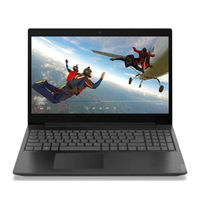
Lenovo IdeaPad L340 Series Setup Manual (8 pages)
Brand: Lenovo
|
Category: Laptop
|
Size: 0.46 MB
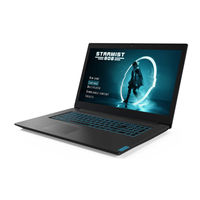
Lenovo IdeaPad L340 Series Setup Manual (8 pages)
Gaming Series
Brand: Lenovo
|
Category: Laptop
|
Size: 0.49 MB
Lenovo IdeaPad L340 Series Setup Manual (4 pages)
Brand: Lenovo
|
Category: Laptop
|
Size: 0.12 MB
Advertisement
Related Products
-
Lenovo IdeaPad L340-15IWL
-
Lenovo IdeaPad L340E-15IWL D
-
Lenovo IdeaPad L340H-15IWL
-
Lenovo IdeaPad L340L-15IWL
-
Lenovo IdeaPad L340R-15IWL
-
Lenovo IdeaPad L340-15IWLTouch
-
Lenovo IdeaPad L340-17IWL
-
Lenovo IdeaPad L340H-17IWL
-
Lenovo IdeaPad L340E-17IWL
-
Lenovo IdeaPad L340L-17IWL
Lenovo Categories

Laptop

Desktop
Server

Monitor
Tablet
More Lenovo Manuals