
:
OR
> laptops-and-netbooks

Ноутбуки и нетбуки
-
Главная Продукт -
Драйверы и Программное обеспечение -
Устранение неполадок и диагностика -
Инструкция -
Руководства и инструкции -
Диагностика -
Гарантия и Обслуживание -
Статус ремонта -
Детали -
Свяжитесь с нами -
Больше
:
OR
Содержание:
- Для чего необходима?
- Что можно найти?
- Инструкции к ноутбуку Леново 1
- Инструкции к ноутбуку Леново 3000 G
- Инструкции к ноутбуку Леново 3000 N
- Инструкции к ноутбуку Леново B
- Инструкции к ноутбуку Леново E
- Инструкции к ноутбуку Леново F
- Инструкции к ноутбуку Леново G
- Инструкции к ноутбуку Леново IdeaPad 1
- Инструкции к ноутбуку Леново IdeaPad 3
- Инструкции к ноутбуку Леново IdeaPad 5
- Инструкции к ноутбуку Леново IdeaPad A
- Инструкции к ноутбуку Леново IdeaPad E
- Инструкции к ноутбуку Леново IdeaPad Flex
- Инструкции к ноутбуку Леново IdeaPad N
- Инструкции к ноутбуку Леново IdeaPad P
- Инструкции к ноутбуку Леново IdeaPad S
- Инструкции к ноутбуку Леново IdeaPad U
- Инструкции к ноутбуку Леново IdeaPad V
- Инструкции к ноутбуку Леново IdeaPad Y
- Инструкции к ноутбуку Леново IdeaPad Z
- Инструкции к ноутбуку Леново K
- Инструкции к ноутбуку Леново M
- Инструкции к ноутбуку Леново N
- Инструкции к ноутбуку Леново S
- Инструкции к ноутбуку Леново ThinkPad 1
- Инструкции к ноутбуку Леново ThinkPad E
- Инструкции к ноутбуку Леново ThinkPad Edge
- Инструкции к ноутбуку Леново ThinkPad H
- Инструкции к ноутбуку Леново ThinkPad L
- Инструкции к ноутбуку Леново ThinkPad P
- Инструкции к ноутбуку Леново ThinkPad S
- Инструкции к ноутбуку Леново ThinkPad T
- Инструкции к ноутбуку Леново ThinkPad W
- Инструкции к ноутбуку Леново ThinkPad X
- Инструкции к ноутбуку Леново ThinkPad Y
- Инструкции к ноутбуку Леново U
- Инструкции к ноутбуку Леново V
- Инструкции к ноутбуку Леново Y
- Инструкции к ноутбуку Леново Z
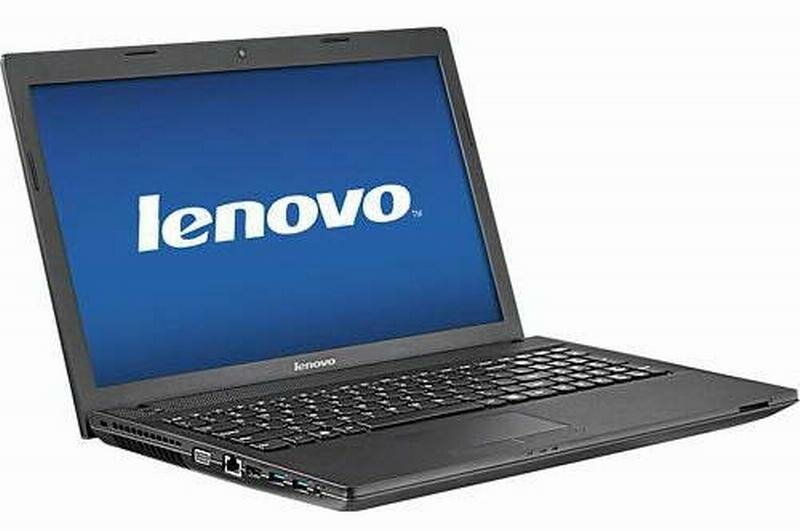
Разобраться с важными моментами, которые необходимы пользователям при использовании устройства, поможет инструкция к ноутбуку lenovo.
Для чего необходима?
Как известно, каждая модификация ноутбука Леново имеет свои особенности. Учитывая это, перед пользователем могут возникнуть трудности с использованием. Чтобы облегчить этот процесс, представлена инструкция к ноутбуку lenovo.
В ней отображено все самое необходимое и важное, даны ответы на самые распространенные вопросы владельцев.
Что можно найти?
Каждый производитель оснащает собственные устройства различными характеристиками, чтобы пользователи с разными предпочтениями и требованиями могли найти устройство по душе. Не отстает и компания lenovo. Инструкция к ноутбуку поможет подобрать для себя аппарат, который полностью соответствует потребностям и желаниям. В ней можно найти данные об основных характеристиках, возможностях, функционале, рекомендациях производителя и многом другом.
Информация в инструкциях представлена на доступном понятном языке, поэтому с ними с легкостью разберется даже неопытный пользователь.
Инструкции к ноутбуку Леново 1
Леново 100S Chromebook-11IBY
Инструкции к ноутбуку Леново 3000 G
Леново 3000 G230
Леново 3000 G410
Леново 3000 G430
Леново 3000 G530
Инструкции к ноутбуку Леново 3000 N
Леново 3000 N500
Инструкции к ноутбуку Леново B
Леново B40-30
Леново B40-45
Леново B40-70
Леново B40-80
Леново B41-80
Леново B430
Леново B4400
Леново B450
Леново B460
Леново B460e
Леново B470
Леново B470e
Леново B475
Леново B475e
Леново B480
Леново B490
Леново B50-10
Леново B50-30 (Touch)
Леново B50-45
Леново B50-70
Леново B50-80
Леново B51-80
Леново B5400 (Touch)
Леново B550
Леново B560
Леново B570
Леново B570e
Леново B575
Леново B575e
Леново B580
Леново B590
Леново B70-80
Инструкции к ноутбуку Леново E
Леново E31-70
Леново E40-30
Леново E40-70
Леново E40-80
Леново E43
Леново E4430
Леново E46
Леново E49
Леново E50–70
Леново E50–80
Инструкции к ноутбуку Леново F
Леново Flex 2 14 (D)
Леново Flex 2 15 (D)
Леново Flex 2 Pro-15
Леново Flex 3-1120
Леново Flex 3-1130
Леново Flex 3-1435
Леново Flex 3-1470
Леново Flex 3-1480
Леново Flex 3-1570
Леново Flex 3-1580
Инструкции к ноутбуку Леново G
Леново G40-30
Леново G40-45
Леново G40-70 (m)
Леново G40-80
Леново G400 / G405 / G410
Леново G400s (Touch) / G405s
Леново G41-35
Леново G410s Touch
Леново G450
Леново G455
Леново G460
Леново G460e
Леново G465
Леново G470 / G475
Леново G480 / G485
Леново G50-30
Леново G50-45
Леново G50-70 (m)
Леново G50-80 (Touch)
Леново G500 / G505 / G510
Леново G500s (Touch) / G505s
Леново G51-35
Леново G510s Touch
Леново G550
Леново G555
Леново G560
Леново G560e
Леново G565
Леново G570 / G575
Леново G580 / G585
Леново G70-35
Леново G70-70
Леново G70-80
Леново G700 / G710
Леново G770
Леново G780
Инструкции к ноутбуку Леново IdeaPad 1
Леново IdeaPad 100-14IBD
Леново IdeaPad 100-14IBY
Леново IdeaPad 100-15IBD
Леново IdeaPad 100-15IBY
Леново IdeaPad 100S-11IBY
Леново IdeaPad 100S-14IBR
Инструкции к ноутбуку Леново IdeaPad 3
Леново IdeaPad 300-14IBR
Леново IdeaPad 300-14ISK
Леново IdeaPad 300-15IBR
Леново IdeaPad 300-15ISK
Леново IdeaPad 300-17ISK
Леново IdeaPad 300S-11IBR
Леново IdeaPad 300S-14ISK
Леново IdeaPad 305
Инструкции к ноутбуку Леново IdeaPad 5
Леново IdeaPad 500-14ACZ
Леново IdeaPad 500-14ISK
Леново IdeaPad 500-15ACZ
Леново IdeaPad 500-15ISK
Леново IdeaPad 500S-13ISK
Леново IdeaPad 500S-14ISK
Инструкции к ноутбуку Леново IdeaPad A
Леново IdeaPad A10
Инструкции к ноутбуку Леново IdeaPad E
Леново IdeaPad E10-30
Инструкции к ноутбуку Леново IdeaPad Flex
Леново IdeaPad Flex 10
Леново IdeaPad Flex 14 (D) / 15 (D)
Инструкции к ноутбуку Леново IdeaPad N
Леново IdeaPad N580 / N581
Леново IdeaPad N585 / N586
Инструкции к ноутбуку Леново IdeaPad P
Леново IdeaPad P400 Touch
Леново IdeaPad P500 (Touch)
Леново IdeaPad P580 / P585
Инструкции к ноутбуку Леново IdeaPad S
Леново IdeaPad S10-2
Леново IdeaPad S10-3
Леново IdeaPad S10-3c
Леново IdeaPad S10-3s
Леново IdeaPad S10-3t
Леново IdeaPad S100
Леново IdeaPad S100c
Леново IdeaPad S12
Леново IdeaPad S20-30 (Touch)
Леново IdeaPad S200
Леново IdeaPad S205
Леново IdeaPad S206
Леново IdeaPad S210 (Touch) / S215 (Touch)
Леново IdeaPad S300
Леново IdeaPad S310
Леново IdeaPad S400 (u) / S405
Леново IdeaPad S400 Touch / S410 / S415 (Touch)
Леново IdeaPad S410p (Touch)
Леново IdeaPad S500 (Touch)
Леново IdeaPad S510p (Touch)
Леново IdeaPad S9 / S10
Инструкции к ноутбуку Леново IdeaPad U
Леново IdeaPad U110
Леново IdeaPad U130
Леново IdeaPad U150
Леново IdeaPad U160 / U165
Леново IdeaPad U260
Леново IdeaPad U300 (e) (s)
Леново IdeaPad U310 (Touch)
Леново IdeaPad U330
Леново IdeaPad U330p (Touch)
Леново IdeaPad U400
Леново IdeaPad U410 (Touch)
Леново IdeaPad U430p (Touch)
Леново IdeaPad U450
Леново IdeaPad U450p
Леново IdeaPad U455
Леново IdeaPad U460
Леново IdeaPad U510
Леново IdeaPad U530 Touch
Леново IdeaPad U550
Инструкции к ноутбуку Леново IdeaPad V
Леново IdeaPad V360
Леново IdeaPad V460
Инструкции к ноутбуку Леново IdeaPad Y
Леново IdeaPad Y330
Леново IdeaPad Y400
Леново IdeaPad Y410p
Леново IdeaPad Y430
Леново IdeaPad Y450
Леново IdeaPad Y460
Леново IdeaPad Y460p
Леново IdeaPad Y470
Леново IdeaPad Y480
Леново IdeaPad Y500
Леново IdeaPad Y510
Леново IdeaPad Y510p
Леново IdeaPad Y530
Леново IdeaPad Y550
Леново IdeaPad Y550P
Леново IdeaPad Y560
Леново IdeaPad Y560p
Леново IdeaPad Y570
Леново IdeaPad Y580
Леново IdeaPad Y650
Леново IdeaPad Y700 Touch-15ISK
Леново IdeaPad Y700-14ISK
Леново IdeaPad Y700-15ACZ (ISK)
Леново IdeaPad Y700-17ISK
Леново IdeaPad Y730
Леново IdeaPad Yoga 11
Леново IdeaPad Yoga 11S
Леново IdeaPad Yoga 13
Инструкции к ноутбуку Леново IdeaPad Z
Леново IdeaPad Z360
Леново IdeaPad Z370
Леново IdeaPad Z380
Леново IdeaPad Z400 (Touch)
Леново IdeaPad Z410
Леново IdeaPad Z460 / Z465
Леново IdeaPad Z470
Леново IdeaPad Z475
Леново IdeaPad Z480 / Z485
Леново IdeaPad Z500 (Touch)
Леново IdeaPad Z510 (Touch)
Леново IdeaPad Z560 / Z565
Леново IdeaPad Z570
Леново IdeaPad Z575
Леново IdeaPad Z580 / Z585
Леново IdeaPad Z710
Инструкции к ноутбуку Леново K
Леново K23
Инструкции к ноутбуку Леново M
Леново M30-70
Леново M40-70
Леново M4400s
Леново M490s
Леново M50-70
Леново M50-80
Леново M5400 (Touch)
Инструкции к ноутбуку Леново N
Леново N20 (p) Chromebook
Леново N21
Леново N40-30
Леново N40-45
Леново N40-70
Леново N40-80
Леново N50-45
Леново N50-70
Леново N50-80
Инструкции к ноутбуку Леново S
Леново S21e-20
Леново S40-70
Леново S41-35
Леново S41-70
Леново S41-75
Леново S435 Laptop
Инструкции к ноутбуку Леново ThinkPad 1
Леново ThinkPad 11e
Леново ThinkPad 11e Chromebook
Инструкции к ноутбуку Леново ThinkPad E
Леново ThinkPad E550 (c)
Леново ThinkPad E555
Инструкции к ноутбуку Леново ThinkPad Edge
Леново ThinkPad Edge 15
Леново ThinkPad Edge E120 / E125
Леново ThinkPad Edge E130 / E135
Леново ThinkPad Edge E145
Леново ThinkPad Edge E220s
Леново ThinkPad Edge E320 / E325
Леново ThinkPad Edge E330 / E335
Леново ThinkPad Edge E420
Леново ThinkPad Edge E420s
Леново ThinkPad Edge E425
Леново ThinkPad Edge E430 (c) / E435
Леново ThinkPad Edge E431
Леново ThinkPad Edge E440
Леново ThinkPad Edge E445
Леново ThinkPad Edge E520
Леново ThinkPad Edge E525
Леново ThinkPad Edge E530 (c) / E535
Леново ThinkPad Edge E531
Леново ThinkPad Edge E540
Леново ThinkPad Edge E545
Инструкции к ноутбуку Леново ThinkPad H
Леново ThinkPad Helix
Леново ThinkPad Helix (20CG, 20CH)
Инструкции к ноутбуку Леново ThinkPad L
Леново ThinkPad L420 / L421
Леново ThinkPad L430
Леново ThinkPad L440
Леново ThinkPad L450
Леново ThinkPad L520
Леново ThinkPad L530
Леново ThinkPad L540
Инструкции к ноутбуку Леново ThinkPad P
Леново ThinkPad P70
Инструкции к ноутбуку Леново ThinkPad S
Леново ThinkPad S230u Twist
Леново ThinkPad S3
Леново ThinkPad S430
Леново ThinkPad S431
Леново ThinkPad S440
Леново ThinkPad S531
Леново ThinkPad S540
Инструкции к ноутбуку Леново ThinkPad T
Леново ThinkPad T420(i)
Леново ThinkPad T420s(i)
Леново ThinkPad T430(i)
Леново ThinkPad T430s(i)
Леново ThinkPad T430u
Леново ThinkPad T431s
Леново ThinkPad T440
Леново ThinkPad T440p
Леново ThinkPad T440s
Леново ThinkPad T520(i)
Леново ThinkPad T530(i)
Леново ThinkPad T540p
Леново ThinkPad T550
Инструкции к ноутбуку Леново ThinkPad W
Леново ThinkPad W520
Леново ThinkPad W530
Леново ThinkPad W540
Леново ThinkPad W550s
Инструкции к ноутбуку Леново ThinkPad X
Леново ThinkPad X1 (Hybrid)
Леново ThinkPad X1 Carbon
Леново ThinkPad X121e
Леново ThinkPad X130e
Леново ThinkPad X131e
Леново ThinkPad X140e
Леново ThinkPad X220(i) (Tablet)
Леново ThinkPad X230(i)
Леново ThinkPad X230(i) Tablet
Леново ThinkPad X240
Леново ThinkPad X250
Инструкции к ноутбуку Леново ThinkPad Y
Леново ThinkPad Yoga 11e
Леново ThinkPad Yoga 11e Chromebook
Леново ThinkPad Yoga 12
Леново ThinkPad Yoga 14
Леново ThinkPad Yoga 15
Леново ThinkPad Yoga 460
Леново ThinkPad Yoga S1
Инструкции к ноутбуку Леново U
Леново U31-70
Леново U41-70
Инструкции к ноутбуку Леново V
Леново V370
Леново V470
Леново V470c
Леново V480(c)_V580(c)
Леново V560
Леново V570
Леново V570c
Инструкции к ноутбуку Леново Y
Леново Y40-70
Леново Y40-80
Леново Y50-70 (Touch)
Леново Y50-80 (Touch)
Леново Y70-70 Touch
Леново Y70-80 Touch
Леново Yoga 2 11
Леново Yoga 2 11 (Win 8.1)
Леново Yoga 2 13
Леново Yoga 2 Pro
Леново Yoga 3 Pro-1370 Laptop
Леново Yoga 3-1170 Laptop
Леново Yoga 3-1470
Леново Yoga 300-11IBY (IBR)
Леново Yoga 500-14ACL (ACZ)
Леново Yoga 500-14IBD (IHW)
Леново Yoga 500-14ISK
Леново Yoga 500-15ACL (IBD) (IHW)
Леново Yoga 500-15ISK
Леново Yoga 700-11ISK
Леново Yoga 700-14ISK
Леново Yoga 900-13ISK
Инструкции к ноутбуку Леново Z
Леново Z40-70
Леново Z40-75
Леново Z41-70
Леново Z50-70
Леново Z50-75
Леново Z51-70
Леново Z70-80
 Загрузка…
Рекомендуемые статьи:
- Manuals
- Brands
- Lenovo Manuals
- Laptop
- B570e
- User manual
-
Contents
-
Table of Contents
-
Troubleshooting
-
Bookmarks
Quick Links
Lenovo V470/ V570/
B470/B570/B570e
User Guide
Read the safety notices and important tips in the
included manuals before using your computer.
V2.0
Related Manuals for Lenovo B570e
Summary of Contents for Lenovo B570e
-
Page 1
Lenovo V470/ V570/ B470/B570/B570e User Guide Read the safety notices and important tips in the included manuals before using your computer. V2.0… -
Page 2
Notes • Before using the product, be sure to read Lenovo Safety and General Information Guide first. • Some instructions in this guide may assume that you are using Windows using other Windows operating system, some operations may be slightly different. If you are using other operating systems, some operations may not apply to you. -
Page 3: Table Of Contents
Replacing the hard disk drive … 41 Replacing memory… 45 Removing the optical drive (only for V470/B470) … 48 Appendix B. Lenovo limited warranty … 49 Warranty information … 53 Appendix C. Product specific notices … 56 Energy star information (only for V470/ V570/B470/B570) …
-
Page 5: Chapter 1. Getting To Know Your Computer
Chapter 1. Getting to know your computer Top view — — — — — — — — — — — — — — — — — — — — — — — — — — — — — — — — — — — — — — — — — — — — — — — — — — — — — — — — — — — — — — — — — — — — — — — — — — — — — — — — — — — — — — — — — — — — — — — — — — — — — — — — — — — — — — — — — — — — — — — — — — — V470 V470 Notes:…
-
Page 6
Chapter 1. Getting to know your computer V570 V570… -
Page 7
B470 B470 Chapter 1. Getting to know your computer… -
Page 8
Chapter 1. Getting to know your computer B570/B570e B570 Integrated camera (Select models only) Wireless module antennas (Select models only) Computer display Speakers Power button OneKey Rescue system button Note: For details, see “OneKey Rescue system” on page 33. Use the camera for video communication. The built-in antennas ensure optimal reception of wireless radio. -
Page 9
Built-in microphone Touchpad Note: For details, see “Using the touchpad” on page 15. Fingerprint reader (Select models only) Numeric keypad (V570/B570/B570e) System status indicators Chapter 1. Getting to know your computer The built-in microphone (with noise reduction) can be used for video conferencing, voice narration, or simple audio recordings. -
Page 10: Left-Side View
Chapter 1. Getting to know your computer Left-side view V470/B470 V570/B570/B570e Kensington slot Note: For details, see “Attaching a security lock (not supplied)” on page 26. AC power adapter jack Note: For details, see “Using AC adapter and battery” on page 14. Fan louvers Note: Make sure that none of the fan louvers are blocked or else overheating of the computer may occur.
-
Page 11
USB port or eSATA/ USB combo port (Select models only) Note: For details, see “Connecting a universal serial bus (USB) device” on page 19. USB port Note: For details, see “Connecting a universal serial bus (USB) device” on page 19. Chapter 1. -
Page 12: Right-Side View
Chapter 1. Getting to know your computer Right-side view V470/B470 V570/B570/B570e Headphone jack Attention: • Listening to music at high volume over extended periods of time may damage your hearing. Microphone jack USB port Note: For details, see “Connecting a universal serial bus (USB) device” on page 19. Optical drive RJ-45 port Note: For details, see “Wired connection”…
-
Page 13: Front View
Front view — — — — — — — — — — — — — — — — — — — — — — — — — — — — — — — — — — — — — — — — — — — — — — — — — — — — — — — — — — — — — — — — — — — — — — — — — — — — — — — — — — — — — — — — — — — — — — — — — — — — — — — — — — — — — — — — — — — — — — — V470/B470 V570/B570/B570e System status…
-
Page 14: Bottom View
Chapter 1. Getting to know your computer Bottom view — — — — — — — — — — — — — — — — — — — — — — — — — — — — — — — — — — — — — — — — — — — — — — — — — — — — — — — — — — — — — — — — — — — — — — — — — — — — — — — — — — — — — — — — — — — — — — — — — — — — — — — — — — — — — — — — — — V470/B470…
-
Page 15
V570/B570/B570e Battery latch — manual Battery pack Battery latch — spring loaded SIM card slot (Select models only) Notes: • In order to be able to insert a SIM card into this slot, you must first disconnect the AC adapter and remove the battery pack. -
Page 16: Chapter 2. Learning The Basics
Chapter 2. Learning the basics First use — — — — — — — — — — — — — — — — — — — — — — — — — — — — — — — — — — — — — — — — — — — — — — — — — — — — — — — — — — — — — — — — — — — — — — — — — — — — — — — — — — — — — — — — — — — — — — — — — — — — — — — — — — — — — — — — — — — — — — — — — — — — — Reading the manuals Read the supplied manuals before using your computer.
-
Page 17
To put the computer into sleep state, do one of the following. • Click and select Sleep from the Start menu. • Press Fn + F1. Note: Wait until the power indicator light starts blinking (indicating that the computer is in sleep state) before you move your computer. -
Page 18: Using Ac Adapter And Battery
If you are not going to use the computer for an extended period of time, or if you need to send your computer to Lenovo for service, etc. remove the battery pack from the computer. Before removing the battery pack, make sure the computer has been shut down.
-
Page 19: Using The Touchpad
Using the touchpad Touchpad Left click button Right click button Note: You can enable/disable the touchpad using Fn + F6. — — — — — — — — — — — — — — — — — — — — — — — — — — — — — — — — — — — — — — — — — — — — — — — — — — — — — — — — — — — — — — — — — — — — — — — — — — — — — — — — — — — — — — — — — — — — — — — — — — — — — — V570 To move the cursor on the screen, slide your fingertip over the pad in the direction in which you want the cursor to…
-
Page 20: Using The Keyboard
Chapter 2. Learning the basics Using the keyboard Your computer has a numeric keypad and function keys incorporated in its standard keyboard. Numeric keypad V470/B470 The keyboard has keys that, when enabled, work as a 10-key numeric keypad. To enable or disable the numeric keypad, press Fn + F8.
-
Page 21
Function key combinations Through the use of the function keys, you can change operational features instantly. To use this function, press and hold Fn ; then press one of the function keys Chapter 2. Learning the basics… -
Page 22
Chapter 2. Learning the basics The following describes the features of each function key. Fn + Esc: Fn + F1: Fn + F2: Fn + F3: Fn + F4: Fn + F5: Fn + F6: Fn + F8 (V470/B470): Fn + F9: Fn + F10: Fn + F11: Fn + F12:… -
Page 23: Connecting External Devices
Connecting external devices Your computer has a wide range of built-in features and connection capabilities. Using memory cards (not supplied) Your computer supports the following types of memory cards: • Secure Digital (SD) card • Secure Digital High Capacity (SDHC) card •…
-
Page 24
Chapter 2. Learning the basics Connecting a Bluetooth device (Select models only) If your computer has an integrated Bluetooth adapter card, it can connect to and transfer data wirelessly to other Bluetooth enabled devices, such as notebook computers, PDAs and cell phones. -
Page 25: Switching Gpu (Select Models Only)
Switching GPU (Select models only) Some IdeaPad models support Switchable Graphics. With this technology, you have the flexibility to switch between a dedicated Nvidia integrated Intel GPU (power-saving GPU), without restarting the Windows operating system. * GPU is short for graphics processing unit. Note: The dedicated Nvidia GPU provides you with superior graphics performance while the energy- efficient integrated graphics provides longer operation with the battery.
-
Page 26: Special Keys And Buttons
• When the computer is powered-off, press this button to enter the OneKey Rescue system if Lenovo OneKey Rescue system has been preinstalled. • In Windows operating system, press this button to start Lenovo OneKey Recovery. Note: For details, see “OneKey Rescue system” on page 33.
-
Page 27: System Status Indicators
System status indicators These indicators inform you of the computer status. V470/B470 V470 B470 — — — — — — — — — — — — — — — — — — — — — — — — — — — — — — — — — — — — — — — — — — — — — — — — — — — — — — — — — — — — — — — — — — — — — — — — — — — — — — — — — — — — — — — — — — — Chapter 2.
-
Page 28
Chapter 2. Learning the basics V570/B570/B570e V570 B570/ B570e… -
Page 29
Caps lock indicator Num lock indicator Hard disk drive indicator APS status indicator (V470/V570) Power status indicator Battery status indicator Wireless communication indicator Chapter 2. Learning the basics… -
Page 30: Securing Your Computer
For details about how to set the password, see the Help to the right of the screen in BIOS setup utility. Note: To enter BIOS setup utility, press F2 when the Lenovo logo appears on the screen while the computer is starting up.
-
Page 31: Chapter 3. Connecting To The Internet
Chapter 3. Connecting to the Internet As a global network, the Internet connects computers worldwide, providing services such as e-mailing, information searching, electronic commerce, Web browsing and entertainment. You can connect the computer to the Internet in the following ways: Wired connection: use physical wiring to connect.
-
Page 32: Wireless Connection
Chapter 3. Connecting to the Internet Wireless connection Wireless connections provide mobile access to the Internet, allowing you to stay online anywhere the wireless signal covers. Divided by the signal scales, wireless connection to the Internet can be built based on the following standards.
-
Page 33
SIM card, refer to “Inserting the SIM card” on page 30. Notes: • Various standards are in use by mobile operators to provide Mobile Broadband services. The Lenovo Mobile Broadband module may support one or more of the following standards: GSM (Global System for Mobile Communications) -
Page 34
Chapter 3. Connecting to the Internet Inserting the SIM card To insert the SIM card: Turn off the computer; then disconnect the AC adapter and all cables from the computer. Close the computer display and turn it over. Remove the battery. Insert the SIM card in the card slot until it clicks into place as shown in the illustration. -
Page 35
Chapter 3. Connecting to the Internet V570 Notched Corner Put the battery back in place. Turn the computer over and reconnect the cables. -
Page 36
Chapter 3. Connecting to the Internet Removing the SIM card To remove the SIM card: Turn off the computer, then disconnect the AC adapter and all cables from the computer. Close the computer display and turn it over. Remove the battery. Push the SIM card in until you hear a click, and then pull the SIM card out. -
Page 37: Chapter 4. Onekey Rescue System
OneKey Rescue system Introduction The Lenovo OneKey Rescue system is an easy-to-use application that can be used to back up the data on your system partition (C drive) for easy restore when required. You can run Lenovo OneKey Recovery under the Windows operating system, and the OneKey Rescue system without starting the Windows operating system.
-
Page 38: Chapter 5. Troubleshooting
Lenovo, see “Chapter 4. OneKey Rescue system” on page 33. How can I contact the customer support center? See » Chapter 3. Getting help and service» of Lenovo Safety and General Information Guide. Where can I find warranty information? For the warranty applicable to your computer, including the warranty period and type of warranty service, see “Appendix B.
-
Page 39
Chapter 5. Troubleshooting When do I need to restore the system to the factory status? You can use this feature when your system fails or you need to re-install your operating system. This will restore your computer back to the initial status when you first booted up your computer after receiving it from the store. -
Page 40: Troubleshooting
If you forget your HDD password, a Lenovo authorized servicer cannot reset your password or recover data from the hard disk. You must take your computer to a Lenovo authorized servicer or a marketing representative to have the hard disk drive replaced. Proof of purchase is required, and a fee will be charged for parts and service.
-
Page 41
Make sure that: — The battery is charged. — The operating temperature is within the acceptable range. See “Chapter 2. Use and care Information” of Lenovo Safety and General Information Guide. • If the computer does not return from sleep mode, it may have entered hibernation mode automatically because the battery is depleted. -
Page 42
Chapter 5. Troubleshooting Battery problems Your computer shuts down before the battery status indicator shows empty. -or- Your computer operates after the battery status indicator shows empty. The operating time for a fully charged battery is short. The computer does not operate with a fully charged battery. -
Page 43
In the Boot menu in the BIOS setup utility, make sure that the device is included in the Boot Priority Order list. • Press F12 when the Lenovo logo appears on the screen while the computer is starting up to select the device you want the computer starts from. -
Page 44: Appendix A. Cru Instructions
B570/B570e. Replacing the battery Note: Use only the battery provided by Lenovo. Any other battery could ignite or explode. To replace the battery, do the following: Turn off the computer, or enter hibernation mode. Disconnect the AC adapter and all cables from the computer.
-
Page 45: Replacing The Hard Disk Drive
Replacing the hard disk drive You can increase the storage capacity of your computer by replacing the hard disk drive with one of greater capacity. You can purchase a new hard disk drive from your reseller or Lenovo marketing representative.
-
Page 46
Appendix A. CRU instructions To replace the hard disk drive, do the following: Turn off the computer; then disconnect the AC adapter and all cables from the computer. Close the computer display, and then turn the computer over. Remove the battery pack. Remove the Hard disk drive (HDD)/Memory/Mini PCI Express Card slot compartment cover. -
Page 47
Remove the frame fixing screw Pull the tab in the direction shown by arrow Appendix A. CRU instructions… -
Page 48
Appendix A. CRU instructions Take out the hard disk drive secured in a metal frame Remove the screws and detach the metal frame from the hard disk drive. Attach the metal frame to a new hard disk drive and tighten the screws. Put the hard disk drive gently into the hard disk drive bay with the tab facing upwards and the connectors facing each other;… -
Page 49: Replacing Memory
Replacing memory — — — — — — — — — — — — — — — — — — — — — — — — — — — — — — — — — — — — — — — — — — — — — — — — — — — — — — — — — — — — — — — — — — — — — — — — — — — — — — — — — — — — — — — — — — — — — — — — — — — — — — — — — You can increase the amount of memory in your computer by installing a double-data-rate three synchronous dynamic random access memory (DDR3 SDRAM)-available as an option-in the memory slot of your computer.
-
Page 50
Appendix A. CRU instructions If two DDR3 SDRAMs are already installed in the memory slot, remove one of them to make room for the new one by pressing out on the latches on both edges of the socket at the same time. -
Page 51
Note: If only one DDR3 SDRAM is used on the computer you are servicing, the card must be installed in SLOT-0 ( : lower slot), but not in SLOT-1 ( To make sure that the DDR3 SDRAM is installed correctly, do as follows: Turn the computer on. -
Page 52: Removing The Optical Drive (Only For V470/B470)
Appendix A. CRU instructions Removing the optical drive (only for V470/B470) To remove the optical drive, do the following: Remove the screw shown in the illustration Gently pull the optical drive out The following table provides a list of CRUs (Customer Replaceable Units) for your computer, and informs you of where to find replacement instructions.
-
Page 53: Appendix B. Lenovo Limited Warranty
If the product does not function as warranted during the warranty period, you may obtain warranty service by contacting Lenovo or an approved service provider. Each of them is referred to as a “Service Provider.” A list of Service Providers and their telephone numbers is available at www.lenovo.com/support/phone.
-
Page 54
If your Service Provider determines that it is unable to either repair or replace your product, your sole remedy is to return the product to your place of purchase or to Lenovo for a refund of your purchase price. -
Page 55
Lenovo shall not be liable for more than the amount of actual direct damages suffered by you, up to the amount you paid for the product. This limit does not apply to damages for bodily injury (including death) and damage to real property or tangible personal property for which Lenovo is liable under law. -
Page 56
Appendix B. Lenovo limited warranty This limit also applies to Lenovo’s suppliers, resellers, and your Service Provider. It is the maximum amount for which Lenovo, its suppliers, resellers, and your Service Provider are collectively responsible. UNDER NO CIRCUMSTANCES SHALL LENOVO, ITS SUPPLIERS, RESELLERS, OR SERVICE PROVIDERS BE LIABLE FOR ANY OF THE FOLLOWING EVEN IF INFORMED OF THEIR POSSIBILITY: 1) THIRD PARTY CLAIMS AGAINST YOU FOR DAMAGES;… -
Page 57: Warranty Information
Appendix B. Lenovo limited warranty — — — — — — — — — — — — — — — — — — — — — — — — — — — — — — — — — — — — — — — — — — — — — — — — — — — — — — — — — — — — — — — — — — — — — — — — — — — — — — — — — — — — — — — — — — — — — — — — — -…
-
Page 58
An optional service offering may be available for purchase from Lenovo to have Lenovo install Self-service CRUs for you. You may find a list of CRUs and their designation in the publication that ships with your product or at www.lenovo.com/CRUs. The requirement to return a defective CRU, if any, will be specified in the materials shipped with a replacement CRU. -
Page 59
Lenovo. You must pack the failed product in the shipping carton used to ship the replacement product and return it to Lenovo. Transportation charges, both ways, are paid by Lenovo. Failure to use the carton in which the replacement product was received may result in your responsibility for damage to the failed product during shipment. -
Page 60: Appendix C. Product Specific Notices
Appendix C. Product specific notices The notices in this appendix are specific to the product with the given MT number. Notices that are common for most Lenovo products are included in “Appendix A. Notices” of the Lenovo Safety and General Information Guide.
-
Page 61
Table 1. ENERGY STAR power-management features ® Windows Power plan: Energy Star • Turn off the display: After 10 minutes • Put the computer to sleep: After 25 minutes • Advanced power settings: — Turn off hard disks: After 20 minutes — Hibernate: After 1 hour To awaken your computer from a Sleep mode, press any key on your keyboard. -
Page 62: Electronic Emissions Notices
Properly shielded and grounded cables and connectors must be used in order to meet FCC emission limits. Proper cables and connectors are available from Lenovo authorized dealers. Lenovo is not responsible for any radio or television interference caused by using other than recommended cables or connectors or by unauthorized changes or modifications to this equipment.
-
Page 63
EU-Mitgliedsstaaten und hält die Grenzwerte der EN 55022 Klasse B ein. Um dieses sicherzustellen, sind die Geräte wie in den Handbüchern beschrieben zu installieren und zu betreiben. Des Weiteren dürfen auch nur von der Lenovo empfohlene Kabel angeschlossen werden. Lenovo übernimmt keine Verantwortung für die Einhaltung der Schutzanforderungen, wenn das Produkt ohne Zustimmung der Lenovo verändert bzw. -
Page 64
This product is in conformity with the protection requirements of EU Council Directive 2004/108/ EC on the approximation of the laws of the Member States relating to electromagnetic compatibility. Lenovo cannot accept responsibility for any failure to satisfy the protection requirements resulting from a non-recommended modification of the product, including the installation of option cards from other manufacturers. -
Page 65: Appendix D. Specifications
Machine Type 20086, 4396 / 20092, 1066 / 20087, 4315 / 20093, 1068 / 20129 Note: The following specifications may contain technical inaccuracies or typographical errors. Lenovo reserves the right to improve and/or change specifications at any time without notice.
-
Page 66: Trademarks
Trademarks The following terms are trademarks or registered trademarks of Lenovo in the United States, other countries, or both. Lenovo OneKey Microsoft and Windows are trademarks of Microsoft Corporation in the United States, other countries, or both. Other company, products, or service names may be trademarks or service marks of others.
-
Page 67: Index
Camera … 4 Fingerprint reader … 26 Frequently Asked Questions… 34 Function key combinations … 17 Keyboard Using … 16 Lenovo Limited Warranty… 49 Meomory card reader … 19 Microphone Built-in … 5 Notice Electronic emissions … 58 OneKey Rescue system button …33 Password Problems …36…
-
Page 69
If your product is not working correctly, DO NOT RETURN IT TO THE STORE. For technical assistance, contact a Lenovo support specialist 24 hours a day by calling toll free 1-877-4 LENOVO (1-877-453-6686). Additionally, you can find support information and updates on the Lenovo Web site located at http://consumersupport.lenovo.com. -
Page 70
New World. New Thinking. www.lenovo.com P/N: 147500265 Printed in China…
Cервисные мануалы по ноутбукам Lenovo

Ноутбуки Lenovo – новый лидер пользовательских предпочтений во всем мире. Корпорация Lenovo образована на базе отдела разработок персональных компьютеров IBM. Наиболее известное потребительское качество компьютеров Lenovo – лучшая в мире клавиатура. Она выполнена с учетом эргономики человеческой кисти, что позволяет пользователю не уставать во время длительной работы. Технология управления курсором TrackPoint полностью заменяет компьютерную мышь. Линейный ряд Lenovo включает знаменитые модели ThinkPad и IdeaPad, которые считаются эталоном ноутбуков. Модели ThinkPad используются для рабочих целях – многие корпорации централизованно закупают их для нужд своих сотрудников. Линейка IdeaPad – современные мультимедийные устройства, которые меняют представления о возможностях, дизайне и геометрии ноутбука.
Подборка мануалов по разборке ноутбуков Lenovo. Все инструкции представленны на английском языке. Для поиска модели введите её номер в основном поиске. Все действия описанные в мануалах вы выполняете на свой страх и риск.
Сервисный мануал по ноутбукам Lenovo G400, G410, G500, G505, G510
ThinkPad X60 X60s X61 X61s
ThinkPad X20 X21 X22 X23 X24
ThinkPad T61 T61p 14.1-inch
ThinkPad T60 T60p 15.4-widescreen
ThinkPad T60 T60p 14.1 15.0-inch