
-
AHD MOBILE DVR User Manual MR9504
~ 1 ~
AHD MOBILE DVR User Manual
(MR9504)
-
AHD MOBILE DVR User Manual MR9504
~ I ~
Catalogue Chapter 1 Overview
……………………………………………………………………………………………
1Chapter 2 Quick setup
……………………………………………………………………………………….
11.Device Installation
…………………………………………………………………………………….
12.User Login
………………………………………………………………………………………………..
13.Set up the System time
……………………………………………………………………………..
24.Set up cameras
…………………………………………………………………………………………
35.Wizard
………………………………………………………………………………………………………
35.1 Vehicle Information setup
……………………………………………………………………
35.2 DiskManagement
…………………………………………………………………………………
45.3 WIFI Setup
…………………………………………………………………………………………..
45.4 Server setup
………………………………………………………………………………………..
55.5 NetState
………………………………………………………………………………………………
5Chapter 3 System menu
…………………………………………………………………………………….
61.Video Playback
………………………………………………………………………………………….
61.1 Video playback
……………………………………………………………………………………
71.2 Video backup
………………………………………………………………………………………
72. Basic Setup
………………………………………………………………………………………………..
72.1 Date time
setup……………………………………………………………………………………
82.2 Vehicle information
……………………………………………………………………………..
82.3 Preview setup
……………………………………………………………………………………..
82.4 On/Off Setting
……………………………………………………………………………………..
92.5 System information
……………………………………………………………………………..
93. Network setup
…………………………………………………………………………………………..
103.1 Server setup
………………………………………………………………………………………
103.2 WIFI Setup
…………………………………………………………………………………………
113.3 Network
State…………………………………………………………………………………….
124.Recording Setup
……………………………………………………………………………………..
124.1 Mode setup
……………………………………………………………………………………….
134.2 MainStream
……………………………………………………………………………………….
134.3
SubStream…………………………………………………………………………………………
144.4 Recording OSD
………………………………………………………………………………….
154.5 Image setup
………………………………………………………………………………………
154.6 Storage setup
……………………………………………………………………………………
155.Advanced setup
………………………………………………………………………………………
165.1 UserManagement
………………………………………………………………………………
165.2 Restore
……………………………………………………………………………………………..
175.3 Logout
………………………………………………………………………………………………
175.4 UART setting
……………………………………………………………………………………..
185.4.1 UART-TTS
……………………………………………………………………………………
185.4.2 UART-Serial Net
…………………………………………………………………………..
185.5 Rear Camera setup
……………………………………………………………………………
19 -
AHD MOBILE DVR User Manual MR9504
~ II ~
6.Device maintenance
………………………………………………………………………………..
196.1 Log inquiry
………………………………………………………………………………………..
206.2 Disk Management
………………………………………………………………………………
206.3 Import/Export
…………………………………………………………………………………….
216.4 System upgrading
……………………………………………………………………………..
217.Alarm setup
…………………………………………………………………………………………….
227.1 Input Alarm
………………………………………………………………………………………..
237.2 Video Loss
………………………………………………………………………………………..
247.3 FatigueDrivingAlarm
………………………………………………………………………….
247.4 OverSpeedAlarm
……………………………………………………………………………….
257.5 DiskError
…………………………………………………………………………………………..
25Chapter 4 Installation Warnings
……………………………………………………………………..
25 -
AHD MOBILE DVR User Manual MR9504
~ 1 ~
Chapter 1 Overview
MR9504 is a DVR designed for Analog HD vehicle monitoring. With
built-in highperformance image processor and advanced H.264 video compression
technology, itprovides AHD video recording, storage and playback solution. It
has built-in WiFi module(optional) for remote monitoring, analysis and management. It
comes with smart powermanagement system which can recognize the power type
automatically. When detectedthe battery’s voltage is lower than the gaven value, the device
will shutdown automaticallyand keep ultralow standby consumption.
Chapter 2 Quick setup
1.Device Installation
Please refer to “AHD MOBILE DVR Hardware User Manual (MR9504)”
for the SD cardinstallation and cables connection.
2.User Login
Right click the mouse, you will call out the login interface,
please input your UserName,Password, and select your language, click “OK” to login the
menu. (The default UserNameis admin, without Password), see as following:
Figure 1. User login Interface
Right click the mouse, select “Menu” to start setup in the menu,
see as following: -
AHD MOBILE DVR User Manual MR9504
~ 2 ~
Figure 2. System menu
“Menu” is the primary menu of the system setup and control, see
as following:Figure 3. Primary menu
3.Set up the System time
Path: Basic->DateTime, see as following:
Figure 4. System date and time
TimeSYNC: Date and Time can be synchronized with GPS/BD
-
AHD MOBILE DVR User Manual MR9504
~ 3 ~
4.Set up cameras
Path: Menu->Record->Mode. Please set up your cameras’
SignalType, Valid/Invalid. TheDVR works with both AHD and general cameras. If you use AHD
cameras, please selectthe first Type, if you use general cameras, please select the
third Type, if you use both ofgeneral and AHD cameras, please select the second Type. See as
following:Figure 5. SignalType setup
PS: If your cameras don’t display image on the monitor, please
check this setup.5.Wizard
Path: Menu->Wizard. This Wizard will help you to quick set up
the device connect with theserver. If your device is without WiFi function, you can ignore
the step 1/4 and begin withstep 2/4.
5.1 Vehicle Information setup
Figure 6. Wizard-Vehicle Information Setup
-
AHD MOBILE DVR User Manual MR9504
~ 4 ~
The DVR is using “Device ID” to connect with the server, so
please input the correctDeviceID which was registered on the server for your device. The
user can modify theVehicleName and PlateNumber according to their requirement. The
PlateNumber is thevehicle’s plate number, and it will be displayed in the
video.5.2 DiskManagement
SD card need to be formated in the device when using it for the
first time. If the SD cardwas not detected by the device, please check the SD card lock
and make sure it is welllocked.
Figure 7. Wizard-DiskManagement
5.3 WIFI Setup
The device can save maximum 6 WiFi ESSID (Access Points). It
will search, match,connect, and switch automatically. Click the corresponding blank
to start WiFi setup. Thenclick “Search” you will see the available WiFi around your area,
select the one your wantto connect and input the password and save it.
Figure 8. WiFi setup list
-
AHD MOBILE DVR User Manual MR9504
~ 5 ~
5.4 Server setup
IP (or Domain) is your server’s IP (or Domain), the Port should
be same with your serversetup.
Figure 9. Wizard-Server Setup
5.5 NetState
Path: Menu->Network->NetState. You can check the state of
the network connection ofyour device here.
Figure 10. NetState
Server: Online, it means the device connected with the
server. -
AHD MOBILE DVR User Manual MR9504
~ 6 ~
Chapter 3 System menu
Figure 11. System menu
1.Video Playback
The device supports one channel video playback, Select
“Playback” in the System menu,then you will get the video searching interface, please search
the video according to yourrequirement.
Figure 12. Video Search
PS: The system will only show the latest 4,000 pcs of video
files -
AHD MOBILE DVR User Manual MR9504
~ 7 ~
Figure 13. Video Search Result
1.1 Video playback
Double click the video file in the video Search result Interface
to playback the video.1.2 Video backup
Select the video files in the video search results interface and
use your U disk or SDcard to backup the videos. (The device supports USB time-delay
detecting, you caninsert the USB disk after you setted up and clicked the “Backup”
button.)2. Basic Setup
The basic setup includes the very basic setup items such as
DateTime, VehicleInformation, and Preview Etc., See as following:
Figure 14. Basic setup
-
AHD MOBILE DVR User Manual MR9504
~ 8 ~
2.1 Date time setup
Figure 15. Date time setup
Time synchronization: The system’s date and time can be
synchronized with GPS/BD.2.2 Vehicle information
Figure 16. Vehicle information
Device ID: It is the ID used to connect your device with the
server. It should be the sameID which you registered your device on the server.
2.3 Preview setup
Here you can setup the information which you want to overlay on
the Preview image(please note this is not overlayed on the recording image)
-
AHD MOBILE DVR User Manual MR9504
~ 9 ~
Figure 17. Preview setup
2.4 On/Off Setting
Figure 18. ON/OFFsetting setup
PS: The device’s power cable should be connected as per the
Hardware User Manual,otherwise, the On/Off setting will not work.
2.5 System information
System information includes: Device Model, Serial Number,
Hardware & Firmwareversion etc.
-
AHD MOBILE DVR User Manual MR9504
~ 10 ~
Figure 19. System information
3. Network setup
Network setup: This interface is used to set up the parameters
which are requested toconnect the device with the server.
Figure 20. Network setup
3.1 Server setup
IP/Domain is the ip or domain of your device’s server.
Figure 21. Server setup
-
AHD MOBILE DVR User Manual MR9504
~ 11 ~
3.2 WIFI Setup
The device can save maximum 6 WiFi ESSID (Access Points). It
will search, match,connect, and switch automatically. Click the corresponding blank
to start WiFi setup. Thenclick “Search” you will see the available WiFi around your area,
select the one your wantto connect and input the password and save it.
Figure 22. WIFI Setting list
You can input the ESSID of the WiFi AP but you can also click
“Search” to search theavailable WiFi ESSIDs around your area.
Figure 23. WIFI Setup
-
AHD MOBILE DVR User Manual MR9504
~ 12 ~
Figure 24. WIFI Search result
3.3 Network State
You can check the state of the network connection of your device
here.Figure 25. NetState
4.Recording Setup
Recording setup includes Mode, Main Stream, Sub Stream,
Recording OSD, Image,storage.
-
AHD MOBILE DVR User Manual MR9504
~ 13 ~
Figure 26. Recording setup
4.1 Mode setup
Figure 27. Mode setup
Please set up your cameras’ SignalType, Valid/Invalid. The DVR
works with both AHDand general cameras. If you use AHD cameras, please select the
first Type, if you usegeneral cameras, please select the third Type, if you use both
of general and AHDcameras, please select the second Type.
4.2 MainStream
Main Stream is stored in local disk. This interface shows the
current Main Stream -
AHD MOBILE DVR User Manual MR9504
~ 14 ~
setting and the corresponding storage size, you can click any
line to set up thecorresponding parameters.
Figure 28. Main stream list
Figure 29. MainStream AV setup
PS: If BitRate is bigger, the corresponding channel’s storage
size will be bigger.4.3 SubStream
SubStream is used for network transmission and backup in local
disk.Figure 30. SubStream setup
-
AHD MOBILE DVR User Manual MR9504
~ 15 ~
Figure 31. SubStream AV setup
4.4 Recording OSD
Recording OSD is used to overlay the information to video
recording.Figure 32. Recording OSD
4.5 Image setup
Image setup is used to adjust to camera’s image effect, please
set up it carefully.Figure 33. Image setup
4.6 Storage setup
The device supports dual storage. Both of the MainStream and
SubStream can bestored in local disk, but each disk can only store one type of
stream. -
AHD MOBILE DVR User Manual MR9504
~ 16 ~
Figure 34. Storage setup
5.Advanced setup
Figure 35. Advanced setup
5.1 UserManagement
You can add, modify, delete users, and modify the login username
and privileges -
AHD MOBILE DVR User Manual MR9504
~ 17 ~
Figure 36. User management
5.2 Restore
Restore the system setup parameters. System will reboot when
restore finished. Seeas following:
Figure 37. Restore
There are 3 restore modes:
Normal Info: Restore all info except Vehicle info.
Vehicle Info: Restore vehicle info only.
All: Restore all info.
5.3 Logout
Logout means the current user will logout the system
automatically if the user had nooperation in the gaven time range.
-
AHD MOBILE DVR User Manual MR9504
~ 18 ~
Figure 38. Logout
5.4 UART setting
The device has 1 RS232 Interface.
Figure 39. UART setting list
5.4.1 UART-TTS
Select UART 0 to get into UART setting interface.
Figure 40. UART setting interface
Select “TTS” in the drop-down box of “Function”, config the
parameters as per thepicture above.
5.4.2 UART-Serial Net
Select UART 0 to get into UART setting interface.
Figure 41. UART setting interface
-
AHD MOBILE DVR User Manual MR9504
~ 19 ~
Select “SerialNet”(PassThrough)in the drop-down box of
“Function”. Config theparameters as per the picture above.
5.5 Rear Camera setup
Any channel can be used as rear camera, click “Zone” to set up
the assistance lines.Figure 42. Rear Camera setup
The assistance lines are adjustable (dragging the blue
points)Figure 43. Assistance lines setup
6.Device maintenance
Device maintenance includes the operation of basic maintenance,
such as log inquiry,Disk management, Import/Export the setup and config, system
upgrading. -
AHD MOBILE DVR User Manual MR9504
~ 20 ~
Figure 44. Device maintenance
6.1 Log inquiry
Inquiry the system’s running log according to the required Log
Type and Time Range.Figure 45. Log inquiry
6.2 Disk Management
SD card need to be formatted in the device when you use it for
the first time. -
AHD MOBILE DVR User Manual MR9504
~ 21 ~
Figure 46. Disk Management
6.3 Import/Export
Import/Export is used to import/export the setup and config
information for setup inbatch.
Figure 47. Import/Export
After setted up one device, export the setup parameters with
your U disk, then insert the Udisk into other device’s USB port and re-power on the device, it
will get the setupparameters utomatically. (If you don’t want to re-power on the
device, you can import thesetup paramaters in menu, see as above)
6.4 System upgrading
Format your U disk as FAT32 type and copy the upgrading file to
the root directory of theU disk. Then re-power on the device, it will upgrade
automatically. If you don’t want tore-power on the device, you can upgrade it in the menu
“Import/Export”. Select theupgrading type, click OK, then insert the U disk. The system
will detect the U disk and thefile and then upgrade automatically.
-
AHD MOBILE DVR User Manual MR9504
~ 22 ~
Figure 48. System upgrading
Figure 49. Upgrading progress
PS: You can insert the U disk which with the upgrading file, and
then re-power on thedevice, it will upgrade automatically. You can also upgrade the
device remotely from PCCMS software if your device has WiFi function and connected with
the server by WiFi.7.Alarm setup
Alarm setup interface includes the setting related to all alarm
types, such as I/O alarm,Video Loss, Fatigue Driving, Over Speed, Disk error.
Figure 50. Alarm setup
-
AHD MOBILE DVR User Manual MR9504
~ 23 ~
7.1 Input Alarm
The device has 4 alarm inputs, 2 are Positive Trigger, 2 are
Negative trigger.Figure 51. Input Alarm list
Figure 52. Input Alarm setup
There are three input modes: high level, low level and open. For
positive trigger, thenormal trigger level is high, but if the reversed logic is
enabled, the trigger level is changedto low level and open. It is same for negative trigger.
表1. Alarm Input Trigger status list
Alarm Trigger Positive trigger Negative trigger
Reversed
Logic No High level Low level
Reversed
Logic Yes Low level/Open High level/Open
-
AHD MOBILE DVR User Manual MR9504
~ 24 ~
7.2 Video Loss
Video Loss alarm will be triggered if there is no camera or
wrong type camera wereconnected with a valid channel.
Figure 53. Video Loss alarm setup
7.3 FatigueDrivingAlarm
The Fatigue Driving time is calculated since the device was
started.Figure 54. Fatigue Driving alarm setup
-
AHD MOBILE DVR User Manual MR9504
~ 25 ~
7.4 OverSpeedAlarm
Figure 55. OverSpeedAlarm setup
7.5 DiskError
Figure 56. DiskError setup
Chapter 4 Installation Warnings
For safely using and long service life, please respect these
Warnings when insallingand using the device:
1. When you received the product, please open the box and check
the device andaccessories. If there is anything damaged or missing, please
contact your seller.2. When installing and operating the device, please respect the
standard of allelectronics and the connecting requests of the vehicle and other
devices3. Please double check the input power voltage, it should be
10-36V DC, to avoid thedamage caused by wrong voltage.
-
AHD MOBILE DVR User Manual MR9504
~ 26 ~
4. The device should work in the permitted temperature and
humidity.5. There should be enough space and fire resistant pipes on the
external cables of thedevice to avoid electric leakage caused by abrasion and
aging.6. The installation and construction should be compliant with
the standard of thegovernment.
AHD MOBILE DVR (OPAX-70HDD)

OPAX-70HDD AHD MOBILE DVR User Manual (OPAX-70HDD) Gps,3G ve Wifi Özelliği Yoktur Genel Kulllanım Klavuzudur. ~ 1 ~ OPAX-70HDD Catalogue Chapter 1 Overview… 1 Chapter 2 Quick setup… 1 1.Device Installation…
More information
4CH SD Card Mobile DVR Operation manual. Content

DVR instruction 4CH SD Card Mobile DVR Operation manual Content Power connection—————————————————————————————4 Remote controller instruction———————————————————————-6
More information
JZTEK DVR Operation Manual

Dear Valued Client, JZTEK DVR Operation Manual Thank you for your trust about JZTEK! If you re satisfied with this JZTEK product, we would sincerely appreciate providing your positive review and feedback
More information
JZTEK DVR Operation Manual

Dear Valued Client, JZTEK DVR Operation Manual Thank you for your trust about JZTEK! If you re satisfied with this JZTEK product, we would sincerely appreciate providing your positive review and feedback
More information
MDVR 800 QUICK START GUIDE

MDVR 800 QUICK START GUIDE Introduction & Warnings Before installing please read the following warnings carefully. Stortech CCTV strongly recommends that all connections and installations are carried out
More information
DDNS UPNP

PL-ADR0608/16-H2 PL-ADR0604-H2 Content 1 Product Introduction… 3 2 Installation… 3 2.1 Open-package Inspection… 3 2.2 Hard Disk Installation… 3 3. Local operation guide… 3 3.1 Boot operation…
More information
JZTEK DVR Operation Manual

JZTEK DVR Operation Manual Dear Valued Client, Windows10 version Thank you for your trust about JZTEK! If you re satisfied with this JZTEK product, we would sincerely appreciate providing your positive
More information
Pro7400H1 Hybrid DVR User Manual

Pro7400H1 Hybrid DVR User Manual User Information Admin User Name: Admin Password: IP Address: System Name: Table Of Contents 1. Menu Operation… 4 1.1 Main Menu… 4 2. Start Up/Shutdown System… 5
More information
GGM CCKITAHD. Quick Guide KIT AHD

GGM CCKITAHD Quick Guide KIT AHD Step 1 — Overview Step 2 — Schematic Diagram Step 3 — Step by Step configuration with Wizard Wizard… 4 HDD Management… 5 Record Schedule… 6 General System Configuration…
More information
IP Camera user manual

IP Camera user manual Product name:high definition IP Camera Document version:4.2 Editions suit for 1080P IP Camera Precautions Search and Login…1 Device searching…2 Install plugin…3 A. Real-time
More information
IP WEB User Manual V2.0

IP WEB User Manual V2.0 Please read carefully before installing or contacting your supplier. The information contained at the time of printing is correct, but is subject to change without notice. This
More information
Quick Start Guide 4/8/16-CH DVR.

Quick Start Guide 4/8/16-CH DVR 1. Install Hard Drive &DVD Writer 1.1 Install Hard Drive Notice: 1. Support two SATA hard drives. Please use the hard drive the manufacturers recommend specially for security
More information
AMDV960H4 User Manual

s AMDV960H4 User Manual AMDV960H4 User Manual Version 1.3.2 www.amcrest.com 1 TABLE OF CONTENTS 1 PRODUCTION 4 1.1. Product Key Features 4 1.2. Front Panel Controls 5 1.3. USB Mouse 6 1.4. Soft Keyboard
More information
NetClient software user manual

NetClient software user manual 1-1. General information Net Client is an application which provides users not only viewing and controling remote DVRs, but also receiving realtime event data or alarm signals
More information
Keyboard User s Manual

Keyboard User s Manual Version 1.0.0 1 Table of Contents 1 Features and Specifications… 7 1.1 Features… 7 1.2 Front Panel… 7 1.3 Rear Panel… 9 1.3.1 NKB1000 Series… 9 1.3.2 KB1000 Series… 9
More information
4-Ch Hybrid Digital Video Recorder

4-Ch Hybrid Digital Video Recorder Key Features Hardware Embedded, highly-reliable standalone HDVR Supports 4-ch BNC connectors Supports dual local displays (VGA and HDMI) Supports 3.5″ SATA x 1 HDD Supports
More information
HD IP CAMERA USER GUIDE

HD IP CAMERA USER GUIDE Feature Lists 24 x 7 online live HD video preview Remote access via multiple web browsers(ie/firefox, etc.) Easy P2P monitoring via smart phone APP(Android/IOS) ONVIF compatible,easy
More information
DSC-N114_Network_Video_Recorder

DSC-N114_Network_Video_Recorder Quick Start Guide 8200-1116-05 Regulatory information FCC information FCC compliance: This equipment has been tested and found to comply with the limits for a digital device,
More information
AHD 4CH HDD MOBILE DVR

AHD 4CH HDD MOBILE DVR Hardware User Manual (Nysus 6 & 7) 0 Catalogue Chapter 1 Accessories and Interface… 1 1.MDVR and accessories… 1 2.System connection… 2 3.Panel introduction… 3 4.Interfaces
More information
Lite H.264 DVR Setup Guide

Package Content Lite H.264 DVR Setup Guide Inspect the packaging carton. Make sure the Lite H.264 DVR is properly delivered. Remove all items from the box and make sure the box contains the following items.
More information
Mobile DVR (MDR) User Manual

Mobile DVR (MDR) User Manual 1 1. Overview 1.1 Introduction Mobile DVR adopt highly integrated H.264 ASIC, using the SD card or hard disk as a video storage medium. The system is with strong anti-vibration
More information
QRT-502. IE Operation Manual

QRT-502 IE Operation Manual Contents 1. Home.. 2 2. Replay…. 5 3. Media…. 6 3-1. Video…. 6 3-2. Audio…. 7 3-3. Image…. 8 3-4. OSD…. 9 3-5. PTZ (Not supported in QRT-501) 4. Parameters…. 10
More information
Error! Bookmark not defined.

HD-NVR user manual Directory Part one Basic Operation… 3 1. Basic Installation… 3 1.1 Hard Disk Installation… 3 1.2 Mouse Connection… 3 2. Starting… 3 3.Turn Off… 3 4.Login… 4 5.Preview…
More information
EX-SDI(Ver.2) Hybrid DVR

EX-SDI(Ver.) Hybrid DVR XD-L Series XD-0405L (4CH DVR) XD-0813L (8CH DVR) XD-M Series XD-163M (16CH DVR) XD-S Series XD-163S (16CH DVR) XD-0405L 4 50/60fps XD-0813L 8 (190×1080 100/10fps XD- 163M 16 00/40fps
More information
Quick Start. H.264 Network DVR 303Z

303Z H.264 Network DVR Quick Start Please read instructions thoroughly before operation and retain it for future reference. The image shown above may differ from the actual product appearance. 792_Quick_V0.9
More information
H.264 Digital Video Recorder

H.264 Digital Video Recorder User Manual 1/73 Contents 1. Production Introduction… 4 2. Installation…4 2.1. HDD Installation… 4 3. Fast Operation…5 3.1. Login…5 3.2. Starup Wizard… 6 3.3. Menu
More information
VMS-A1 Client Software. User Manual

VMS-A1 Client Software User Manual Contents Contents… 2 Chapter1. Overview… 4 1.1 Description… 4 1.2 Features & Functions… 4 Chapter2. Update Info… 6 Chapter3. Starting VMS-A1… 7 3.1 Installing
More information
Amcrest 960H DVR Quick Start Guide

Amcrest 960H DVR Quick Start Guide Version 2.0.2 Revised July 22, 2015 Welcome Thank you for purchasing our Amcrest 960H DVR! This quick start guide will help you become familiar with our DVR in a very
More information
Video Management Software

Video Management Software User Manual Web: europesecurity.eu Mail: info@europesecurity.eu Tel.: 0541 352 952 User s Manual 2 Contents CHAPTER : XMS CENTRAL USER MANUAL 1 PC REQUIREMENT 3 2 INSTALL 3 3
More information
Hybrid DVR Quick Start Guide

Hybrid DVR Quick Start Guide Thank you for purchasing our product. If there is any question or request, please do not hesitate to contact dealer. This manual is applicable to most Hybrid DVR models. DVR
More information
Quick Start Guide 4/8/16/24-Ch DVR

Quick Start Guide 4/8/16/24-Ch DVR 1.1 Install Hard Drive 4/8/16/24-CH DVR Quick Start Guide Notice: 1.4/3/16-ch DVR supports one SATA hard drive. 24-ch DVR supports three SATA hard drives. Please use
More information
DS-9000 Series Hybrid Net DVR

DS-9000 Series Hybrid Net DVR Overview DS-9000 series net DVR is the Hybrid DVR of a new generation designed by HIKVISION. The product combines various patents, along with advanced IT technologies such
More information
SmartWatch Eco/Eco Compact

SmartWatch Eco/Eco Compact Digital Video Recorders SmartWatch Eco SmartWatch Eco Compact Quick User Guide Index Box Contents…3 Front Panel Controls…4-5 SmartWatch Eco Compact…4 SmartWatch Eco…5
More information
START GUIDE FEATURES:

VT-TNR Series Transcendent Series 4, 8, 16, 32, and 64 Channel 8 MegaPixel H.265 Real Time Network Video Recorders with 4K HDMI Output QUICK START GUIDE FEATURES: 4, 8, 16, 32, and 64 Channel Stand-alone
More information
Pro71600N3 NVR User Manual

Pro71600N3 NVR User Manual User Information Admin User Name: Admin Password: IP Address: System Name: Table Of Contents 1. Menu Operation…4 1.1 Main Menu…4 2. Start & Shutdown System…5 2.1 Start
More information
DVR USER S MANUAL. Version 3.0

DVR USER S MANUAL Version 3.0 1 Contents 1. Startup Shutdown Reboot and Lock… 3 2. Live Preview… 3 3. Configuring Settings for Recording… 5 3.1 Initializing Record Settings…Error! Bookmark not
More information
2 Channel MDVR Manual

2 Channel MDVR Manual STOP ESC PLAY DEL. Content Attention 1 Accessories 1 Device instruction 2 Connection 4 Icons instruction 6 Set up Time setting 7 Video setting 8 Record setting 9 Snap shot 9 card
More information
Wireless IP Bird Box Camera

Wireless IP Bird Box Camera Model: 4901-18 Operation and Installation Manual 1 WELCOME… 3 PRODUCT OVERVIEW… 4 HARDWARE INSTALLATION… 4 Attach the External Power Adapter… 4 SMARTPHONE OR TABLET
More information
TruVision DVR 30 Quick Start Guide

TruVision DVR 30 Quick Start Guide Content Contact information 1 Package contents 1 Installation environment 1 Setting up the TVR 30 1 Connecting the devices 2 Turning on the TVR 30 2 Operating the TVR
More information
USER MANUAL. Mac Version

USER MANUAL Mac Version Contents 1 Software Introduction… 1 1.1 Summary… 1 1.2 Install and Uninstall… 1 1.2.1 Install the Software… 1 2 Login Software… 3 2.1 Login… 3 2.2 Control Panel Instruction…
More information
Chapter 3 Operating instructions

Chapter 3 Operating instructions Summary This chapter describes the how to control and navigate through the TVR 30 s menus and options. Content Control interfaces 10 Controlling the TVR 30 10 Front panel
More information
HD IPCameras User’s Mannual

Thank you for purchasing our products, if you have any questions or need, please feel free to contact us. This manual applies to IPC-XXX series of network cameras. This manual may contain technical inaccuracies
More information
TruVision DVR 60 Quick Start Guide

Content Package contents 1 Installation environment 1 Setting up the TVR 60 1 Connecting the devices 2 Turning on and off the TVR 60 2 Operating the TVR 60 3 DDNS settings 5 Live mode 5 Quick Archive 5
More information
AV KVM Over Fiber Matrix Switcher

AV KVM Over Fiber Matrix Switcher User Manual Version 2017 V1 Contents Contents WELCOME 1 ABOUT THIS MANUAL 1 CAUTIONS AND NOTES 1 COPYRIGHT 1 TRADEMARKS 2 DISCLAIMER 2 INTRODUCTION 3 MATRIX DEVICE 3 FRONT
More information
Pro7804N1 NVR User Manual

Pro7804N1 NVR User Manual Pro7804N1 User Manual BW R6.indd 1 User Information Admin User Name: Admin Password: IP Address: System Name: Table Of Contents 1. Menu Operation…4 1.1 Main Menu…4 2. Start
More information
DIGITAL VIDEO RECORDER

DIGITAL VIDEO RECORDER Quick Start Guide V1.0.0 Foreword Welcome Thank you for purchasing our Digital Video Recorder (DVR). This Quick Start Guide (hereinafter referred to be «the Guide») will help you
More information
HD 2CH Wi-Fi DVR FOCUS BLACK BOX

Biz conference material. HD 2CH Wi-Fi DVR FOCUS BLACK BOX Mobile App. Manual (v0.4) 1 / 22 Table of contents 1. Android App 1) App Download 2) App Layout 3) Wi-Fi Connection 4) Real-Time Video Mode on
More information
-
Contents
-
Table of Contents
-
Bookmarks
Quick Links
User manual
4ch Million Pixels SD
Mobile DVR
USER MANUAL
Version 3.0
Summary of Contents for SD-MDVR SW-0001A
-
Page 1
User manual 4ch Million Pixels SD Mobile DVR USER MANUAL Version 3.0… -
Page 2: Table Of Contents
User manual CATALOGUE 1 Parts list …………………………. 4 2 Product introduction ………………………. 4 2.1 Product features ……………………..4 2.2 Main Functions ……………………..6 2.3 Parameter Sheet ……………………..7 2.4 Front Panel ……………………….
-
Page 3
User manual 4.7.2 Speed Alarm ……………………29 4.7.3 Acceleration ……………………30 4.7.4 Motion Detection …………………… 30 4.7.5 Voltage Alarm ……………………31 4.7.6 Serial Port Set ……………………32 4.7.7 PTZ ……………………….. 32 4.8. -
Page 4: Parts List
User manual 1 Parts list Quantit Device Type Name Unit Basic Basic+GPS/BD Basic+Gps/BD+3/4G MDVR ✔ ✔ ✔ Remote Control ✔ ✔ ✔ Power input wire 1 ✔ ✔ ✔ AV input wire ✔ ✔ ✔ AV output wire ✔ ✔ ✔…
-
Page 5
User manual Special File System Technology,Solving repeatedly wipe cause file fragmentation, solving SD card file system collapse, data loss and cannot find SD card and file garbled, ensure the integrity of the data. 8-33V Adaptive Wide Voltage input, Super Low Power Consumption Design; SD card storage (maximum support two pieces 128GB SD card. -
Page 6: Main Functions
User manual Main Functions Main Sub‐Item Instructions Video Channel 4Channel video + 4Channel Audio recording synchronously; Support 4*720P(1280*720),4*D1(704*576),4*HD1(704*288), 4*CIF(352*288) ; Resolution Each channel is individually adjustable. Image Quality 0‐7 levels, 0 is the highest level. OSD Overlays information such as date time and vehicle ID Recording Sub‐System Loop Rec Support SD card loop recording, loop cover previous video Record Mode Timed recording, alarm trigger recording and manual recording Support 1 channel and 4 channels preview. Support enlarge Preview video image when alarm trigger and video rear view trigger; Disk Space pre‐allocated Support disks overwritten function. overwritten Video Search Search video files anytime per day, type(n/a) Support 1 to 4 channels playback. Playback System Playback Support forward and backward play at the speed of: x2 ,x4,x8,x16. Support alarm spot search and time search. Graphical User GUI Setup system parameters with the remote control. Interface 8 channels electrical level alarm input for optional Input…
-
Page 7: Parameter Sheet
User manual Parameter Sheet Item Parameter Linux Language Chinese/English/Others (can be customized) Video Compression H.264 Compression Mode OSD Overlays information such as date time and vehicle ID Graphical User Can connect to external LED screen. Setup system parameters with the remote GUI Interface control. 4CH 720P AHD/ 4CH standard definition /2CH high definition+2CH standard Video Input definition mixed video input ,aviation plug Video Output 1CH CVBS+ VGA output for optional, 1.0Vp‐p, 75Ω, aviation plug Support 1 channel and 4 channels preview.,Support Manual/Alarm Trigger full Preview screen preview Resolution 720P/D1/HD1/CIF, MAX:4 channels of 720P Video Quality 0‐7 levels, 0 is the highest level, 7 is the lowest level. PAL: 100f/s , CCIR625 line,50field; NTSC: 120f/s, CCIR525 line,60field; CIF: 256Kbps ~ 1.5Mbps, 8 level video quality optional; Video Standard HD1: 600Kbps ~ 2.5Mbps, 8 level video quality optional; D1: 800Kbps ~ 3Mbps, 8 level video quality optional; 720P: 4Mbps‐6Mbps, 8 levels video quality optional The default setting is auto recording after power on. Timed recording, alarm Record Mode trigger recording and manual recording are supported.
-
Page 8
User manual 2pieces SD Card,each max 128GB SD Card, mirror recording to protect data from Storage loss Support USB flash disk updating,SD card upgrade , OTA remote upgrade Upgrade automatically Video File Format H.264 General video format Storage File System Special FAT32 File System Front panel supports USB port, support USB flash disk upgrade to backup; hard USB disk box USB port, can back up video data Video Search Search video by Record Time/Record Type etc Video Max support 4CH Replay /Stop/Fast Forward/Fast Reverse at same time Playback Playback Support x 2,x4,x8,x16. fast forward or fast backward play Safety Management User/Admin 2 Levels Different Passwords , support screen lock TTS Voice Support the TTS Voice Broadcast function Broadcast Extension Functions Serial Port Support kinds of Access Equipment such as LED Advertising, PTZ control, Oil Fuel Extension Sensor,etc. Adaptive wide power input, support Wide Voltage, Over‐load、Over‐voltage、 Power Management Short Circuit、Reverse Protection..Support Time Setting/Delay power off Voltage Input DC:+8V ~ +33V… -
Page 9: Front Panel
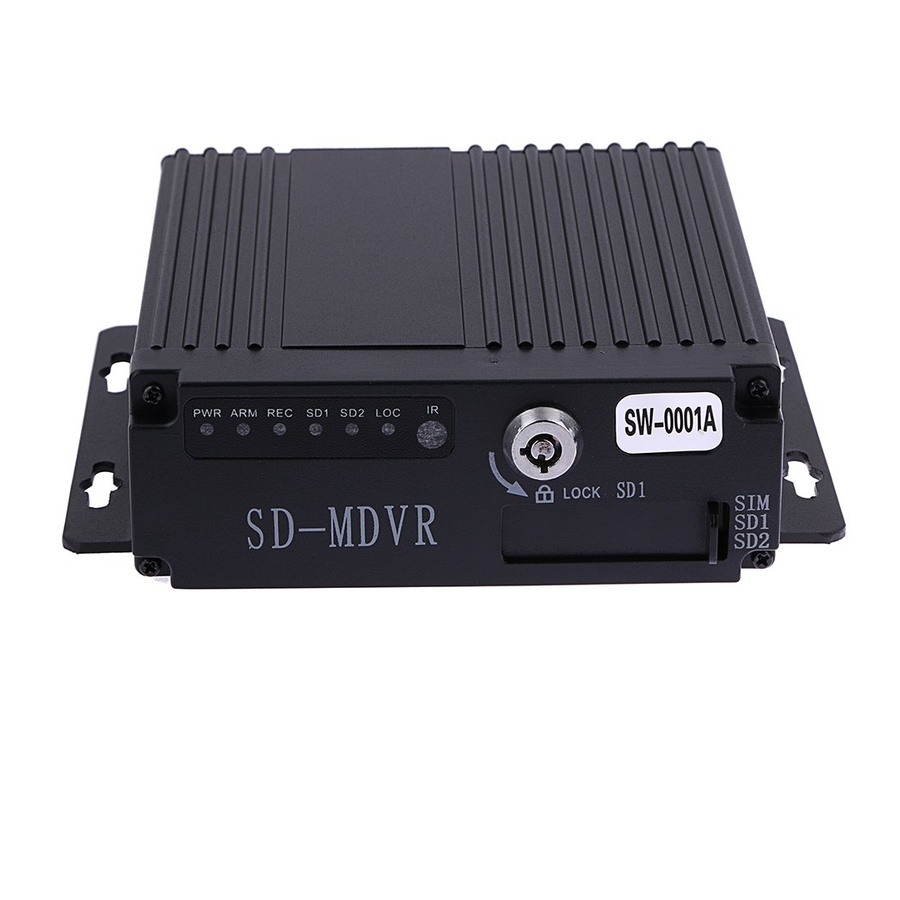
User manual Front Panel ① ② ③ ⑤ ④ Front Panel items introduction Silk Item Name Functional Specification screen Power Indicator LED, LED on means powered has connected. Alarm Indicator LED, LED on means alarm event is happening. Video Recording Indicator LED.LED means In the recording SD card 1 Indicator LED, LED ON—Card exists but not recording, LED ○ FLASH—Card 1is recording, LED OFF—Card does not exist Indicators SD card 1 Indicator LED, LED ON—Card exists but not recording, LED FLASH—Card 2 is recording, LED OFF—Card does not exist SD Lock Indicator LED, LED ON—SD Lock is open. IR Remote ○ Infrared remote control receiving hole Receiver It’s used for unload hard disk. ○ Device will power off automatically if power on when HDD lock is SD Lock LOCK open.
-
Page 10: 4Ch Mdvr Back Panel
User manual 4CH MDVR Back Panel ① ② ③ ⑦ ⑤ ⑥ ④ 4CH MDVR Back Panel items introduction : Item Name Silk screen Functional Specification Video&Audio ○ 1‐4Channels, with DC 12V output, AV1-AV4 Input interface Video&Audio ○ Video&Audio output interface, with DC 12V output AV OUT Output interface ○ 3G Antenna Port With alarm input&output、 serial port etc.A more detailed ○ SENSOR definition see chapter 1.6.4 ○ USB Interface It’s used to import or export data or upgrade Input Voltage DC 8‐33V,…
-
Page 11: 8Ch Mdvr Back Panel
User manual 8CH MDVR Back Panel ① ② ③ ⑦ ⑤ ⑥ ④ 8CH MDVR Back Panel items introduction : Item Name Silk screen Functional Specification 1,2 Channel Video&Audio Input interface, with DC 12V AV1-2 output Video&Audio ○ AV3-4 3,4 Channel Video&Audio Input interface Input interface AV5-6 5,6 Channel Video&Audio Input interface AV7-8…
-
Page 12: Power Input Interface Pin Description
User manual 4 Pin aviation 6 Pin aviation plug plug FUNCTION FUNCTION +12V +12V Video Input Audio Input/output Audio Input Video Input/output Video Input Audio Input 2.6.2 Power Input interface pin description Pin Configurations FUNCTION Power- Power+ 2.6.3 I/O Interface Definition I/O Port pin configurations PIN DESCRIPTION FUNCTION…
-
Page 13: Remote Controller
User manual Remote Controller Power and Standby Button,Reserved To endter system setting 【 - 】 : 0 9 Key In the setting mode,0-9 is uses to selecet the 【 - 】 number of menu items.In playback mode,the keys to select Number Key single channel playback.
-
Page 14: Device Installation
User manual 3 Device Installation Power Cable Connection This MDVR use DC power supply, Wide operating range8 to 33V ★…
-
Page 15: Operation Interface Setup
User manual 5. The power cables must can stand beyond 60W.(For example, when the output voltage of car is 12V,the power cables must can bear 5A or more). 6. Please put the cover on the cables, the cover must be wear-resistant, heat-resistant, water-proof, grease-proof, in case of short circuit and open circuit.
-
Page 16: Search
User manual Search Query menu includes: Record, Log and Picture, …
-
Page 17: Video Search
User manual 4.1.1 Video Search **** Green color display indicates current day and time exist video file **** “Search Date”: Press the number key to enter date, default is current date. “Start Time”: Press the number key to enter date, default is 00:00. “End Time”: Press the number key to enter date, default is 23:59.
-
Page 18: Log Query
User manual 4.1.2 Log Query This menu is to query device operation and working log , you can choose the same type log via log categories. When select a single log, press the keys to quickly flip over, and press to turn to first page or last page.
-
Page 19: Terminal Setup
User manual 4.4.1 Terminal Setup By remote control input settings: device number, phone number, license plate number, the provincial domain ID, the City ID, terminal type, manufacturer ID, terminal ID, the device management (data in accordance with the Department of standards, Chinese input can use the soft keyboard input) …
-
Page 20: User Management
User manual 4.4.2 User Management “Password Enable”: You can enable or disable password authentication to access the menu. Modify or setup password of users and the administrator by remote control. **** ADMIN Pass : 111111, USER Pass : 000000 **** 4.4.3 Time Set This menu is to setup device parameters, such as date and time, etc.
-
Page 21: Parameters Management
User manual “Power mode”:press the number keys to select the type, the default is ignition mode. “Delay Off”: Press the number keys to enter the time, the default is 5 minutes, can be set to 1440 minutes “Screen time”: Press the number keys to enter the time, the default is 60 minutes, can be set to 0-1440 minutes “Power On”: Press the number key to enter time, setup the timer start time “Power Off”: Press the number key to enter time, setup the timer off time…
-
Page 22: Format
User manual 4.4.6 FORMAT Format Disk choice, device will reboot disk after confirming, log and pictures and other related info will be reserved. Attention: Device will format automatically when it starts, new SD card, can be formatted on the computer, in general, it doesn’t need format disk in DVR by manual.
-
Page 23: Main Stream
User manual “Video Type”: PAL / NTSC, press [OK] key to select. “Record Mode”: Auto / timer / alarm recording, press [OK] key to select. “Camera Type “: Can switch the status of standard definition , high definition or mixed camera input. “Resolution”:Set the resolution of VGA output.
-
Page 24: Sub-Stream
User manual “Enable”: open or close the channel of pre-recording function, press [OK] key to select. “Resolution”: CIF, HD1, D1 and 720P resolution for choosing, press [OK] key to select. “FPS”: 1-25 frame (P standard), 1-30 frame (N standard) channel recording frame rate for choosing. “Image quality”…
-
Page 25: Storage Management
User manual Move the cursor to “Timing Recording” and press [OK] button to set up the following timing list. **************************************************************************************** Timer recording start time is before the end time. **************************************************************************************** 4.5.5 Storage management “pre-recorded”: pre-recorded alarm recording time of 0-60 seconds to setup, press number keys to setup. “Alarm delay”: alarm delay recording time, 120-3600 seconds to set up, press number keys to setup.
-
Page 26: Center Setup
User manual 4.6.1 Center Setup Set Server IP and Port ; “Monitoring Center”:Set 3G /4G Video Center IP or domain,port information etc, “Network Type”:Set 3G network type, IP address/Domain optional; “Center IP”:3G Server IP/Domain setup. Press right key to enter keyboard interface,input the numbers via remote controller,then press [OK] for setting,;…
-
Page 27: Local Network Setup
User manual 4.6.2 Local Network Setup Device Local Network setup “IP”\”Mask”\”Gateway”\ “DNS1” \”DNS2”\”MAC”:IP,Mask,Gateway,MAC setting for LAN network testing. Attention: When net cable directly connect to the device, only can use 4PIN definition net cable (please see more definition in the addenda), otherwise it will lead device dead. 4.6.3 3/4G Setup 3G/4G Network Configuration …
-
Page 28: Wifi Setup
User manual 4.6.4 WIFI Setup “WIFI-EN”:WIFI On/Off Setting,Press [OK] for choosing; “Encr-EN”: WIFI encryption ON/Off Setting,press [OK] for choosing; “Au-Mode”: WIFI Authentication mode setting,Please choose same one with your router, “Enc-Type”: WIFI Encryption type setting,Please choose the one same with your router, “IP”\”Mask”\”Gateway”:WIFI IP/Mask/Gateway setting “SSID”: Input Your WIFI SSID, “PWD”: Same with your WIFI password,…
-
Page 29: Io Alarm
User manual 4.7.1 IO Alarm Each channel alarm enable/level/time delay/Linkage information setting; “Enable”:Alarm Trigger enable on/off and alarm type, press [OK] for changing; “Level”:Choose Alarm trigger level,High/Low Level optional,press [OK] for optional; “ Delay”:When alarm trigger,if need delay alarm trigger,time can be set to reduce error alarm, press [OK] for changing;…
-
Page 30: Acceleration
User manual “ Speed Source”: The method to get speed, GPS/Pulse Signal Optional, Press [OK] for changing; “ Pulse Number”:Must set Pulse factor for the standard if using Pulse to get car speed information,press Numbers for changing,can search vehicle data or constant speed by several times setting for a certain number “…
-
Page 31: Voltage Alarm
User manual “Threshold “: Main is area alarm percentage, generally set 1 or 2, representing 1% or 2% area change images move,it will trigger motion detection alarm. “Sensitivity”: 0-7 levels, 0 is the highest level, 7 is the lowest level. Generally suggest to set 1, the bigger number you choose ,the lower the sensitivity will be, then it’s not easy to alarm as well.
-
Page 32: Serial Port Set
User manual 4.7.6 Serial Port Set External Device parameter setting, can connect LED Advertisement/TTS/Oil/Sensor/POS etc ; “ Peripheral”:The external device type option,press [OK] For Changing; “ Baud Rate”:Choose Baud Rate of external device,press [OK] for changing; “ Data Bit”: Choose the Data bit of external device, press [OK] for changing; “…
-
Page 33: System Info
User manual 4.8. System Info System Info have 2 parts for detail information;can view by menu or Press INFO. 5 FAQ 5.1. Common problem Q:When Device issue appear,you are confused on how to solve it. A:Check Device Item No & Firmware Version,sent back to us with detail description of issue.Our Technical Team will handle it.
-
Page 34: Gps Related Faq
User manual Q:Video Output Lost A:1.Check situation of DVR:Device Input Power;Power Cable Connection;GND Connect to battery;fuse;RED & Yellow Cable of Power must connect together; 2.Check the Screen Power or Check if the Screen change to related AV Channel; 3.Check the connection of Video Output & Screen Cable; Q:Device keep Rebooting A:1)Check working power,if low power device will keep rebooting;…
-
Page 35: Client Software Faq
User manual A:1)Choose inside wireless module WCDMA,EVDO,TD-SCDMA, relative module setting is different then SIM Card is different, please make sure the module is corresponding with the SIM Card. 2)If Server IP & Port set correct,if 3G signal strong for dialing;3G dialing successfully or not; 3)Check 3G Antenna connection,dialing will be failed if 3G signal too weak;…
-
Page 36
User manual 3.If the camera takes an electricity power from the equipment directly, may be the equipment’s electric voltage isn’t enough to make camera work as usual; d) The cable that links this channel has problem Q: Can’t playback files on PC successfully? Possible reason is as follows: 1.Have never chosen a record file or document path;…
Предложите, как улучшить StudyLib
(Для жалоб на нарушения авторских прав, используйте
другую форму
)
Ваш е-мэйл
Заполните, если хотите получить ответ
Оцените наш проект
1
2
3
4
5