
Данная лицензия не предназначена для продажи этого Руководства и Вы не становитесь владельцем этого Руководства после приобретения любого продукта, загрузки и/или использования. Nikon сохраняет за собой право владения данным Руководством и, следовательно, всеми копиями и все соответствующие права, относящиеся к интеллектуальной собственности, и сохраняет за собой все права, которые явно не предоставлены Вам в рамках данного Соглашения. Данное Соглашение представляет собой полное и эксклюзивное соглашение, устное и письменное, между Вами и Nikon.
1. РУКОВОДСТВО
Руководство предназначено для клиентов, которые приобрели наши продукты. Мы можем не иметь возможности ответить на запрос физических лиц, которые не приобрели наши продукты. Пожалуйста, имейте в виду, что данное руководство и контактная информация, указанные здесь, могут быть изменены без уведомления.
Данное Руководство защищено Законом об авторском праве Японии и международными законами об авторском праве и международными договорами. Вам необходимо воспроизвести на каждой копии уведомление об авторском праве Nikon и любую другую информацию о праве собственности, которые присутствовали на оригинале.
2. ОГРАНИЧЕНИЯ
Кроме случаев, когда в данном Соглашении указано иное, нельзя делать или передавать копии данного Руководства другим или передавать в электронной форме Руководство с одного компьютера на другой по сети. НЕЛЬЗЯ ИЗМЕНЯТЬ ИЛИ УДАЛЯТЬ ЛЮБЫЕ УВЕДОМЛЕНИЯ ОБ АВТОРСКОМ ПРАВЕ, ТОРГОВОЙ МАРКЕ ИЛИ ДРУГИЕ ЗАЩИТНЫЕ УВЕДОМЛЕНИЯ, СОДЕРЖАЩИЕСЯ В ДАННОМ РУКОВОДСТВЕ. НЕЛЬЗЯ ПРИСВАИВАТЬ ИЛИ ИНЫМ ОБРАЗОМ ИЗБАВЛЯТЬСЯ, МОДИФИЦИРОВАТЬ, НАСТРАИВАТЬ, ПЕРЕВОДИТЬ, АРЕНДОВАТЬ, БРАТЬ В НАЕМ, ЗАНИМАТЬ, ПЕРЕПРОДАВАТЬ, РАСПРОСТРАНЯТЬ, ПЕРЕДАВАТЬ ПО СЕТИ ИЛИ СОЗДАВАТЬ ИЛИ ИМЕТЬ СОЗДАННЫЕ ПРОИЗВОДСТВЕННЫЕ РАБОТЫ, ОСНОВАННЫЕ НА ДАННОМ РУКОВОДСТВЕ ИЛИ ЛЮБОЙ ЧАСТИ ТАКОВОГО.
3. ОГРАНИЧЕННАЯ ГАРАНТИЯ И ОТКАЗ
В НАИБОЛЬШЕЙ СТЕПЕНИ, РАЗРЕШЕННОЙ В СИЛУ ДЕЙСТВУЮЩЕГО ЗАКОНОДАТЕЛЬСТВА, ДАННОЕ РУКОВОДСТВО ПРЕДОСТАВЛЕНО НА ОСНОВЕ ПРИНЦИПА «КАК ЕСТЬ», БЕЗ ГАРАНТИИ В ЛЮБОЙ ФОРМЕ, И КОМПАНИЯ NIKON, ЕЕ СОТРУДНИКИ, РАСПРОСТРАНИТЕЛИ, ДИЛЕРЫ И АГЕНТЫ ПРЯМО НЕ ПРИЗНАЮТ ЛЮБУЮ ГАРАНТИЮ В ЛЮБОЙ ФОРМЕ, ВЫРАЖЕННУЮ ИЛИ ПОДРАЗУМЕВАЕМУЮ, ВКЛЮЧАЯ, НО НЕ ОГРАНИЧИВАЯСЬ, ЛЮБОЙ ПОДРАЗУМЕВАЕМОЙ ГАРАНТИЕЙ ПРИГОДНОСТИ ДЛЯ ТОРГОВЛИ, ПРИГОДНОСТИ ДЛЯ ОПРЕДЕЛЕННОГО НАЗНАЧЕНИЯ ИЛИ ОТСУТСТВИЯ НАРУШЕНИЙ. В НАИБОЛЬШЕЙ СТЕПЕНИ, РАЗРЕШЕННОЙ В СИЛУ ДЕЙСТВУЮЩЕГО ЗАКОНОДАТЕЛЬСТВА, КОМПАНИЯ NIKON, ЕЕ СОТРУДНИКИ, РАСПРОСТРАНИТЕЛИ, ДИЛЕРЫ И АГЕНТЫ НЕ ГАРАНТИРУЮТ ИСПОЛНЕНИЕ ИЛИ РЕЗУЛЬТАТЫ, КОТОРЫЕ ВЫ МОЖЕТЕ ПОЛУЧИТЬ ИЗ ДАННОГО РУКОВОДСТВА, ИЛИ ЧТО ДАННОЕ РУКОВОДСТВО БУДЕТ СООТВЕТСТВОВАТЬ ВАШИМ ТРЕБОВАНИЯМ ИЛИ ЧТО РАБОТА РУКОВОДСТВА БУДЕТ БЕСПЕРЕБОЙНОЙ, БЕЗОШИБОЧНОЙ ИЛИ НЕ БУДЕТ СОДЕРЖАТЬ ВИРУСОВ. В НАИБОЛЬШЕЙ СТЕПЕНИ, РАЗРЕШЕННОЙ В СИЛУ ДЕЙСТВУЮЩЕГО ЗАКОНОДАТЕЛЬСТВА, НИ КОМПАНИЯ NIKON, НИ ЕЕ СОТРУДНИКИ, РАСПРОСТРАНИТЕЛИ, ДИЛЕРЫ И АГЕНТЫ НЕ ДОЛЖНЫ НЕСТИ ПЕРЕД ВАМИ ОТВЕТСТВЕННОСТЬ ЗА ЛЮБЫЕ КОСВЕННЫЕ, ПОСЛЕДУЮЩИЕ ИЛИ НЕПРЕДНАМЕРЕННЫЕ УБЫТКИ, ПОТЕРИ ИЛИ ИЗДЕРЖКИ ЛЮБОГО ТИПА, БУДЬ ТО ПОТЕРЯ ПРИБЫЛИ, ПЕРЕРЫВ В ДЕЯТЕЛЬНОСТИ ИЛИ ИНЫМ СПОСОБОМ ВОЗНИКАЮЩИЙ ИЛИ ЯВЛЯЮЩИЙСЯ СЛЕДСТВИЕМ ДАННОГО РУКОВОДСТВА, ВЫЗВАННЫЙ КАКИМ-ЛИБО СПОСОБОМ, ДАЖЕ ЕСЛИ КОМПАНИЯ NIKON, ЕЕ СОТРУДНИКИ, РАСПРОСТРАНИТЕЛИ, ДИЛЕРЫ ИЛИ АГЕНТЫ УВЕДОМЛЕНЫ О ВОЗМОЖНОСТИ ВОЗНИКНОВЕНИЯ ТАКИХ УБЫТКОВ, ПОТЕРЬ ИЛИ ИЗДЕРЖЕК. ЭТОТ ОТКАЗ СОСТАВЛЯЕТ СУЩЕСТВЕННУЮ ЧАСТЬ ДАННОГО СОГЛАШЕНИЯ, И НЕИСПОЛЬЗОВАНИЕ ДАННОГО РУКОВОДСТВА УПОЛНОМОЧЕНО, КРОМЕ СЛУЧАЕВ В РАМКАХ ДАННОГО ОТКАЗА.
4. ОБЩИЕ СВЕДЕНИЯ
Данное соглашение регулируется и должно истолковываться в соответствии с законами Японии независимо от его принципов коллизионного права. В случае возникновения спора в рамках или в связи с данным соглашением Вы, таким образом, даете согласие на персональную юрисдикцию Японии и отказываетесь от любого возражения, что такая дискуссия вызывает затруднение. Далее Вы соглашаетесь на получение судебных извещений в любом действии, возникающем из данного Соглашения по обычной почте или другими коммерчески оправданными способами доставки расписки в получении. Если любое положение данного Соглашения должно быть определено недействительным по какой-либо причине, то оставшиеся положения не должны быть признаны недействительными и должны остаться в силе без изменений. Данное Соглашение устанавливает в дальнейшем целое соглашение и понимание между Вами и компанией Nikon, и замещает собой и заменяет любые другие соглашения, относящиеся к сути дела данного Соглашения. Неуспех любой стороны в настаивании на строгом исполнении любого правила или положения данного соглашения, или выполнение любой опции, права или защиты прав, содержащихся в данном документе, не должны толковаться в качестве отказа от любого применения такого правила, положения, опции, права или защиты прав в будущем, и такое правило, положение, опция, право или защита прав должны продолжиться и сохранить полную юридическую силу и действие. Заголовки разделов данного Соглашения вставлены только для удобства и не должны составлять часть данного документа или влиять каким-либо образом на значение или толкование данного Соглашения. Кроме случаев, когда иначе явно указано в данном документе, положения раздела 3 и раздела 4 вместе с любыми положениями, которые с помощью своих прямо выраженных условий относятся к периодам после прекращения срока действия данного Соглашения, должны оставаться в силе после прекращения действия данного Соглашения по какой-либо причине.
Руководства для продуктов Nikon/ 2018/02/15/ Вер. 2.0.0
-
Contents
-
Table of Contents
-
Troubleshooting
-
Bookmarks
Quick Links
DIGITAL CAMERA
Reference Manual
En
Related Manuals for Nikon Coolpix P530
Summary of Contents for Nikon Coolpix P530
-
Page 1
DIGITAL CAMERA Reference Manual… -
Page 3
Introduction Parts of the Camera and Main Functions The Basics of Shooting and Playback Shooting Features Playback Features Recording and Playing Back Movies General Camera Setup Connecting the Camera to a TV, Computer, or Printer Reference Section Technical Notes and Index… -
Page 4: Introduction
Introduction Read This First Thank you for purchasing the Nikon COOLPIX P530 digital camera. Before using the camera, please read the information in “For Your Safety” (Avii-ix) and familiarize yourself with the information provided in this manual. After reading, please keep this manual handy and refer to it to enhance your enjoyment of…
-
Page 5: About This Manual
About This Manual If you want to start using the camera right away, see “The Basics of Shooting and Playback” (A16). To learn about the parts of the camera and information that is displayed in the monitor, see “Parts of the Camera and Main Functions” (A1). Other Information •…
-
Page 6: Information And Precautions
Before taking pictures on important occasions (such as at weddings or before taking the camera on a trip), take a test shot to ensure that the camera is functioning normally. Nikon will not be held liable for damages or lost profits that may result from product malfunction.
-
Page 7
• Nikon reserves the right to change the specifications of the hardware and software described in these manuals at any time and without prior notice. • Nikon will not be held liable for any damages resulting from the use of this product. -
Page 8
Disposing of Data Storage Devices Please note that deleting images or formatting data storage devices such as memory cards or built-in camera memory does not completely erase the original image data. Deleted files can sometimes be recovered from discarded storage devices using commercially available software, potentially resulting in the malicious use of personal image data. -
Page 9: For Your Safety
For Your Safety To prevent damage to your Nikon product or injury to yourself or to others, read the following safety precautions in their entirety before using this equipment. Keep these safety instructions where all those who use the product will read them.
-
Page 10
• Do not immerse in or expose to Nikon-authorized service water. representative for inspection. Failure to observe these precautions could result in fire or electric shock. -
Page 11
Do not use wireless network functions and output jacks, use only the cables while in the air. provided or sold by Nikon for the Follow the instructions of the hospital purpose, to maintain compliance with when using while in a hospital. -
Page 12: Notices
15 of the FCC Rules. These limits are modifications made to this device designed to provide reasonable that are not expressly approved by protection against harmful Nikon Corporation may void the interference in a residential user’s authority to operate the installation. This equipment equipment.
-
Page 13
State of California to cause birth defects or other reproductive harm. DISPOSE OF USED BATTERIES Wash hands after handling. ACCORDING TO THE Nikon Inc., INSTRUCTIONS. 1300 Walt Whitman Road, This symbol indicates that Melville, New York 11747-3064 electrical and electronic… -
Page 14: Table Of Contents
Table of Contents Introduction …………………… ii Read This First ……………………..ii About This Manual ……………………….. iii Information and Precautions ………………….. iv For Your Safety ……………………vii WARNINGS …………………………vii Notices ……………………….x Parts of the Camera and Main Functions…………1 The Camera Body……………………
-
Page 15
Special Effects Mode (Applying Effects When Shooting)……… 46 j, k, l, m Modes (Setting the Exposure for Shooting) ……… 48 The Control Range of the Shutter Speed………………. 52 M (User Settings) Mode ………………….53 Saving Settings in M Mode (Save User Settings)…………..54 Functions That Can Be Set Using the Multi Selector………. -
Page 16
Connecting the Camera to a TV, Computer, or Printer……93 Connection Methods………………….93 Using ViewNX 2 ……………………95 Installing ViewNX 2 ……………………..95 Transferring Images to the Computer ………………96 Viewing Images……………………….97 Reference Section ………………..E1 Using Easy Panorama (Shooting and Playback) …………. E2 Shooting with Easy Panorama……………….. -
Page 17
Metering …………………………E32 Continuous Shooting ……………………E33 ISO Sensitivity ……………………….. E37 Exposure Bracketing……………………E38 AF Area Mode……………………….. E39 Autofocus Mode……………………..E42 Flash Exp. Comp……………………..E42 Noise Reduction Filter……………………E43 Active D-Lighting ……………………..E43 Multiple Exposure……………………..E44 Zoom Memory……………………… E46 Startup Zoom Position…………………… -
Page 18
Toggle Av/Tv Selection …………………… E72 Reset File Numbering ……………………E72 Blink Warning……………………….E73 Eye-Fi Upload……………………….E74 Peaking …………………………E75 Reset All …………………………E75 Firmware Version ……………………..E75 Error Messages……………………. E76 File Names ……………………. E80 Optional Accessories ………………… E81 Technical Notes and Index…………….F1 Caring for the Products………………… -
Page 19: Parts Of The Camera And Main Functions
Parts of the Camera and Main Functions The Camera Body Flash raised 13 14 HDMI mini connector (Type C) ..93 Eyelet for camera strap ……. 6 Connector cover……..93 Power switch/power-on lamp … 22 Power connector cover (for w (function) button ……4 ….
-
Page 20
10 11 12 13 c (playback) button …… 32 Speaker ……..82, 89, 91 d (menu) button Diopter adjustment control….7 ……….8, 68, 82, 89, 91 Electronic viewfinder……7 l (delete) button …… 33, 90 x (monitor) button ……7 k (apply selection) button b (e movie-record) button …………..3, 5, 8 …………….85… -
Page 21: Principle Functions Of The Controls
Principle Functions of the Controls For Shooting Control Main Function Change the shooting mode. Mode dial Move toward g (i) (telephoto) to zoom in closer to the subject, and move toward f (h) (wide-angle) to zoom out and view a larger area.
-
Page 22: For Playback
Control Main Function Start and stop movie recording. b (e movie-record) button When the shooting mode is j, k, l, m or Display or close the setting menus such as Continuous or Vibration reduction. w (function) button Switch between the monitor and viewfinder. 7 x (monitor) button Play back images.
-
Page 23
Control Main Function • Switch the monitor display between the histogram, tone level and shooting information display and full-frame playback. • Display individual images of a sequence in full-frame playback mode. • Scroll an image shot with Easy panorama. • Play back movies. k (apply selection) •… -
Page 24: Attaching The Camera Strap And Lens Cap
Attaching the Camera Strap and Lens Cap Attach the Lens Cap LC-CP24 to the strap, and then attach the strap to the camera. Attach the strap at two places. Lens Cap • At times when you are not shooting images, attach the lens cap to the lens to protect it.
-
Page 25: Switching Between The Monitor And Viewfinder (X Button)
Switching Between the Monitor and Viewfinder (x Button) You can use the viewfinder when bright light Viewfinder under the open sky makes it difficult to see x (monitor) the monitor. button Each press of the x button switches the display between the monitor and viewfinder. Diopter Adjustment of the Viewfinder When the image in the viewfinder is difficult to see, adjust by rotating the diopter…
-
Page 26: Using Menus (The D Button)
Using Menus (the d Button) Use the multi selector and k button to navigate the menus. Press the d button. • The menu that matches the status of the camera, such as shooting or playback menu, is displayed. Unavailable menu items are displayed in gray and cannot be selected. Shooting menu Image quality Image size…
-
Page 27
Switching Among Menu Tabs To display a different menu, such as the setup menu (A91), use the multi selector to switch to another tab. Tabs Set up Shooting menu Shooting menu Image quality Image quality Welcome screen Image size Image size Time zone and date Picture Control Picture Control… -
Page 28: The Monitor
The Monitor The information that is displayed in the monitor during shooting and playback changes depending on the camera’s settings and state of use. By default, information is displayed when the camera is first turned on and when you operate the camera, and turns off after a few seconds (when Photo info is set to Auto info in Monitor settings (A91)).
-
Page 29
Travel destination icon ….91 Shooting mode……26, 27 Eye-Fi communication Flash mode ……….56 indicator ……..92, E74 Focus mode……….61 White balance……..68 Zoom indicator……29, 62 COOLPIX Picture Control ….68 Focus indicator ……..30 Active D-Lighting……..69 Zoom memory ……..70 Continuous shooting Movie options (normal mode……….44, 69 speed movies)……..89 Backlighting (HDR)……42… -
Page 30
1/250 1/250 F5.6 F5.6 10m 0s 10m 0s 10m 0s 10m 0s 10m 0s 10m 0s 500mm 500mm 1/250 1/250 F5.6 F5.6 9999 9999 1/250 1/250 F5.6 F5.6 9999 9999 Spot metering area……69 Focus area (target finding AF) …………69, 71, 76 Center-weighted area……69 Focus area (center/manual) View/hide histograms… -
Page 31
For Playback Full-frame playback (A32) 1 2 3 4 5 6 7 8 999/ 999 999/ 999 999/ 999 999/999 999/999 999/999 9999/9999 9999/9999 9999/9999 1m 0s 1m 0s 1m 0s 1m 0s 1m 0s 1m 0s 11 12 14 15 0112.JPG 0112.JPG 0112.JPG… -
Page 32
Tone level information display (A32) 4/132 1/250 F5.6 Image quality/Image size ….. 68 Current image number/ total number of images Aperture value ……..48 ISO sensitivity……..69 Shutter speed……..48 Exposure compensation value… 65 Shooting mode……..27 White balance ……..68 Tone level COOLPIX Picture Control…. -
Page 34: The Basics Of Shooting And Playback
The Basics of Shooting and Playback Preparation 1 Insert the Battery Open the battery-chamber/ memory card slot cover. Insert the battery. • Push the orange battery latch in the direction indicated by the arrow (1), and fully insert the battery (2). •…
-
Page 35: Removing The Battery
Removing the Battery Turn the camera off and make sure that the power-on lamp and the monitor have turned off, and then open the battery-chamber/memory card slot cover. Move the battery latch in the direction indicated by the arrow (1) to eject the battery (2). High Temperature Caution The camera, battery, and memory card may be hot immediately after using the camera.
-
Page 36: Preparation 2 Charge The Battery
Preparation 2 Charge the Battery Prepare the included charging AC adapter. If a plug adapter* is included with your camera, attach the plug adapter to the plug on the charging AC adapter. Push the plug adapter firmly until it is securely held in place. Once the two are connected, attempting to forcibly remove the plug adapter could damage the product.
-
Page 37
The charge lamp Description Flashes slowly The battery is charging. (green) When charging is complete, the charge lamp stops flashing green and turns off. About 4 hours and 10 minutes are required to charge a fully exhausted battery. • The ambient temperature is not suited to charging. Charge the battery indoors with an ambient temperature of 5°C to 35°C (41°F to 95°F). -
Page 38: Preparation 3 Insert A Memory Card
Preparation 3 Insert a Memory Card Turn off the camera and open the battery-chamber/memory card slot cover. Insert the memory card. • Slide the memory card in until it clicks into place. Memory card slot Be Careful to Insert the Memory Card in Correct Direction Inserting the memory card upside down or backwards could damage the camera and…
-
Page 39: Internal Memory And Memory Cards
Removing Memory Cards Turn the camera off and make sure that the power-on lamp and the monitor have turned off, and then open the battery-chamber/ memory card slot cover. Gently push the memory card into the camera (1) to partially eject the card (2). High Temperature Caution The camera, battery, and memory card may be hot immediately after using the camera.
-
Page 40: Step 1 Turn The Camera On
Step 1 Turn the Camera On Remove the lens cap. • See “Attaching the Camera Strap and Lens Cap“ (A6) for more information. Press the power switch. • If you are turning the camera on for the first time, see “Setting the Display Language, Date, and Time”…
-
Page 41
The Auto Off Function Flashes No operations No operations performed performed 3 min 25m 0s 25m 0s 25m 0s 1/250 1/250 1/250 F5.6 F5.6 F5.6 Camera enters Camera turns off. standby mode. • The time that elapses before the camera enters standby mode is about 1 minute. The time can be changed using the Auto off setting in the setup menu (A91). -
Page 42: Setting The Display Language, Date, And Time
Setting the Display Language, Date, and Time When the camera is turned on for the first time, the language-selection screen and the date and time setting screen for the camera clock are displayed. • If you exit without setting the date and time, O will flash when the shooting screen is displayed.
-
Page 43
Set the date and time, and press Date and time the k button. • Select a field: Press JK (changes between D, M, Y, h, and m). 15 05 2014 • Edit the date and time: Press HI. Date and time can also be changed by rotating the multi selector or command dial. -
Page 44: Step 2 Select A Shooting Mode
Step 2 Select a Shooting Mode Rotate the mode dial to select a shooting mode. • A (auto) mode is used in this example. Rotate the mode dial to A. Notes About the Flash In situations where a flash is needed, such as in dark locations or when the subject is backlit, make sure to raise the flash (A56).
-
Page 45: Available Shooting Modes
Available Shooting Modes A Auto mode (A35) Used for general shooting. y, X, s, c (Scene) modes (A36) Camera settings are optimized according to the scene that you select. • y: Press the d button and select a scene. When using Scene auto selector, the camera automatically selects the optimum scene mode when you frame an image, making it even easier to take images using settings that suit the scene.
-
Page 46: Step 3 Frame A Picture
Step 3 Frame a Picture Hold the camera steady. • Keep fingers and other objects away from the lens, flash, AF-assist illuminator, microphone, and speaker. Frame the picture. 25m 0s 25m 0s 25m 0s 1/250 1/250 F5.6 F5.6 Viewfinder By pressing the x button, you can shoot while looking through the viewfinder (A7).
-
Page 47: Using The Zoom
Using the Zoom When you move the zoom control, the zoom Zoom out Zoom in lens position changes. • To zoom in closer to the subject: Move toward g (telephoto) • To zoom out and view a larger area: Move toward f (wide-angle) •…
-
Page 48: Step 4 Focus And Shoot
Step 4 Focus and Shoot Press the shutter-release button halfway. • When the subject is in focus, the focus area that includes the subject or focus indicator (A10) glows green (multiple focus areas can glow green). • When you are using digital zoom, the camera focuses on the subject in the center of the frame and the focus area is not displayed.
-
Page 49
The Shutter-release Button To set focus and exposure (shutter speed and aperture value), press the shutter-release button Press halfway lightly until you feel a slight resistance. Focus and exposure remain locked while the shutter-release button is pressed halfway. Press the shutter-release button all the way to release the shutter and take an image. -
Page 50: Step 5 Play Back Images
Step 5 Play Back Images Press the c (playback) button. • If you press and hold down the c (playback) button while the camera is turned off, the camera turns on in playback mode. Use the multi selector to select Display the previous image an image to display.
-
Page 51: Step 6 Delete Images
Step 6 Delete Images Press the l button to delete the image currently displayed in the monitor. Use the multi selector HI to select the desired deletion Delete method and press the k button. Current image Erase selected images • See “Operating the Erase Selected Images All images Screen”…
-
Page 52
Operating the Erase Selected Images Screen Use the multi selector J K to Erase selected images select an image to be deleted, and then use H to display S. • To undo the selection, press I to remove • Move the zoom control (A29) toward g Back (i) to switch to full-frame playback or f(h) to switch to thumbnail playback. -
Page 53: Shooting Features
Shooting Features A (Auto) Mode Used for general shooting. • The camera detects the main subject and focuses on it. If a human face is detected, the camera automatically sets focus priority on it. • See “Focusing” (A76) for more information. Functions Available in A (Auto) Mode •…
-
Page 54: Scene Mode (Shooting Suited To Scenes)
Scene Mode (Shooting Suited to Scenes) When a scene is selected, camera settings are automatically optimized for the selected scene. 1, 2 X Night landscape (A37) , s Night portrait 1, 2 (A38), c Landscape (A38) Rotate the mode dial to X, s or c and take images. y (Scene) Scene menu Scene auto selector…
-
Page 55: Tips And Notes
To View a Description (Help Display) of Each Scene Select a scene and move the zoom control (A1) toward g (j) to view a description of that scene. To return to the original screen, move the zoom control toward g (j) again. Tips and Notes X Night landscape •…
-
Page 56
s Night portrait • Press the d button to select Y Hand-held or Z Tripod in Night portrait. • One image is captured at a slow shutter speed. Compared to using Z Tripod, when Y Hand-held is selected, the camera sets a slightly faster shutter speed in accordance with the shooting conditions to prevent camera shake. -
Page 57
y M x Scene auto selector • When you point the camera at the subject, the camera automatically selects the optimum scene mode from the list below and adjusts the shooting settings accordingly. Portrait (close-up image of one to two persons) Portrait (shooting an image of three or more persons or shooting a composition with a large background area) Landscape… -
Page 58
y M f Party/indoor • To avoid the effects of camera shake, hold the camera steady. Set Vibration reduction (A91) to Off in the setup menu when using a tripod to stabilize the camera during shooting. y M k Close-up From the screen displayed after k Close-up is selected, select Noise reduction burst or Single shot. -
Page 59
y M u Food • The focus mode (A61) setting is changed to D (macro close-up) and the camera automatically zooms to the closest position at which it can focus. • You can adjust hue by using the command dial. The hue setting is saved in the camera’s memory even after the camera is turned off. -
Page 60
y M o Backlighting • From the screen displayed after o Backlighting is selected, HDR (high dynamic range) composition can be set. • Off (default setting): The flash fires to prevent the subject from being hidden in shadow. Shoot images with the flash raised. •… -
Page 61
y M p Easy panorama • From the screen displayed after p Easy panorama is selected, select the shooting range from Normal (180°) (default setting) or Wide (360°). • The zoom position is fixed at wide-angle. • Press the shutter-release button all the way down, remove your finger from the button, and then slowly pan the camera horizontally. -
Page 62
y M O Pet portrait • When you point the camera at a dog or cat, the camera detects the pet’s face and focuses on it. By default, the shutter is automatically released when a dog or cat face is detected (pet portrait auto release). •… -
Page 63
y M g Moon • You can adjust hue by using the command dial. The hue setting is saved in the camera’s memory even after the camera is turned off. • Adjust the brightness with exposure compensation (A65) according to shooting conditions such as the waxing and waning of the moon and shooting requirements. -
Page 64: Special Effects Mode (Applying Effects When Shooting)
Special Effects Mode (Applying Effects When Shooting) Effects can be applied to images during shooting. Special effects Image quality Image size Special effects Special effects Soft Nostalgic sepia Nostalgic sepia Nostalgic sepia High-contrast monochrome High-contrast monochrome High-contrast monochrome Painting Painting Painting High key High key…
-
Page 65
Option Description Keeps only a selected color and makes other colors black- and-white. • Rotate the command dial to select a color that you want to retain from the slider. Selective color • Press the k button to hide the slider and end color selection. -
Page 66: J, K, L, M Modes (Setting The Exposure For Shooting)
j, k, l, m Modes (Setting the Exposure for Shooting) Images can be shot with greater control by setting the shooting menu (A68) items in addition to setting the shutter speed or aperture value manually according to shooting conditions and requirements. •…
-
Page 67: Exposure
Exposure The procedure for shooting images at the desired brightness (exposure) by adjusting the shutter speed or aperture value is called “determine exposure.” The sense of dynamism and amount of background defocus in images to be shot vary depending on the combinations of shutter speed and aperture value even if the exposure is the same.
-
Page 68
j (Programmed auto) Use for automatic control of the exposure by the camera. • Different combinations of shutter speed and aperture value can be selected without changing the exposure by rotating the 25m 0s 25m 0s 25m 0s 1/250 1/250 1/250 F5.6 F5.6… -
Page 69
Notes About Shooting • When zooming is performed after the exposure is set, exposure combinations or aperture value may be changed. • When the subject is too dark or too bright, it may not be possible to obtain the appropriate exposure. In such cases, the shutter speed indicator or aperture value indicator flashes when the shutter-release button is pressed halfway (except when the m mode is used). -
Page 70: The Control Range Of The Shutter Speed
The Control Range of the Shutter Speed The control range of the shutter speed differs depending on the zoom position, aperture, or ISO sensitivity setting. Additionally, the control range changes in the following continuous shooting settings. Setting Control range — 1 s (j, k, l modes) Auto 1/4000 Fixed range auto…
-
Page 71: M (User Settings) Mode
M (User Settings) Mode Setting combinations that are frequently used for shooting (User settings) can be saved in M. Shooting is possible in j (programmed auto), k (shutter- priority auto), l (aperture-priority auto) or m (manual). Rotate the mode dial to M to retrieve the settings saved in Save user settings.
-
Page 72: Saving Settings In M Mode (Save User Settings)
Saving Settings in M Mode (Save User Settings) The frequently used settings for shooting can be changed and saved in M. Rotate the mode dial to the original shooting mode. • Rotate the mode dial to j, k, l or m (A48). The flexible program (when set to j), shutter speed (when set to k or m) or aperture value (when set to l or m) will also be saved.
-
Page 73: Functions That Can Be Set Using The Multi Selector
Functions That Can Be Set Using the Multi Selector The functions that are available vary with the shooting mode, as shown below. j, k, l, m, M Function Flash mode (A56) Self-timer (A59) Smile timer (A60) – 3 D Focus mode (A61) Exposure compensation (A65) Availability depends on the setting.
-
Page 74: Using The Flash
Using the Flash You can shoot images with a flash by raising the built-in flash. You can set the flash mode to match the shooting conditions. Press the m (flash pop-up) button to raise the flash. • When the flash is lowered, flash operation is disabled and S is displayed.
-
Page 75: Available Flash Modes
The Flash Lamp The status of the flash can be confirmed by pressing the shutter-release button halfway. • On: The flash fires when you press the shutter- release button all the way down. • Flashing: The flash is charging. The camera cannot shoot images.
-
Page 76
The Flash Mode Setting • The available flash modes differ depending on the shooting mode. y, X, Flash mode s, c U Auto – – – – Auto with red-eye – – – – reduction w w w w Red-eye reduction –… -
Page 77: Using The Self-Timer
Using the Self-timer The camera is equipped with a self-timer that releases the shutter about 10 seconds or 2 seconds after you press the shutter-release button. Set Vibration reduction (A91) to Off in the setup menu when using a tripod to stabilize the camera during shooting.
-
Page 78: Shooting Smiling Faces Automatically (Smile Timer)
Shooting Smiling Faces Automatically (Smile Timer) When the camera detects a smiling face, you can take an image automatically without pressing the shutter-release button. • This function can be used when the shooting mode is A (auto), j, k, l, m or M, or Portrait or Night portrait scene mode.
-
Page 79: Using Focus Mode
Using Focus Mode Set the focus mode according to the distance to the subject. Press the multi selector I (D). Select the desired focus mode and Autofocus press the k button. • If a setting is not applied by pressing the k button within a few seconds, the selection will be canceled.
-
Page 80
Available Focus Modes Autofocus The camera automatically adjusts the focus according to the distance to the subject. Use when the distance from the subject to the lens is 50 cm (1 ft 8 in.) or more, or 2.0 m (6 ft 7 in.) or more at the maximum telephoto zoom position. -
Page 81: Taking Images With Manual Focus
Taking Images with Manual Focus Available when the shooting mode is j, k, l, m or M, special effects mode, or Sports or Bird-watching scene mode. Press the multi Manual focus selector I (D), select E (manual focus), and then press the k button.
-
Page 82
E (Manual Focus) • The digits displayed for the gauge on the right of the monitor in step 2 serve as a guideline for the distance to a subject that is in focus when the gauge is near the center. •… -
Page 83: Adjusting Brightness (Exposure Compensation)
Adjusting Brightness (Exposure Compensation) You can adjust overall image brightness. Press the multi selector K (o). Select a compensation value and Exposure compensation press the k button. +2.0 +2.0 +2.0 • To brighten the image, set a positive (+) value. -0.3 -0.3 -0.3…
-
Page 84: Default Settings
Default Settings The default settings for each shooting mode are described below. Flash Focus Exposure Self-timer Shooting mode mode mode compensation (A59) (A56) (A61) (A65) A (auto) u (special effects) j, k, l, m M (user settings) Scene X (night landscape) s (night portrait) c (landscape) x (scene auto…
-
Page 85
Flash Focus Exposure Self-timer Shooting mode mode mode compensation (A59) (A56) (A61) (A65) p (easy panorama) O (pet portrait) g (moon) L (bird-watching) Smile timer can also be selected. E (manual focus) cannot be selected. The flash is fixed at W (off) when High ISO monochrome is selected. The setting cannot be changed. -
Page 86: Functions That Can Be Set With The D Button (Shooting Menu)
Functions That Can Be Set with the d Button (Shooting Menu) The settings listed below can be changed by pressing the d button during shooting. Shooting menu Image quality Image size Picture Control Custom Picture Control White balance 25m 0s 25m 0s 25m 0s Metering…
-
Page 87
Option Description Allows you to set the method that the camera uses Metering to measure the brightness of the subject. • Default setting: Matrix Allows you to select single or continuous shooting. Continuous • Default setting: Single Allows you to control the camera’s sensitivity to light. •… -
Page 88
Option Description Reset user Allows you to reset the settings saved to mode dial settings When the zoom control is moved, the zoom position (equivalent to focal length/angle of view in 35mm [135] format) is switched to the positions that have Zoom memory been selected by setting the check box to on in this menu option. -
Page 89: Functions That Can Be Set With The Fn (Function) Button
Functions That Can Be Set with the Fn (Function) Button The following functions can be also set by pressing the w (function) button instead of displaying the corresponding menu by pressing the d button. • This function can be used when the shooting mode is j, k, l, m or M. Image quality (A68) Continuous (A69) Image size (A68)
-
Page 90: Functions That Cannot Be Used Simultaneously
Functions That Cannot Be Used Simultaneously Some functions cannot be used with other menu settings. Restricted Setting Description function When B (infinity) is selected, the flash is not Focus mode available. (A61) Continuous The flash is not available (except for interval timer shooting).
-
Page 91
Restricted Setting Description function Continuous Continuous and Exposure bracketing are not available simultaneously. (A69)/ Exposure bracketing (A69) When self-timer is used, a single image is shot Self-timer even if Continuous H, Continuous L, Pre- (A59) shooting cache, or BSS has been set. Continuous/ Exposure When the camera detects smiling faces and… -
Page 92
Restricted Setting Description function Smile timer Autofocus mode option cannot be changed when the smile timer is selected. (A60) When the focus mode is set to B (infinity), the Focus mode autofocus mode operates using the Single Autofocus (A61) mode AF setting. -
Page 93
Restricted Setting Description function Smile timer When the smile timer is selected, blink warning is not available. (A60) Continuous When an option other than Single is selected, blink warning is not available. (A69) Exposure When an option other than Off is selected, Blink warning blink warning is not available. -
Page 94: Focusing
Focusing The focus area varies depending on the shooting mode. Using the Target Finding AF In A (auto) mode, or when AF area mode (A69) in j, k, l, m or M mode is set to Target finding AF, the camera focuses in the manner described below when you press the shutter-release button halfway.
-
Page 95: Using Face Detection
Using Face Detection In the following settings, the camera uses face detection to automatically focus on human faces. • s (night portrait), Scene auto selector or Portrait scene mode (A36) • a (smile timer) (A60) 25m 0s 25m 0s 25m 0s •…
-
Page 96: Using Skin Softening
Using Skin Softening When the shutter is released while using one of the shooting modes listed below, the camera detects human faces and processes the image to soften facial skin tones (up to 3 faces). • s (night portrait), Scene auto selector or Portrait scene mode (A36) Skin softening can also be applied to saved images (A82).
-
Page 97: Focus Lock
Focus Lock Use focus lock to capture creative compositions even when the focus area is set to the center of the frame. Position the subject in the center of the frame and press the shutter-release button halfway. • Confirm that the focus area glows 25m 0s 25m 0s 25m 0s…
-
Page 98: Playback Features
Playback Features Playback Zoom Moving the zoom control toward g (i) in full-frame playback mode (A32) zooms in on the image. 4/132 4/132 Displayed 0112. JPG 0112. JPG 15/05/2014 15:30 15/05/2014 15:30 area guide Image is displayed Image is zoomed in. full-frame.
-
Page 99: Thumbnail Display, Calendar Display
Thumbnail Display, Calendar Display Moving the zoom control toward f (h) in full- frame playback mode (A32) displays images as thumbnails. 4/132 4/132 1/132 1/132 2014 05 1 2 3 12 13 14 16 17 18 19 20 21 22 23 25 26 27 28 29 0112.
-
Page 100: Functions That Can Be Set With The D Button (Playback Menu)
Functions That Can Be Set with the d Button (Playback Menu) When viewing images in full-frame playback mode or thumbnail playback mode, you can configure the playback menu settings listed below by pressing the d button (A8). Playback menu Quick retouch D-Lighting 4/132 4/132…
-
Page 101
Option Description Allows you to copy images between the internal h Copy memory and a memory card. This function can also be used to copy movies. Allows you to select whether to display only the key picture for a sequence of images captured continuously or to display the sequence as C Sequence individual images. -
Page 102: Using The Screen For Selecting Images
Using the Screen for Selecting Images When an image selection screen such as the one Erase selected images shown on the right is displayed while operating the camera, follow the procedures described below to select the images. Back Use the multi selector JK or rotate Erase selected images it to select the desired image.
-
Page 103: Recording And Playing Back Movies
Recording and Playing Back Movies Recording Movies Display the shooting screen. • Check the remaining amount of movie recording time. 25m 0s 25m 0s 25m 0s 1/250 1/250 F5.6 F5.6 Movie recording time remaining Press the b (e movie-record) button to start movie recording. •…
-
Page 104
Maximum Movie Length Individual movie files cannot exceed 4 GB in size or 29 minutes in length, even when there is sufficient free space on the memory card for longer recording. • The maximum movie length for a single movie is displayed on the shooting screen. •… -
Page 105
Notes About Using Zoom During Movie Recording • The zoom indicator is not displayed during movie recording. • There may be some degradation in image quality when digital zoom is used. If you zoom in on the subject while recording a movie, the zoom motion temporarily stops at the position where optical zoom is changed to digital zoom. -
Page 106: Saving Still Images While Recording Movies
Saving Still Images While Recording Movies If the shutter-release button is pressed all the way while recording a movie, one frame is saved as a still image (JPEG image). Movie recording continues while the still image is being saved. • The maximum number of still images that can be saved during a movie recording (10 7m23s 7m23s…
-
Page 107: Functions That Can Be Set With The D Button (Movie Menu)
Functions That Can Be Set with the d Button (Movie Menu) Enter shooting mode M Press the d button M e (movie) tab (A9) The settings of the menu options listed below Movie can be configured. Movie options Autofocus mode Option Description Select the movie type.
-
Page 108: Deleting Movies
Functions Available During 7m 42s 7m 42s Playback Rotate the multi selector or the command dial to advance or rewind. Playback controls are displayed at the bottom of the monitor. The operations listed below can be performed by using the multi selector JK to select a Paused control and then pressing the k button.
-
Page 109: General Camera Setup
General Camera Setup Functions That Can Be Set with the d Button (Setup Menu) Press the d button M z (setup) tab (A9) The settings of the menu options listed below Set up can be configured. Welcome screen Time zone and date Monitor settings Print date Vibration reduction…
-
Page 110
Option Description Format memory/ Allows you to format the internal memory or the Format card memory card. Allows you to change the camera’s display Language language. TV settings Allows you to adjust TV-connection settings. Allows you to set whether or not the battery in the Charge by camera is charged when the camera is connected computer… -
Page 111: Connecting The Camera To A Tv, Computer, Or Printer
Connecting the Camera to a TV, Computer, or Printer Connection Methods You can enhance your enjoyment of images and movies by connecting the camera to a TV, computer, or printer. USB/audio/video output connector HDMI mini connector (Type C) Open the connector Insert the plug straight.
-
Page 112
Viewing images on a TV Images and movies captured with the camera can be viewed on a TV. Connection method: Connect the video and audio plugs of the optional Audio Video Cable EG-CP16 (E81) to the TV’s input jacks. Alternatively, connect a commercially available HDMI cable to the TV’s HDMI input jack. -
Page 113: Using Viewnx 2
ViewNX 2™ Your Imaging Toolbox Installing ViewNX 2 An Internet connection is required. For system requirements and other information, see the Nikon website for your region. Download the ViewNX 2 installer. Start the computer and download the installer from: http://nikonimglib.com/nvnx/ Double-click the downloaded file.
-
Page 114: Transferring Images To The Computer
• SD card reader: Connect a card reader (available separately from third-party suppliers) to the computer and insert the memory card. If a message is displayed prompting you to choose a program, select Nikon Transfer 2. • When using Windows 7…
-
Page 115: Viewing Images
Transfer images to the computer. • Click Start Transfer. Start Transfer • At default settings, all the images on the memory card will be copied to the computer. Terminate the connection. • If the camera is connected to the computer, turn the camera off and disconnect the USB cable.
-
Page 117: Reference Section
Reference Section The Reference Section provides detailed information and hints about using the camera. Shooting Using Easy Panorama (Shooting and Playback)…… E2 Playback Viewing and Deleting Images Captured Continuously (Sequence) ……………….. E5 Editing Still Images …………….E7 Connecting the Camera to a TV (Viewing Images on a TV) ..E13 Connecting the Camera to a Printer (Direct Print) ….E15 Editing Movies ……………….E20 Menu…
-
Page 118: Using Easy Panorama (Shooting And Playback)
Using Easy Panorama (Shooting and Playback) Shooting with Easy Panorama Rotate the mode dial to y M d button M p Easy panorama Select Normal (180°) or Easy panorama Wide (360°) as the shooting Normal (180°) range and press the k button. Wide (360°) •…
-
Page 119
Move the camera in one of the four directions until the guide indicator reaches the end. • When the camera detects which direction it is moving in, shooting begins. Guide Example of Camera Movement • Using your body as the axis of rotation, move the camera slowly in an arc, in the direction of the marking (KLJI). -
Page 120: Viewing Images Captured With Easy Panorama
Viewing Images Captured with Easy Panorama Switch to playback mode (A32), display an 4/ 4/ 132 4/ 132 image captured using easy panorama in full- frame playback mode, and then press the k button to scroll the image in the direction that was used when shooting.
-
Page 121: Viewing And Deleting Images Captured Continuously (Sequence)
Viewing and Deleting Images Captured Continuously (Sequence) Viewing Images in a Sequence Images captured continuously are saved as a sequence. The first image of a sequence is used as the key 4/ 4/ 132 4/ 132 picture to represent the sequence when displayed in full-frame playback mode or thumbnail playback mode (default setting).
-
Page 122: Deleting Images In A Sequence
Deleting Images in a Sequence When the l button is pressed for images in a sequence, the images that are deleted vary depending on how the sequences are displayed. • When the key picture is displayed: — Current image: All images in the displayed sequence are deleted.
-
Page 123: Editing Still Images
Editing Still Images Before Editing Images You can easily edit images on this camera. Edited copies are saved as separate files. Edited copies are saved with the same shooting date and time as the original. Restrictions on Image Editing An image can be edited up to ten times.
-
Page 124: Quick Retouch: Enhancing Contrast And Saturation
k Quick Retouch: Enhancing Contrast and Saturation Select an image (A32) M d button (A8) M Quick retouch Use the multi selector HI to select Quick retouch the desired effect level and press the k button. • The edited version is displayed on the right. •…
-
Page 125: Skin Softening: Softening Skin Tones
e Skin Softening: Softening Skin Tones Select an image (A32) M d button (A8) M Skin softening Use the multi selector HI to Skin softening select the desired effect level and press the k button. • To exit without saving the copy, press J. Normal Amount Preview the result and press the…
-
Page 126: Filter Effects: Applying Digital Filter Effects
p Filter Effects: Applying Digital Filter Effects Select an image (A32) M d button (A8) M Filter effects Option Description Blurs the background of human subjects. When no human Soft portrait subjects are detected, keeps the area in the center of the frame in focus and blurs the surrounding area.
-
Page 127: Small Picture: Reducing The Size Of An Image
Use HI to select the color to Selective color keep and press the k button. Preview the result and press the k Preview button. • An edited copy is created. • To exit without saving the copy, press J. Back Back Save Save…
-
Page 128: Crop: Creating A Cropped Copy
a Crop: Creating a Cropped Copy Move the zoom control to enlarge the image (A80). Refine copy composition and press the d button. • Move the zoom control toward g (i) or f (h) to adjust the zoom ratio. Set a zoom ratio at which u is displayed.
-
Page 129: Connecting The Camera To A Tv (Viewing Images On A Tv)
Connecting the Camera to a TV (Viewing Images on a TV) Turn off the camera and connect it to the TV. • Make sure that the plugs are properly oriented. Do not insert or remove the plugs at an angle when connecting or disconnecting them. When using the optional audio video cable (E81) Yellow White…
-
Page 130: To Turn On The Camera
Press and hold down the c button to turn on the camera. • Images are displayed on the TV. • The camera monitor does not turn on. If Images Are Not Displayed on the TV Make sure that TV settings (E70) in the setup menu conforms to the standard used by your TV.
-
Page 131: Connecting The Camera To A Printer (Direct Print)
Connecting the Camera to a Printer (Direct Print) Users of PictBridge-compatible printers can connect the camera directly to the printer and print images without using a computer. Connecting the Camera to a Printer Turn off the camera. Turn on the printer. •…
-
Page 132: Printing Individual Images
The camera is automatically turned on. • The PictBridge startup screen (1) is displayed in the camera monitor, followed by the Print selection screen (2). Print selection 15/05 2014 If the PictBridge Startup Screen Is not Displayed When Auto is selected for Charge by computer (E71), it may be impossible to print images with direct connection of the camera to some printers.
-
Page 133
Select the desired number of Copies copies (up to 9) and press the k button. Select Paper size and press the k PictBridge button. prints Start print Copies Paper size Select the desired paper size and Paper size press the k button. Default 3.5×5 in. -
Page 134: Printing Multiple Images
Printing Multiple Images When the Print selection screen Print selection is displayed, press the d button. 15/05 2014 Use the multi selector HI to Print menu select Paper size and press the k Print selection Print all images button. DPOF printing Paper size •…
-
Page 135
Print selection Select images (up to 99) and the Print selection number of copies (up to 9) of each. • Use the multi selector JK to select images, and use HI to specify the number of copies to be printed. •… -
Page 136: Editing Movies
Editing Movies When editing movies, use a sufficiently charged battery to prevent the camera from turning off during editing. When the battery level indicator is B, movie editing is not possible. Restrictions on Movie Editing Movies recorded with n 1080/60i or q 1080/50i, or p iFrame 720/30p or p iFrame 720/25p cannot be edited.
-
Page 137: Saving A Frame From A Movie As A Still Image
Use HI to select m (Save) and Save press the k button. • Follow the instructions on the screen to save the movie. 5m 52s 5m 52s 5m 52s Notes About Movie Extracting • A movie that was created by editing cannot be edited again. •…
-
Page 138: The Shooting Menu (J, K, L Or M Mode)
The Shooting Menu (j, k, l or m Mode) Image Quality Enter shooting mode M d button M j, k, l, m or M tab (A9) M Image quality Set the image quality (compression ratio) used when saving images. Lower compression ratios result in higher quality images, but the number of images that can be saved is reduced.
-
Page 139: Image Size
Image Size Enter shooting mode M d button M j, k, l, m or M tab (A9) M Image size Set the image size (number of pixels) used when saving JPEG images. The larger the image size, the larger the size at which it can be printed, but the number of images that can be saved is reduced.
-
Page 140: Picture Control (Coolpix Picture Control) (Changing The Settings For Image Recording)
Picture Control (COOLPIX Picture Control) (Changing the Settings for Image Recording) Rotate the mode dial to j, k, l, m or M M d button M j, k, l, m or M tab (A9) M Picture Control Change the settings for image recording according to the shooting scene or your preferences.
-
Page 141
Customizing Existing COOLPIX Picture Controls: Quick Adjust and Manual Adjust COOLPIX Picture Control can be customized using Quick adjust, which allows for balanced adjustment of sharpness, contrast, saturation and other image editing components, or manual adjust, which allows for detailed adjustment of the components individually. -
Page 142
Types of Quick Adjust and Manual Adjust Option Description Adjusts the sharpness, contrast and saturation levels automatically. Setting to the – side reduces the effect of the selected Quick adjust COOLPIX Picture Control, and setting to the + side emphasizes its effect. •… -
Page 143
Option Description Controls the tint used in monochrome photographs from B&W (black-and-white), Sepia, and Cyanotype (blue-tinted monochrome). Pressing the multi selector I when Sepia or Cyanotype is Toning selected enables you to select a saturation level. Press JK to adjust the saturation. •… -
Page 144: Custom Picture Control (Coolpix Custom Picture Control)
Custom Picture Control (COOLPIX Custom Picture Control) Rotate the mode dial to j, k, l, m or M M d button M j, k, l, m or M tab (A9) M Custom Picture Control Customize the settings of COOLPIX Picture Control (E25) and register them in Custom 1 or Custom 2 of Picture Control.
-
Page 145: White Balance (Adjusting Hue)
White Balance (Adjusting Hue) Rotate the mode dial to j, k, l, m or M M d button M j, k, l, m or M tab (A9) M White balance Adjust white balance to suit the light source or weather conditions in order to make the colors in images match what you see with your eyes.
-
Page 146
Color Temperature Color temperature is an objective measure of colors of light sources which are expressed in the unit of absolute temperature (K: Kelvin). Light sources with lower color temperatures appear more reddish, while light sources with higher color temperatures appear more bluish. Blue 3000 4000… -
Page 147
Using Preset Manual Use the procedure below to measure the white balance value under the lighting used during shooting. Place a white or gray reference object under the lighting that will be used during shooting. Use the multi selector HI to White balance select Preset manual, and press Auto (normal) -
Page 148: Metering
Metering Rotate the mode dial to j, k, l, m or M M d button M j, k, l, m or M tab (A9) M Metering The process of measuring the brightness of the subject to determine the exposure is known as “metering. ” Use this option to set the method of how the camera meters exposure.
-
Page 149: Continuous Shooting
Continuous Shooting Rotate the mode dial to j, k, l, m or M M d button M j, k, l, m or M tab (A9) M Continuous Option Description Single One image is captured each time the shutter-release button is pressed. (default setting) While the shutter-release button is held all the way down, images are captured continuously.
-
Page 150
Option Description Each time the shutter-release button is pressed all the way, images are captured at a high speed rate. Continuous H: • The frame rate for continuous shooting is about 60 fps 60 fps and the maximum number of continuous shots is 60. •… -
Page 151: Interval Timer Shooting
Pre-shooting Cache When the shutter-release button is pressed halfway or all the way down, images are saved in the manner described below. Press down halfway Press down all the way Images saved before Images saved by pressing all the way pressing all the way •…
-
Page 152
Set the desired interval between Intvl timer shooting each shot. • Use JK to select an item , and use HI to set the time. • Press the k button when setting is Edit complete. Press the d button to display the shooting screen. Press the shutter-release button to shoot the first image. -
Page 153: Iso Sensitivity
ISO Sensitivity Rotate the mode dial to j, k, l, m or M M d button M j, k, l, m or M tab (A9) M ISO sensitivity Higher ISO sensitivity allows darker subjects to be captured. Additionally, even with subjects of similar brightness, images can be taken at faster shutter speeds, and blurring caused by camera shake and subject movement can be reduced.
-
Page 154: Exposure Bracketing
Exposure Bracketing Rotate the mode dial to j, k or l M d button M j, k or l tab (A9) M Exposure bracketing The exposure (brightness) can be changed automatically during continuous shooting. This is effective for shooting when it is difficult to adjust the picture brightness.
-
Page 155: Af Area Mode
AF Area Mode Rotate the mode dial to j, k, l, m or M M d button M j, k, l, m or M tab (A9) M AF area mode Change the method of how the camera selects the focus area for autofocus. Option Description When the camera detects a…
-
Page 156
Option Description Use this function to take images of moving subjects. Register the subject on which Subject the camera focuses. The tracking focus area automatically moves to track the subject. See “Using Subject Tracking” 25m 0s 25m 0s 25m 0s 1/250 1/250 F5.6… -
Page 157: Using Subject Tracking
Using Subject Tracking Rotate the mode dial to j, k, l, m or M M d button M j, k, l, m or M tab (A9) M AF area mode Use the multi selector HI to AF area mode select s Subject tracking, and Face priority press the k button.
-
Page 158: Autofocus Mode
Autofocus Mode Rotate the mode dial to j, k, l, m or M M d button M j, k, l, m or M tab (A9) M Autofocus mode Select how the camera focuses when shooting still images. Option Description Single AF The camera focuses only when the shutter-release (default setting) button is pressed halfway.
-
Page 159: Noise Reduction Filter
Noise Reduction Filter Rotate the mode dial to j, k, l, m or M M d button M j, k, l, m or M tab (A9) M Noise reduction filter Set the strength of the noise reduction function that is normally performed when saving images.
-
Page 160: Multiple Exposure
Multiple Exposure Rotate the mode dial to j, k, l, m or M M d button M j, k, l, m or M tab (A9) M Multiple exposure The camera combines two to three images and saves them as a single image. Option Description Shoots images in multiple exposure mode when set to On.
-
Page 161
Select On, and then press the k Multiple exposure mode button. Press the d button to display the shooting screen. Press the shutter-release button to shoot the first image. 25m 0s 25m 0s 25m 0s 1/250 1/250 1/250 F5.6 F5.6 F5.6 Press the shutter-release button to shoot the second image. -
Page 162: Zoom Memory
Zoom Memory Rotate the mode dial to j, k, l, m or M M d button M j, k, l, m or M tab (A9) M Zoom memory Option Description When the zoom control is moved, the zoom position (equivalent to focal length/angle of view in 35mm [135] format) is switched to the positions that have been selected by setting the check box to on in this menu option.
-
Page 163: Startup Zoom Position
Startup Zoom Position Rotate the mode dial to j, k, l, m or M M d button M j, k, l, m or M tab (A9) M Startup zoom position Set the zoom position (equivalent to focal length/angle of view in 35mm [135] format) for when the camera is turned on.
-
Page 164: The Playback Menu
The Playback Menu See “Editing Still Images“ (E7) for information about image editing functions. a Print Order (Creating a DPOF Print Order) Press the c button (playback mode) M d button (A8) M a Print order If you configure print order settings in advance, you can use them with the printing methods listed below.
-
Page 165: More Information
Select whether or not to print Print order shooting date and shooting information. Done • Select Date and press the k button to print the shooting date on all images. Date • Select Info and press the k button to print Info the shutter speed and aperture value on all images.
-
Page 166: Slide Show
b Slide Show Press the c button (playback mode) M d button (A8) M b Slide show Play back images one by one in an automated “slide show. ” When movie files (A89) are played back in the slide show, only the first frame of each movie is displayed.
-
Page 167: Protect
d Protect Press the c button (playback mode) M d button (A8) M d Protect The camera protects selected images from accidental deletion. Select images to protect or cancel protection for previously protected images from the image selection screen (A84). Note that formatting the camera’s internal memory or the memory card (E69) permanently deletes protected files.
-
Page 168: E Voice Memo
E Voice Memo Press the c button (playback mode) M select an image M d button (A8) M E Voice memo Voice memos can be recorded and attached to images. Recording Voice Memos • Press and hold the k button to record (up to about 20 seconds).
-
Page 169: Copy (Copy Between Internal Memory And Memory Card)
h Copy (Copy Between Internal Memory and Memory Card) Press the c button (playback mode) M d button (A8) M h Copy Copy images or movies between the internal memory and a memory card. Use the multi selector HI to Copy select a destination option to Camera to card…
-
Page 170: C Sequence Display Options
C Sequence Display Options Press the c button (playback mode) M d button (A8) M C Sequence display options Select the method used to display images in the sequence (E5). Option Description Displays each image in a sequence individually. Individual pictures displayed on the playback screen.
-
Page 171: The Movie Menu
The Movie Menu Movie Options Enter shooting mode M d button M e (movie) tab (A9) M Movie options Select the desired movie option to record. Select normal speed movie options to record at normal speed, or HS movie options (E56) to record in slow or fast motion. •…
-
Page 172: Hs Movie Options
HS Movie Options Recorded movies are played back in fast or slow motion. See “Playing Back in Slow Motion and Fast Motion” (E57) for more information. Image size Option Aspect ratio Description (horizontal to vertical) 1/4-speed slow motion movies 640 × 480 •…
-
Page 173
Playing Back in Slow Motion and Fast Motion When recording at normal speed: Recording 10 s time Playback 10 s time When recording at h/u HS 480/4×: Movies are recorded at 4× normal speed. They are played back in slow motion at 4× slower speed. Recording 10 s time… -
Page 174: Autofocus Mode
Autofocus Mode Enter shooting mode M d button M e (movie) tab (A9) M Autofocus mode Set how the camera focuses when recording movies. Option Description Focus is locked when movie recording starts. Select this Single AF option when the distance between the camera and the (default setting) subject will remain fairly consistent.
-
Page 175: The Setup Menu
The Setup Menu Welcome Screen Press the d button M z tab (A9) M Welcome screen Configure the welcome screen that is displayed when you turn on the camera. Option Description None Does not display the welcome screen. (default setting) COOLPIX Displays a welcome screen with the COOLPIX logo.
-
Page 176: Time Zone And Date
Time Zone and Date Press the d button M z tab (A9) M Time zone and date Set the camera clock. Option Description • Select an item: Press the multi Date and time selector JK (changes between D, M, Y, h, and m). •…
-
Page 177
Setting the Time Zone Use the multi selector HI to Time zone and date select Time zone and press the k 15/05/2014 15:30 button. London, Casablanca Date and time Date format Time zone Select w Home time zone or Time zone x Travel destination and press the k button. -
Page 178: Monitor Settings
Monitor Settings Press the d button M z tab (A9) M Monitor settings Option Description Set information displayed in the monitor during shooting and Photo info playing back. On (default setting): The captured image is displayed in the monitor immediately after shooting and the monitor display Image review returns to the shooting screen.
-
Page 179
Shooting mode Playback mode Hide info 4/132 4/132 Framing grid+auto 25m 0s 25m 0s 25m 0s info 0004. JPG 0004. JPG 1/250 1/250 1/250 F5.6 F5.6 F5.6 15/05/2014 15:30 15/05/2014 15:30 In addition to information shown The current settings or with Auto info, a framing grid is operation guide is displayed to help frame images. -
Page 180: Print Date (Imprinting Date And Time On Images)
Print Date (Imprinting Date and Time on Images) Press the d button M z tab (A9) M Print date The shooting date and time can be imprinted on the images when shooting, allowing the information to be printed even from printers that do not support date printing (E49).
-
Page 181: Vibration Reduction
Vibration Reduction Press the d button M z tab (A9) M Vibration reduction Set to reduce the effects of camera shake while shooting. Set Vibration reduction to Off when using a tripod to stabilize the camera during shooting. Option Description Compensates camera shake that commonly occurs when shooting at telephoto zoom positions or slow shutter speeds.
-
Page 182: Motion Detection
Motion Detection Press the d button M z tab (A9) M Motion detection Enable motion detection to reduce the effects of subject movement and camera shake when shooting still images. Option Description Motion detection is enabled with some shooting modes or settings, when r is displayed on the shooting screen.
-
Page 183: Digital Zoom
Digital Zoom Press the d button M z tab (A9) M Digital zoom Option Description Digital zoom is enabled. (default setting) Digital zoom is disabled. Notes About Digital Zoom • Digital zoom cannot be used in the following scene modes. — Scene auto selector, Portrait, Night portrait, Easy panorama, Pet portrait •…
-
Page 184: Auto Off
Auto Off Press the d button M z tab (A9) M Auto off Set the amount of time that elapses before the camera enters standby mode (A23). You can select 30 s, 1 min (default setting), 5 min, or 30 min. Notes About Auto Off The time that passes before the camera enters standby mode is fixed in the following situations:…
-
Page 185: Format Memory/Format Card
Format Memory/Format Card Press the d button M z tab (A9) M Format memory/Format card Use this option to format the internal memory or a memory card. Formatting the internal memory or memory cards permanently deletes all data. Data that has been deleted cannot be recovered. Make sure to transfer important images to a computer before formatting.
-
Page 186: Tv Settings
TV Settings Press the d button M z tab (A9) M TV settings Adjust settings for connection to a TV. Option Description Select from NTSC and PAL. Both NTSC and PAL are standards for analog color television broadcasting. Video mode •…
-
Page 187: Charge By Computer
Charge by Computer Press the d button M z tab (A9) M Charge by computer Option Description When the camera is connected to a computer that is running a Auto (A93), the battery inserted into the camera is automatically (default setting) charged using power supplied by the computer.
-
Page 188: Toggle Av/Tv Selection
Toggle Av/Tv Selection Press the d button M z tab (A9) M Toggle Av/Tv selection Switch the method for setting the flexible program, shutter speed or aperture value when shooting mode is set to j, k, l, m or M. Option Description Use the command dial to set the flexible program or…
-
Page 189: Blink Warning
Blink Warning Press the d button M z tab (A9) M Blink warning Select whether or not the camera detects human subjects that have blinked using face detection (A77) when shooting in the following modes: • Scene auto selector, Portrait or Night portrait (when Tripod is selected) scene mode (A36) •…
-
Page 190: Eye-Fi Upload
Eye-Fi Upload Press the d button M z tab (A9) M Eye-Fi upload Option Description Enable Upload images created by the camera to a preselected (default setting) destination. c Disable Images are not uploaded. Notes About Eye-Fi Cards • Note that images will not be uploaded if signal strength is insufficient even if Enable is selected.
-
Page 191: Peaking
Peaking Press the d button M z tab (A9) M Peaking Option Description When operating manual focus, focusing is assisted by highlighting areas that are in focus in white on the image (default setting) displayed in the monitor (A63, 64). Peaking is disabled.
-
Page 192: Error Messages
Error Messages Refer to the table below if an error message is displayed. Display Cause/Solution Battery temperature The camera turns off automatically. Wait until is elevated. The – the battery has cooled before resuming use. camera will turn off. The camera will turn The inside of the camera has become hot.
-
Page 193
Display Cause/Solution An error occurred while saving the image. Insert a new memory card or format the internal memory or memory card. The camera has run out of file numbers. Insert a new memory card or format the internal Image cannot be memory or memory card. -
Page 194
A lens error occurred. Turn the camera off and then on again. If the Lens error error persists, contact your retailer or Nikon- authorized service representative. An error occurred while communicating with Communications the printer. -
Page 195
Display Cause/Solution Printer error: check After solving the problem, select Resume and – press the k button to resume printing.* printer status. Printer error: check Load the specified size of paper, select Resume, – and press the k button to resume printing.* paper. -
Page 196: File Names
File Names Images, movies, or voice memos are assigned file names as follows. File name: DSCN0001.JPG Not shown on camera monitor. Original still images, movies, still images extracted DSCN from movies SSCN Small picture copies (1) Identifier RSCN Cropped copies Images created by an image editing function other FSCN than crop and small picture, movies created by the…
-
Page 197: Optional Accessories
Optional Accessories Battery Charger MH-61 Battery charger (Charging time when no charge remains: Approx. 2 hours) AC Adapter EH-62A (connect as shown) AC adapter Before closing the battery-chamber/memory card slot cover, fully insert the power connector cord into the slot in the battery chamber.
-
Page 199: Technical Notes And Index
Technical Notes and Index Caring for the Products ……..F2 The Camera…………………F2 The Battery………………..F3 Charging AC Adapter…………….F4 Memory Cards………………F5 Caring for the Camera ……..F6 Cleaning………………..F6 Storage …………………F7 Troubleshooting……….F8 Specifications……….F16 Index ……………F22…
-
Page 200: Caring For The Products
Caring for the Products The Camera To ensure continued enjoyment of this Nikon product, observe the precautions described below in addition to the warnings in “For Your Safety” (Avii-ix) when using or storing the device. Do Not Drop The product may malfunction if subjected to strong shock or vibration.
-
Page 201: The Battery
• Images in the monitor may be difficult to see under bright lighting. • The monitor is lit by an LED backlight. Should the monitor begin to dim or flicker, contact your Nikon-authorized service representative. The Battery • Be sure to read and follow the warnings in “For Your Safety” (Avii-ix) before use.
-
Page 202: Charging Ac Adapter
• If the battery will not be used for some time, insert it in the camera and completely exhaust it before removing it for storage. The battery should be stored in a cool location with an ambient temperature of 15°C to 25°C (59°F to 77°F).
-
Page 203: Memory Cards
Memory Cards • Use only Secure Digital memory cards. See “Approved Memory Cards” (A21) for recommended memory cards. • Observe the precautions noted in the documentation included with your memory card. • Do not affix labels or stickers to the memory card. •…
-
Page 204: Caring For The Camera
Caring for the Camera Cleaning Avoid touching glass parts with your fingers. Remove dust or lint with a blower (typically a small device with a rubber bulb attached to one end that is pumped to produce a stream of air out the other end). To Lens/ remove fingerprints or other stains that cannot be removed with a viewfinder…
-
Page 205: Storage
Storage Turn the camera off when not in use. Be sure that the power-on lamp is off before putting the camera away. Remove the battery if the camera will not be used for an extended period. Do not store the camera with naphtha or camphor moth balls, or in any of the following locations: •…
-
Page 206: Troubleshooting
Troubleshooting If the camera fails to function as expected, check the list of common problems below before consulting your retailer or Nikon-authorized service representative. Power, Display, Settings Issues Problem Cause/Solution • Wait for recording to end. – • If the problem persists, turn the camera off. If the…
-
Page 207
Problem Cause/Solution • The camera automatically turns off to save power (auto off function). Camera turns off • The camera or battery has become too cold and without cannot operate properly. warning. • The inside of the camera has become hot. Leave the –… -
Page 208
Problem Cause/Solution Print date not Time zone and date has not been set in the setup 24, 91, available. menu. Date not • The current shooting mode does not support Print imprinted on date. images even • A function that restricts the Print date function is when Print enabled. -
Page 209
Problem Cause/Solution • When the camera is in playback mode, press the c button, shutter-release button or b (e movie- record) button. No image • When menus are displayed, press the d button. captured when • The battery is exhausted. the shutter- •… -
Page 210
Problem Cause/Solution • A shooting mode where the flash cannot fire is Flash does not selected. fire. • A function that restricts the flash is enabled. • A function that restricts digital zoom is enabled. • Digital zoom is set to Off in the setup menu. Digital zoom •… -
Page 211
Problem Cause/Solution Images are too bright Adjust exposure compensation. (overexposed). When taking images with V (auto with red-eye reduction) or fill flash with red-eye reduction in Night Unexpected portrait scene mode, In-Camera Red-Eye Fix may be results when applied to areas not affected by red-eye in rare cases. flash set to V 38, 56 Use any scene mode other than Night portrait, and… -
Page 212
Problem Cause/Solution • Certain menu items are unavailable depending on Cannot select a the shooting mode. Menu items that cannot be setting/Selected selected are displayed in gray. setting is • A function that restricts the selected function is – disabled. enabled. -
Page 213
• The camera is not recognized by the computer. – connected to a • The computer is not set to start Nikon Transfer 2 computer. automatically. For more information about Nikon Transfer 2, refer to help information contained in ViewNX 2. -
Page 214: Specifications
Specifications Nikon COOLPIX P530 Digital Camera Type Compact digital camera Number of effective 16.1 million pixels Image sensor 1/2.3-in. type CMOS; approx. 16.76 million total pixels Lens NIKKOR lens with 42× optical zoom 4.3-180 mm (angle of view equivalent to that of 24-…
-
Page 215
Storage Internal memory (approx. 56 MB) Media SD/SDHC/SDXC memory card File system DCF, Exif 2.3 and DPOF compliant Still pictures: JPEG Sound files (voice memo): WAV File formats Movies: MOV (Video: H.264/MPEG-4 AVC, Audio: LPCM stereo) • 16 M 4608×3456 • 8 M 3264×2448 •… -
Page 216
Built-in flash Range (approx.) [W]: 0.5 — 8.0 m (1 ft 8 in. — 26 ft) (ISO sensitivity: Auto) [T]: 1.5 — 4.5 m (5 — 14 ft) Flash control TTL auto flash with monitor preflashes Flash exposure In steps of 1/3 EV in the range between –2 and +2 EV compensation Interface Hi-Speed USB equivalent… -
Page 217
Approx. 47 g (1.7 oz) (excluding plug adapter) Weight For Argentina: Approx. 72 g (2.6 oz) Specifications • Nikon will not be held liable for any errors this manual may contain. • The appearance of this product and its specifications are subject to change without notice. -
Page 218
AVC Patent Portfolio License This product is licensed under the AVC Patent Portfolio License for the personal and non-commercial use of a consumer to (i) encode video in compliance with the AVC standard (“AVC video”) and/or (ii) decode AVC video that was encoded by a consumer engaged in a personal and non-commercial activity and/or was obtained from a video provider licensed to provide AVC video. -
Page 219: Trademark Information
• HDMI, HDMI logo and High-Definition Multimedia Interface are trademarks or registered trademarks of HDMI Licensing LLC. • All other trade names mentioned in this manual or the other documentation provided with your Nikon product are trademarks or registered trademarks of their respective holders.
-
Page 220: Index
Index .MOV ……….. E80 Symbols .WAV ……….. E80 l Aperture-priority auto mode …………. 48, 50 k Apply selection button ….5 AC adapter……93, E81 A Auto mode ……26, 35 Active D-Lighting …. 69, E43 l Delete button AF area mode… 69, 71, E39 ……
-
Page 221: Eyelet For Camera Strap 6
Exposure compensation..55, 65 Calendar display ……..81 Exposure mode ……..48 Charge by computer ..92, E71 Extension ……… E80 Charging AC adapter..18, F19 Extracting still images….E21 Choose key picture ..83, E54 Eye-Fi upload ….. 92, E74 Close-up k ……….
-
Page 222: Mode Dial.
Full-frame playback Li-ion rechargeable battery ……… 13, 32, 80, 81 …………16, F19 Low key…………46 Full-time AF …… 69, 89, E42, E58 Functions that cannot be used M exposure preview..70, E47 simultaneously……..72 Macro close-up ……..62 Manual focus……. 62, 63 Hand strap……..
-
Page 223
Reset all……..92, E75 Optical zoom ………. 29 Reset file numbering..92, E72 Optional accessories ….E81 Reset user settings……54 Rotary multi selector ..3, 4, 55 Rotate image……. 82, E51 Painting …………. 46 RSCN……….. E80 Party/indoor f ……..40 Peaking…….. -
Page 224: Flash.
Slow sync ……….57 Small picture ……82, E11 Vibration reduction Smile timer……..55, 60 ……….. 71, 91, E65 Soft…………… 46 View grid……….. E25 Sound settings….91, E67 View/hide framing grid….. 12 Special effects mode……46 Viewfinder……7, 28, F6 Specialized menu for M ….
-
Page 226
No reproduction in any form of this manual, in whole or in part (except for brief quotation in critical articles or reviews), may be made without written authorization from NIKON CORPORATION. FX4A01(11) 6MN40611-01…
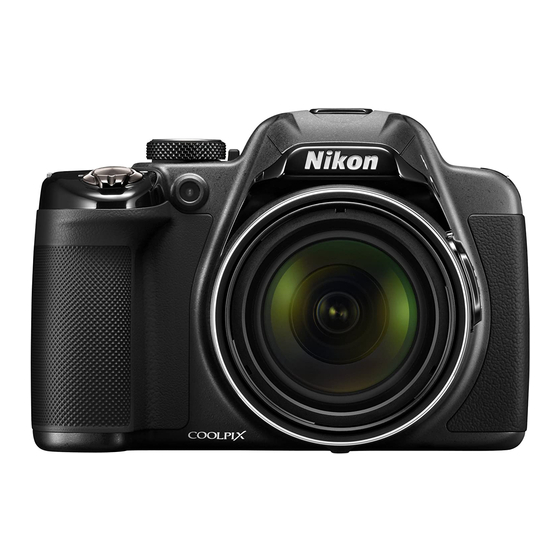
 Модель: Компактная фотокамера Nikon Coolpix P530
Год выпуска: 2014
Количество страниц: 226
Язык: русский
Формат: pdf
Размер: 8,7 Mb
Описание:
УльтраZoom фотоаппарат Nikon Coolpix P530 позволит получить впечатляющие кадры с помощью 42-кратного оптического увеличения. При поддержке функции Dynamic Fine Zoom увеличение объектов происходит еще в два раза больше, достигая 84-кратного значения. При этом изображения сохраняют непревзойденную детальность, точность цветопередачи и реалистичную освещенность. А компенсировать дрожание камеры призвана встроенная система подавления вибраций (VR) со смещением линз, благодаря которой пользователь сможет снимать в движении (на бегу, из окна поезда или находясь в автомобиле). Она обеспечивает фотографиям и видеороликам HD-качество даже в сложных условиях.
Содержание
- Введение.
- Прочитайте эту информацию в первую очередь.
- Об этом руководстве.
- Информация и меры предосторожности.
- Меры предосторожности.
- ПРЕДУПРЕЖДЕНИЯ.
- Уведомления.
- Прочитайте эту информацию в первую очередь.
- Компоненты фотокамеры и основные функции.
- Корпус фотокамеры.
- Основные функции элементов управления.
- Закрепление ремня фотокамеры и крышки объектива.
- Переключение между монитором и видоискателем (кнопка).
- Работа с меню (кнопка).
- Монитор.
- Корпус фотокамеры.
- Основные принципы съемки и просмотра.
- Этап подготовки 1. Установка батареи.
- Этап подготовки 2. Зарядка батареи.
- Этап подготовки 3. Установка карты памяти.
- Внутренняя память и карты памяти.
- Рекомендованные карты памяти.
- Пункт 1. Включение фотокамеры.
- Настройка отображения языка, даты и времени.
- Пункт 2. Выбор режима съемки.
- Доступные режимы съемки.
- Пункт 3. Компоновка кадра.
- Использование зума.
- Пункт 4. Фокусировка и съемка.
- Пункт 5. Просмотр снимков.
- Пункт 6. Удаление снимков.
- Функции съемки.
- Режим (Авто).
- Сюжетный режим (съемка в соответствии с сюжетом).
- Полезные советы и примечания.
- Режим «Специальн. эффекты» (применение эффектов в процессе съемки).
- Режимы P, S, A, M (настройка экспозиции для съемки).
- Диапазон регулировки выдержки.
- M (Режим User settings (пользовательские настройки)).
- Сохранение настроек в режиме M (Сохр-ить user settings).
- Функции, настраиваемые с помощью мультиселектора.
- Использование вспышки.
- Использование автоспуска.
- Автоматическая съемка улыбающихся лиц (Таймер улыбки).
- Использование режима фокусировки.
- Фотосъемка с ручной фокусировкой.
- Регулировка яркости (коррекция экспозиции).
- Настройки по умолчанию.
- Функции, которые можно настроить с помощью кнопки MENU (Меню съемки).
- Общие опции.
- Для режимов P, S, A, M, U.
- Функции, настраиваемые с помощью кнопки Fn (Function).
- Функции, которые невозможно использовать одновременно.
- Фокусировка.
- Использование функции «АФ с обнаруж. объекта».
- Использование функции распознавания лиц.
- Использование функции смягчения тона кожи.
- Объекты съемки, к которым не может быть применена автофокусировка.
- Блокировка фокусировки.
- Функции просмотра.
- Увеличение при просмотре.
- Просмотр уменьшенных изображений, просмотр календаря.
- Функции, настраиваемые с помощью кнопки MENU (меню просмотра).
- Использование экрана выбора изображений.
- Запись и просмотр видеороликов.
- Запись видеороликов.
- Функции, настраиваемые с помощью кнопки MENU (меню видео).
- Просмотр видеороликов.
- Запись видеороликов.
- Общие настройки фотокамеры.
- Функции, настраиваемые с помощью кнопки MENU (меню настройки).
- Подключение фотокамеры к телевизору, ПК или принтеру.
- Способы подключения.
- Использование программы ViewNX 2.
- Установка программы ViewNX 2.
- Передача снимков на компьютер.
- Просмотр изображений.
- Раздел «Руководство».
- Использование режима «Простая панорама» (съемка и просмотр).
- Съемка в режиме «Простая панорама».
- Просмотр снимков, снятых в режиме «Простая панорама».
- Просмотр и удаление изображений, полученных в режиме непрерывной съемки (последовательности изображений).
- Просмотр снимков в последовательности.
- Удаление снимков в последовательности.
- Редактирование снимков.
- Перед редактированием снимков.
- Быстрая обработка: повышение контраста и насыщенности.
- D-Lighting: повышение яркости и контраста.
- Смягчение тона кожи: смягчение оттенков кожи.
- Эфф. фильтров: применение эффектов цифрового фильтра.
- Уменьшить снимок: уменьшение размера изображения.
- Кадрирование: создание кадрированной копии.
- Подключение фотокамеры к телевизору (для просмотра снимков).
- Подключение фотокамеры к принтеру (Прямая печать).
- Подключение фотокамеры к принтеру.
- Печать отдельных снимков.
- Печать нескольких снимков.
- Редактирование видеороликов.
- Сохранение фрагментов видеоролика.
- Сохранение кадра видеоролика в качестве снимка.
- Меню съемки (режим P, S, A или M).
- Качество изображ.
- Размер изображения.
- Picture Control (COOLPIX Picture Control) (изменение настроек записи изображений).
- Польз. Picture Control (пользовательский COOLPIX Picture Control).
- Баланс белого (настройка тона).
- Замер экспозиции.
- Непрерывная съемка.
- Чувствительность.
- Брекетинг экспозиции.
- Режим зоны АФ.
- Режим автофокуса.
- Попр. мощн. вспышки.
- Фильтр понижен. шума.
- Активный D-Lighting.
- Мультиэкспозиция.
- Память зума.
- Начальное полож. зума.
- Просмотр руч. экспоз.
- Меню просмотра.
- Задание печати (формирование задания печати DPOF).
- Показ слайдов.
- Защита.
- Повернуть снимок.
- Звуковая заметка.
- Копирование (копирование файлов из внутренней памяти на карту памяти и обратно).
- Свойства отобр. послед.
- Выбрать основн. снимок.
- Меню видео.
- Параметры видео.
- Режим автофокуса.
- Меню настройки.
- Экран приветствия.
- Часовой пояс и дата.
- Настройка монитора.
- Печать даты (впечатывание даты и времени на снимках).
- Подавл. вибраций.
- Обнаруж. движения.
- АФ-помощь.
- Цифровой зум.
- Настройка звука.
- Авто выкл.
- Форматирование памяти/Форматирование карты памяти.
- Язык/Language.
- Настройки ТВ.
- Зарядка от ПК.
- Перекл. управ. «Av/Tv».
- Сброс нум. файлов.
- Предуп. о закр. глаз.
- Загрузка Eye-Fi.
- Усиление контуров.
- Сброс всех знач.
- Версия прошивки.
- Сообщения об ошибках.
- Имена файлов.
- Дополнительные принадлежности.
- Использование режима «Простая панорама» (съемка и просмотр).
- Технические примечания и предметный указатель.
- Уход за изделиями.
- Фотокамера.
- Батарея.
- Сетевое зарядное устройство.
- Карты памяти.
- Уход за фотокамерой.
- Чистка.
- Хранение.
- Поиск и устранение неисправностей.
- Технические характеристики.
- Алфавитный указатель.
- Уход за изделиями.
Скачать: disk.yandex.ru | mega.co.nz

DIGITAL CAMERA
User’s Manual
|
For advanced use of the camera, read the Reference Manual |
|
|
(in pdf format) which is available in many languages including |
|
|
Hindi, Bengali, Tamil, Marathi and Telugu. |
En |
|
See the reverse side for information to download the file. |

Introduction
Parts of the Camera and Main Functions
The Basics of Shooting and Playback
Shooting Features
Playback Features
Recording and Playing Back Movies
General Camera Setup
Connecting the Camera to a TV, Computer, or Printer
Technical Notes and Index
i
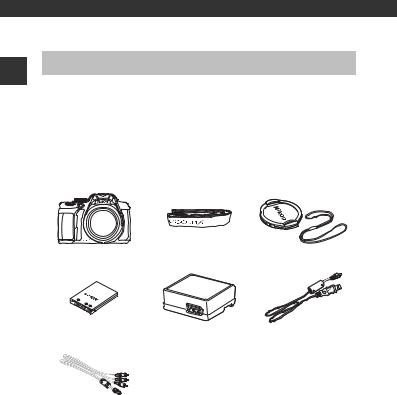
Introduction
Introduction
Read This First
Thank you for purchasing the Nikon COOLPIX P530 digital camera. Before using the camera, please read the information in “For Your Safety” (Avii-ix) and familiarize yourself with the information provided in this manual. After reading, please keep this manual handy and refer to it to enhance your enjoyment of your new camera.
Confirming the Package Contents
In the event that any items are missing, please contact the store where you purchased the camera.
|
COOLPIX P530 |
Camera Strap |
Lens Cap LC-CP24 |
|
Digital Camera |
(with cord) |
|
Rechargeable Li-ion |
Charging AC Adapter1 |
USB Cable UC-E6 |
|
Battery EN-EL5 |
EH-70P or EH-70PCH |
Audio Video Cable
EG-CP162
|
• User’s Manual (this manual) |
• Warranty |
1A plug adapter is included if the camera was purchased in a country or region
that requires a plug adapter. The shape of the plug adapter varies with the country or region of purchase (A18).
2This item is supplied only if the camera was purchased in India, and is described in this manual as being “optional,” “available separately,” etc.
NOTE: A memory card is not included with the camera.
ii
About This Manual
If you want to start using the camera right away, see “The Basics of Shooting and Playback” (A16).
To learn about the parts of the camera and information that is displayed in the monitor, see “Parts of the Camera and Main Functions” (A1).
Downloading the “Reference Manual”
Refer to the Reference Manual (PDF format) for more detailed information. The Reference Manual can be downloaded from the Nikon website. http://nikonimglib.com/manual/
The Reference Manual can be viewed using Adobe Reader, available for free download from the Adobe website.
Other Information
•Symbols and Conventions
To make it easier to find the information you need, the following symbols and conventions are used in this manual:
BThis icon indicates cautions and information that should be read before using the camera.
CThis icon indicates notes and information that should be read before using the camera.
These icons indicate other pages containing relevant A/E/F information; E*: “Reference Section”, F: “Technical Notes and
Index.”
* Refer to the Reference Manual for pages indicated with E.
•SD and SDHC/SDXC memory cards are referred to as “memory cards” in this manual.
•The setting at the time of purchase is referred to as the “default setting.”
•The names of menu items displayed in the camera monitor, and the names of buttons or messages displayed on a computer monitor appear in bold.
•In this manual, images are sometimes omitted from monitor display samples so that monitor indicators can be more clearly shown.
•Illustrations and monitor content shown in this manual may differ from the actual product.
Introduction
iii

Introduction
Information and Precautions
Life-Long Learning
As part of Nikon’s “Life-Long Learning” commitment to ongoing product support and education, continually updated information is available online at the following sites:
•For users in the U.S.A.: http://www.nikonusa.com/
•For users in Europe and Africa: http://www.europe-nikon.com/support/
•For users in Asia, Oceania, and the Middle East: http://www.nikon-asia.com/
Visit these sites to keep up-to-date with the latest product information, tips, answers to frequently asked questions (FAQs), and general advice on digital imaging and photography. Additional information may be available from the Nikon representative in your area. Visit the site below for contact information:
http://imaging.nikon.com/
Use Only Nikon Brand Electronic Accessories
Nikon COOLPIX cameras are designed to the highest standards and include complex electronic circuitry. Only Nikon brand electronic accessories (including battery chargers, batteries, charging AC adapter, AC adapters and cables) certified by Nikon specifically for use with this Nikon digital camera are engineered and proven to operate within the operational and safety requirements of this electronic circuitry.
THE USE OF NON-NIKON ELECTRONIC ACCESSORIES COULD DAMAGE THE CAMERA AND MAY VOID YOUR NIKON WARRANTY.
The use of third-party rechargeable Li-ion batteries not bearing the Nikon holographic seal could interfere with normal operation of the camera or result in the batteries overheating, igniting, rupturing, or leaking.
For more information about Nikon brand accessories, contact a local authorized Nikon dealer.
Holographic seal: Identifies this device as an authentic Nikon product.
Before Taking Important Pictures
Before taking pictures on important occasions (such as at weddings or before taking the camera on a trip), take a test shot to ensure that the camera is functioning normally. Nikon will not be held liable for damages or lost profits that may result from product malfunction.
iv
About the Manuals
|
• |
No part of the manuals included with this product may be reproduced, |
||
|
transmitted, transcribed, stored in a retrieval system, or translated into any |
|||
|
language in any form, by any means, without Nikon’s prior written permission. |
|||
|
• |
Nikon reserves the right to change the specifications of the hardware and software |
||
|
described in these manuals at any time and without prior notice. |
Introduction |
||
|
• |
Nikon will not be held liable for any damages resulting from the use of this |
||
|
product. |
|||
|
• |
While every effort was made to ensure that the information in these manuals is |
||
|
accurate and complete, we would appreciate it were you to bring any errors or |
|||
|
omissions to the attention of the Nikon representative in your area (address |
|||
|
provided separately). |
Notice Concerning Prohibition of Copying or Reproduction
Note that simply being in possession of material that was digitally copied or reproduced by means of a scanner, digital camera or other device may be punishable by law.
• Items prohibited by law from being copied or reproduced
Do not copy or reproduce paper money, coins, securities, government bonds or local government bonds, even if such copies or reproductions are stamped “Sample.” The copying or reproduction of paper money, coins, or securities which are circulated in a foreign country is prohibited. Unless the prior permission of the government was obtained, the copying or reproduction of unused postage stamps or post cards issued by the government is prohibited.
The copying or reproduction of stamps issued by the government and of certified documents stipulated by law is prohibited.
• Cautions on certain copies and reproductions
The government has issued cautions on copies or reproductions of securities issued by private companies (shares, bills, checks, gift certificates, etc.), commuter passes, or coupon tickets, except when a minimum of necessary copies are to be provided for business use by a company. Also, do not copy or reproduce passports issued by the government, licenses issued by public agencies and private groups, ID cards and tickets, such as passes and meal coupons.
• Comply with copyright notices
The copying or reproduction of copyrighted creative works such as books, music, paintings, woodcut prints, maps, drawings, movies, and photographs is governed by national and international copyright laws. Do not use this product for the purpose of making illegal copies or to infringe copyright laws.
v

Introduction
Disposing of Data Storage Devices
Please note that deleting images or formatting data storage devices such as memory cards or built-in camera memory does not completely erase the original image data. Deleted files can sometimes be recovered from discarded storage devices using commercially available software, potentially resulting in the malicious use of personal image data. Ensuring the privacy of such data is the user’s responsibility.
Before discarding a data storage device or transferring ownership to another person, erase all data using commercial deletion software, or format the device and then completely refill it with images containing no private information (for example, pictures of empty sky). Be sure to also replace any pictures selected for the Select an image option in the Welcome screen setting (A91). Care should be taken to avoid injury or damage to property when physically destroying data storage devices.
vi
For Your Safety
To prevent damage to your Nikon product or injury to yourself or to others, read the following safety precautions in their entirety before using this equipment. Keep these safety instructions where all those who use the product will read them.
The consequences that could result from failure to observe the precautions listed in this section are indicated by the following symbol:
This icon marks warnings, information that should be read before using this Nikon product, to prevent possible injury.
WARNINGS
 Turn off in the event of malfunction
Should you notice smoke or an unusual smell coming from the camera or charging AC adapter, unplug the charging AC adapter and remove the battery immediately, taking care to avoid burns. Continued operation could result in injury. After removing or disconnecting the power source, take the equipment to a Nikon-authorized service representative for inspection.
 Do not disassemble
Touching the internal parts of the camera or charging AC adapter could result in injury. Repairs should be performed only by qualified technicians. Should the camera or charging AC adapter break open as the result of a fall or other accident, take the product to a Nikonauthorized service representative for inspection, after unplugging the product and/or removing the battery.
 Do not use the camera or charging AC adapter in the presence of flammable gas
Do not use electronic equipment in the presence of flammable gas, as this could result in explosion or fire.
 Handle the camera strap with care
Never place the strap around the neck of an infant or child.
 Keep out of reach of children
Particular care should be taken to prevent infants from putting the battery or other small parts into their mouths.
 Do not remain in contact with the camera, charging AC adapter, or AC adapter for extended periods while the devices are on or in use
Parts of the devices become hot. Leaving the devices in direct contact with the skin for extended periods may result in low-temperature burns.
Introduction
vii
Introduction
 Do not leave the product where it will be exposed to extremely high temperatures, such as in an enclosed automobile or in direct sunlight
Failure to observe this precaution could cause damage or fire.
 Observe caution when handling the battery
The battery may leak, overheat, or explode if improperly handled. Observe the following precautions when handling the battery for use in this product:
•Before replacing the battery, turn the product off. If you are using the charging AC adapter/AC adapter, be sure it is unplugged.
•Use only a Rechargeable Li-ion Battery EN-EL5 (included). Charge the battery by using a camera that supports battery charging or by using a Battery Charger MH-61 (available separately). To charge the battery with the camera, use either Charging AC Adapter EH-70P/EH-70PCH (included) or the Charge by computer function.
•When inserting the battery, do not attempt to insert it upside down or backwards.
•Do not short or disassemble the battery or attempt to remove or break the battery insulation or casing.
•Do not expose the battery to flame or to excessive heat.
•Do not immerse in or expose to water.
•Put the battery in a plastic bag, etc. to insulate the terminal before transporting it. Do not transport or store with metal objects such as necklaces or hairpins.
•The battery is prone to leakage when fully discharged. To avoid damage to the product, be sure to remove the battery when no charge remains.
•Discontinue use immediately should you notice any change in the battery, such as discoloration or deformation.
•If liquid from the damaged battery comes in contact with clothing or skin, rinse immediately with plenty of water.
 Observe the following precautions when handling the charging AC adapter
•Keep dry. Failure to observe this precaution could result in fire or electric shock.
•Dust on or near the metal parts of the plug should be removed with a dry cloth. Continued use could result in fire.
•Do not handle the plug or go near the charging AC adapter during lightning storms. Failure to observe this precaution could result in electric shock.
•Do not damage, modify, forcibly tug or bend the USB cable, place it under heavy objects, or expose it to heat or flames. Should the insulation be damaged and the wires become exposed, take it to a Nikon-authorized service representative for inspection. Failure to observe these precautions could result in fire or electric shock.
viii
•Do not handle the plug or charging AC adapter with wet hands. Failure to observe this precaution could result in electric shock.
•Do not use with travel converters or adapters designed to convert from one voltage to another or with DC-to-AC inverters. Failure to observe this precaution could damage the product or cause overheating or fire.
 Use appropriate cables
When connecting cables to the input and output jacks, use only the cables provided or sold by Nikon for the purpose, to maintain compliance with product regulations.
 Handle moving parts with care
Be careful that your fingers or other objects are not pinched by the lens cover or other moving parts.
Using the flash close to your subject’s eyes could cause temporary visual impairment
The flash should be no less than 1 m (3 ft 4 in.) from the subject.
Particular care should be observed when photographing infants.
 Do not operate the flash with the flash window touching a person or object
Failure to observe this precaution could result in burns or fire.
 Avoid contact with liquid crystal
Should the monitor break, care should be taken to avoid injury caused by broken glass and to prevent liquid crystal from the monitor touching the skin or entering the eyes or mouth.
 Turn the power off when using inside an airplane or the hospital
Turn the power off while inside the airplane during take off or landing. Do not use wireless network functions while in the air.
Follow the instructions of the hospital when using while in a hospital.
The electromagnetic waves emitted by this camera may disrupt the electronic systems of the airplane or the instruments of the hospital.
If you are using wireless network devices, remove them from the camera before boarding an aircraft or entering a hospital.
Introduction
ix
Introduction
Notices
Notices for Customers in the U.S.A.
IMPORTANT SAFETY
INSTRUCTIONS —
SAVE THESE INSTRUCTIONS.
DANGER — TO REDUCE THE RISK OF FIRE OR ELECTRIC SHOCK, CAREFULLY FOLLOW THESE INSTRUCTIONS
For connection to a supply not in the U.S.A., use an attachment plug adapter of the proper configuration for the power outlet if needed.
The power supply unit is intended to be correctly orientated in a vertical or floor mount position.
not occur in a particular installation. If this equipment does cause harmful interference to radio or television reception, which can be determined by turning the equipment off and on, the user is encouraged to try to correct the interference by one or more of the following measures:
•Reorient or relocate the receiving antenna.
•Increase the separation between the equipment and receiver.
•Connect the equipment into an outlet on a circuit different from that to which the receiver is connected.
•Consult the dealer or an experienced radio/TV technician for help.
Federal Communications
Commission (FCC) Radio
Frequency Interference
Statement
This equipment has been tested and found to comply with the limits for a Class B digital device, pursuant to Part 15 of the FCC Rules. These limits are designed to provide reasonable protection against harmful interference in a residential installation. This equipment generates, uses, and can radiate radio frequency energy and, if not installed and used in accordance with the instructions, may cause harmful interference to radio communications. However, there is no guarantee that interference will
CAUTIONS
Modifications
The FCC requires the user to be notified that any changes or modifications made to this device that are not expressly approved by Nikon Corporation may void the user’s authority to operate the equipment.
Interface Cables
Use the interface cables sold or provided by Nikon for your equipment. Using other interface cables may exceed the limits of Class B Part 15 of the FCC Rules.
x
Notice for Customers in the State of California
WARNING
Handling the cord on this product will expose you to lead, a chemical known to the State of California to cause birth defects or other reproductive harm.
Wash hands after handling.
Nikon Inc.,
1300 Walt Whitman Road, Melville, New York 11747-3064 USA
Tel: 631-547-4200
Notice for Customers in Canada
CAN ICES-3 B / NMB-3 B
Notices for Customers in Europe
CAUTIONS
RISK OF EXPLOSION IF BATTERY IS REPLACED BY AN INCORRECT TYPE.
DISPOSE OF USED BATTERIES ACCORDING TO THE INSTRUCTIONS.
This symbol indicates that electrical and electronic equipment is to be collected separately.
The following apply only to users in European countries:
•This product is designated for separate collection at an appropriate collection point. Do not dispose of as household waste.
•Separate collection and recycling helps conserve natural resources and prevent negative consequences for human health and the environment that might result from incorrect disposal.
•For more information, contact the retailer or the local authorities in charge of waste management.
This symbol on the battery indicates that the battery is to be collected separately.
The following apply only
to users in European countries:
•All batteries, whether marked with this symbol or not, are designated for separate collection at an appropriate collection point. Do not dispose of as household waste.
•For more information, contact the retailer or the local authorities in charge of waste management.
Introduction
xi
Introduction
|
Table of Contents |
|
|
Introduction …………………………………………………………………………………………………. |
ii |
|
Read This First ……………………………………………………………………………………………………………. |
ii |
|
Confirming the Package Contents………………………………………………………………………………………. |
ii |
|
About This Manual ……………………………………………………………………………………………………………………. |
iii |
|
Information and Precautions………………………………………………………………………………………………… |
iv |
|
For Your Safety ………………………………………………………………………………………………………… |
vii |
|
WARNINGS …………………………………………………………………………………………………………………………………. |
vii |
|
Notices………………………………………………………………………………………………………………………… |
x |
|
Parts of the Camera and Main Functions…………………………………………………. |
1 |
|
The Camera Body………………………………………………………………………………………………………. |
1 |
|
Principle Functions of the Controls …………………………………………………………………………………….. |
3 |
|
Attaching the Camera Strap and Lens Cap ……………………………………………………………………… |
6 |
|
Switching Between the Monitor and Viewfinder (xButton)………………………………… |
7 |
|
Using Menus (the dButton)……………………………………………………………………………….. |
8 |
|
The Monitor ……………………………………………………………………………………………………………… |
10 |
|
The Basics of Shooting and Playback……………………………………………………… |
16 |
|
Preparation 1 Insert the Battery ……………………………………………………………………………. |
16 |
|
Preparation 2 Charge the Battery …………………………………………………………………………. |
18 |
|
Preparation 3 Insert a Memory Card…………………………………………………………………….. |
20 |
|
Internal Memory and Memory Cards……………………………………………………………………………….. |
21 |
|
Approved Memory Cards……………………………………………………………………………………………………… |
21 |
|
Step 1 Turn the Camera On……………………………………………………………………………………. |
22 |
|
Setting the Display Language, Date, and Time……………………………………………………………. |
24 |
|
Step 2 Select a Shooting Mode……………………………………………………………………………… |
26 |
|
Available Shooting Modes …………………………………………………………………………………………………… |
27 |
|
Step 3 Frame a Picture ……………………………………………………………………………………………. |
28 |
|
Using the Zoom……………………………………………………………………………………………………………………….. |
29 |
|
Step 4 Focus and Shoot………………………………………………………………………………………….. |
30 |
|
Step 5 Play Back Images …………………………………………………………………………………………. |
32 |
|
Step 6 Delete Images………………………………………………………………………………………………. |
33 |
|
Shooting Features……………………………………………………………………………………… |
35 |
|
A(Auto) Mode ……………………………………………………………………………………………………….. |
35 |
|
Scene Mode (Shooting Suited to Scenes)……………………………………………………………. |
36 |
Refer to the Reference Manual for pages indicated with E.
xii
|
Tips and Notes ………………………………………………………………………………………………………………………….. |
37 |
|
Special Effects Mode (Applying Effects When Shooting)………………………………….. |
46 |
|
j, k, l, m Modes (Setting the Exposure for Shooting) ………………………………….. |
48 |
|
The Control Range of the Shutter Speed……………………………………………………………………….. |
52 |
|
M (User Settings) Mode ………………………………………………………………………………………….. |
53 |
|
Saving Settings in M Mode (Save User Settings)…………………………………………………………. |
54 |
|
Functions That Can Be Set Using the Multi Selector………………………………………….. |
55 |
|
Using the Flash …………………………………………………………………………………………………………………………. |
56 |
|
Using the Self-timer………………………………………………………………………………………………………………… |
59 |
|
Shooting Smiling Faces Automatically (Smile Timer)………………………………………………… |
60 |
|
Using Focus Mode…………………………………………………………………………………………………………………… |
61 |
|
Taking Images with Manual Focus……………………………………………………………………………………. |
63 |
|
Adjusting Brightness (Exposure Compensation) ………………………………………………………… |
65 |
|
Default Settings………………………………………………………………………………………………………………………… |
66 |
|
Functions That Can Be Set with the dButton (Shooting Menu) ………………… |
68 |
|
Common Options……………………………………………………………………………………………………………………. |
68 |
|
For j, k, l, m, M Modes …………………………………………………………………………………………………… |
68 |
|
Functions That Can Be Set with the Fn (Function) Button………………………………… |
71 |
|
Functions That Cannot Be Used Simultaneously ……………………………………………….. |
72 |
|
Focusing……………………………………………………………………………………………………………………. |
76 |
|
Using the Target Finding AF ……………………………………………………………………………………………….. |
76 |
|
Using Face Detection …………………………………………………………………………………………………………….. |
77 |
|
Using Skin Softening………………………………………………………………………………………………………………. |
78 |
|
Subjects Not Suitable for Autofocus………………………………………………………………………………… |
78 |
|
Focus Lock………………………………………………………………………………………………………………………………….. |
79 |
|
Playback Features………………………………………………………………………………………. |
80 |
|
Playback Zoom ………………………………………………………………………………………………………… |
80 |
|
Thumbnail Display, Calendar Display…………………………………………………………………… |
81 |
|
Functions That Can Be Set with the dButton (Playback Menu) …………………. |
82 |
|
Using the Screen for Selecting Images …………………………………………………………………………… |
84 |
|
Recording and Playing Back Movies……………………………………………………….. |
85 |
|
Recording Movies ……………………………………………………………………………………………………. |
85 |
|
Functions That Can Be Set with the dButton (Movie Menu) ………………………….. |
89 |
|
Playing Back Movies ……………………………………………………………………………………………….. |
89 |
|
General Camera Setup………………………………………………………………………………. |
91 |
|
Functions That Can Be Set with the dButton (Setup Menu) ………………………. |
91 |
Refer to the Reference Manual for pages indicated with E.
Introduction
xiii

Introduction
|
Connecting the Camera to a TV, Computer, or Printer………………………… |
93 |
|
Connection Methods………………………………………………………………………………………………. |
93 |
|
Using ViewNX 2 ……………………………………………………………………………………………………….. |
95 |
|
Installing ViewNX 2 …………………………………………………………………………………………………………………. |
95 |
|
Transferring Images to the Computer …………………………………………………………………………….. |
96 |
|
Viewing Images………………………………………………………………………………………………………………………… |
97 |
|
Reference Section …………………………………………………………………………………. |
E1 |
|
Using Easy Panorama (Shooting and Playback) …………………………………………….. |
E2 |
|
Shooting with Easy Panorama………………………………………………………………………………………. |
E2 |
|
Viewing Images Captured with Easy Panorama…………………………………………………….. |
E4 |
|
Viewing and Deleting Images Captured Continuously (Sequence)……………. |
E5 |
|
Viewing Images in a Sequence …………………………………………………………………………………….. |
E5 |
|
Deleting Images in a Sequence ……………………………………………………………………………………. |
E6 |
|
Editing Still Images……………………………………………………………………………………………… |
E7 |
|
Before Editing Images ………………………………………………………………………………………………………. |
E7 |
|
kQuick Retouch: Enhancing Contrast and Saturation…………………………………….. |
E8 |
|
ID-Lighting: Enhancing Brightness and Contrast ……………………………………………. |
E8 |
|
eSkin Softening: Softening Skin Tones…………………………………………………………………… |
E9 |
|
pFilter Effects: Applying Digital Filter Effects ………………………………………………………. |
E10 |
|
gSmall Picture: Reducing the Size of an Image ………………………………………………. |
E11 |
|
aCrop: Creating a Cropped Copy …………………………………………………………………………… |
E12 |
|
Connecting the Camera to a TV (Viewing Images on a TV) ……………………….. |
E13 |
|
Connecting the Camera to a Printer (Direct Print)………………………………………. |
E15 |
|
Connecting the Camera to a Printer………………………………………………………………………… |
E15 |
|
Printing Individual Images……………………………………………………………………………………………. |
E16 |
|
Printing Multiple Images ………………………………………………………………………………………………. |
E18 |
|
Editing Movies ………………………………………………………………………………………………….. |
E20 |
|
Extracting Only the Desired Portion of a Movie…………………………………………………… |
E20 |
|
Saving a Frame from a Movie as a Still Image………………………………………………………. |
E21 |
|
The Shooting Menu (j, k, l or m Mode) ………………………………………………….. |
E22 |
|
Image Quality ……………………………………………………………………………………………………………………. |
E22 |
|
Image Size…………………………………………………………………………………………………………………………… |
E23 |
|
Picture Control (COOLPIX Picture Control) |
|
|
(Changing the Settings for Image Recording)…………………………………………………….. |
E24 |
|
Custom Picture Control (COOLPIX Custom Picture Control)………………………….. |
E28 |
|
White Balance (Adjusting Hue) ………………………………………………………………………………….. |
E29 |
Refer to the Reference Manual for pages indicated with E.
xiv

|
Metering ……………………………………………………………………………………………………………………………… |
E32 |
|
Continuous Shooting …………………………………………………………………………………………………….. |
E33 |
|
ISO Sensitivity ……………………………………………………………………………………………………………………. |
E37 |
|
Exposure Bracketing……………………………………………………………………………………………………….. |
E38 |
|
AF Area Mode……………………………………………………………………………………………………………………. |
E39 |
|
Autofocus Mode………………………………………………………………………………………………………………. |
E42 |
|
Flash Exp. Comp. …………………………………………………………………………………………………………….. |
E42 |
|
Noise Reduction Filter……………………………………………………………………………………………………. |
E43 |
|
Active D-Lighting ……………………………………………………………………………………………………………. |
E43 |
|
Multiple Exposure……………………………………………………………………………………………………………. |
E44 |
|
Zoom Memory………………………………………………………………………………………………………………….. |
E46 |
|
Startup Zoom Position…………………………………………………………………………………………………… |
E47 |
|
M Exposure Preview ………………………………………………………………………………………………………. |
E47 |
|
The Playback Menu ………………………………………………………………………………………….. |
E48 |
|
aPrint Order (Creating a DPOF Print Order) ………………………………………………………. |
E48 |
|
bSlide Show …………………………………………………………………………………………………………………… |
E50 |
|
dProtect………………………………………………………………………………………………………………………….. |
E51 |
|
fRotate Image ……………………………………………………………………………………………………………… |
E51 |
|
EVoice Memo………………………………………………………………………………………………………………….. |
E52 |
|
hCopy (Copy Between Internal Memory and Memory Card)…………………….. |
E53 |
|
CSequence Display Options ……………………………………………………………………………………. |
E54 |
|
xChoose Key Picture ………………………………………………………………………………………………….. |
E54 |
|
The Movie Menu ………………………………………………………………………………………………. |
E55 |
|
Movie Options…………………………………………………………………………………………………………………… |
E55 |
|
Autofocus Mode………………………………………………………………………………………………………………. |
E58 |
|
The Setup Menu ……………………………………………………………………………………………….. |
E59 |
|
Welcome Screen………………………………………………………………………………………………………………. |
E59 |
|
Time Zone and Date ………………………………………………………………………………………………………. |
E60 |
|
Monitor Settings………………………………………………………………………………………………………………. |
E62 |
|
Print Date (Imprinting Date and Time on Images)……………………………………………… |
E64 |
|
Vibration Reduction………………………………………………………………………………………………………… |
E65 |
|
Motion Detection…………………………………………………………………………………………………………….. |
E66 |
|
AF Assist ……………………………………………………………………………………………………………………………… |
E66 |
|
Digital Zoom ……………………………………………………………………………………………………………………… |
E67 |
|
Sound Settings ………………………………………………………………………………………………………………… |
E67 |
|
Auto Off……………………………………………………………………………………………………………………………….. |
E68 |
|
Format Memory/Format Card…………………………………………………………………………………….. |
E69 |
|
Language …………………………………………………………………………………………………………………………… |
E69 |
|
TV Settings………………………………………………………………………………………………………………………….. |
E70 |
|
Charge by Computer……………………………………………………………………………………………………… |
E71 |
Refer to the Reference Manual for pages indicated with E.
Introduction
xv

Introduction
|
Toggle Av/Tv Selection …………………………………………………………………………………………………. |
E72 |
|
Reset File Numbering ……………………………………………………………………………………………………. |
E72 |
|
Blink Warning…………………………………………………………………………………………………………………….. |
E73 |
|
Eye-Fi Upload…………………………………………………………………………………………………………………….. |
E74 |
|
Peaking………………………………………………………………………………………………………………………………… |
E75 |
|
Reset All ……………………………………………………………………………………………………………………………… |
E75 |
|
Firmware Version ……………………………………………………………………………………………………………. |
E75 |
|
Error Messages………………………………………………………………………………………………….. |
E76 |
|
File Names …………………………………………………………………………………………………………. |
E80 |
|
Optional Accessories ……………………………………………………………………………………….. |
E81 |
|
Technical Notes and Index……………………………………………………………………. |
F1 |
|
Caring for the Products……………………………………………………………………………………….. |
F2 |
|
The Camera…………………………………………………………………………………………………………………………….. |
F2 |
|
The Battery ……………………………………………………………………………………………………………………………… |
F3 |
|
Charging AC Adapter …………………………………………………………………………………………………………. |
F4 |
|
Memory Cards……………………………………………………………………………………………………………………….. |
F5 |
|
Caring for the Camera…………………………………………………………………………………………. |
F6 |
|
Cleaning…………………………………………………………………………………………………………………………………… |
F6 |
|
Storage …………………………………………………………………………………………………………………………………….. |
F7 |
|
Troubleshooting ………………………………………………………………………………………………….. |
F8 |
|
Specifications ……………………………………………………………………………………………………… |
F16 |
|
Index…………………………………………………………………………………………………………………….. |
F22 |
Refer to the Reference Manual for pages indicated with E.
xvi
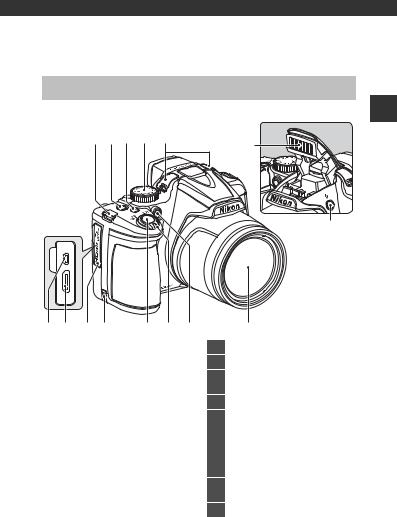
Parts of the Camera and Main
Functions
The Camera Body
Flash raised
1 2 3 4 5
6
7
Functions Main and Camera the of Parts
|
1 |
…………………..Eyelet for camera strap |
6 |
|
|
2 |
Power switch/power-on lamp … 22 |
||
|
3 |
w(function) button …………………….. |
4 |
|
|
4 |
Mode dial………………………………………… |
26 |
|
|
5 |
Microphone (stereo)………………. |
82, 85 |
|
|
6 |
Flash …………………………………………………….. |
56 |
|
|
7 |
m(flash pop-up) button…………….. |
56 |
|
|
8 |
USB/audio/video output |
||
|
connector |
93 |
||
|
9 |
HDMI mini connector (Type C)……. |
93 |
|
|
10 |
Connector cover…………………………………. |
93 |
|
|
11 |
Power connector cover (for |
||
|
optional AC adapter)………… |
E81 |
||
|
12 |
Shutter-release button …………….. |
3, 30 |
|
|
Zoom control …………………………………. |
29 |
||
|
f: wide-angle ……………………… |
29 |
||
|
g : telephoto ………………………… |
29 |
||
|
13 |
h: thumbnail playback…….. |
81 |
|
|
i : playback zoom ……………… |
80 |
||
|
j: help……………………………………. |
37 |
||
|
14 |
Self-timer lamp ……………………………….. |
59 |
|
|
AF-assist illuminator…………………….. |
91 |
||
|
15 |
Lens |
1
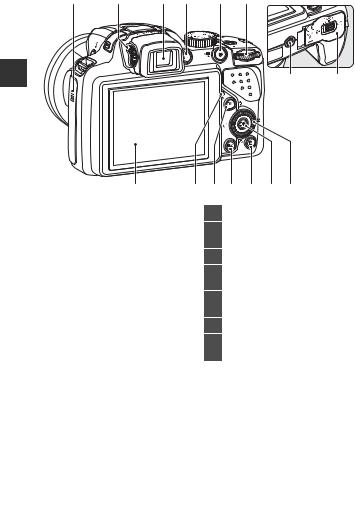
Functions Main and Camera the of Parts
|
1 |
2 |
3 |
4 |
5 |
6 |
14 15
7 8 9 10 11 12 13
|
1 |
……………………………….Speaker |
82, 89, 91 |
|
|
2 |
Diopter adjustment control………… |
7 |
|
|
3 |
Electronic viewfinder……………………… |
7 |
|
|
4 |
x(monitor) button …………………….. |
7 |
|
|
5 |
b(emovie-record) button |
85 |
|
|
……………………………………………………………… |
|||
|
6 |
Command dial……………….. |
3, 5, 48, 50 |
|
|
7 |
Monitor……………………………………………….. |
10 |
|
|
8 |
Charge lamp …………………………………….. |
18 |
|
|
Flash lamp |
57 |
||
|
9 |
c(playback) button …………………. |
32 |
|
10 |
d(menu) button |
|
|
……………………………………….8, 68, 82, 89, 91 |
||
|
11 |
l(delete) button …………………. |
33, 90 |
|
12 |
k(apply selection) button |
|
|
………………………………………………………. |
3, 5, 8 |
|
|
13 |
Rotary multi selector |
|
|
(multi selector)*……………………. |
3, 4, 55 |
|
|
14 |
Tripod socket |
|
|
15 |
Battery-chamber/memory card |
|
|
slot cover ………………………………….. |
16, 20 |
* Also referred to as the “multi selector“ in this manual.
2
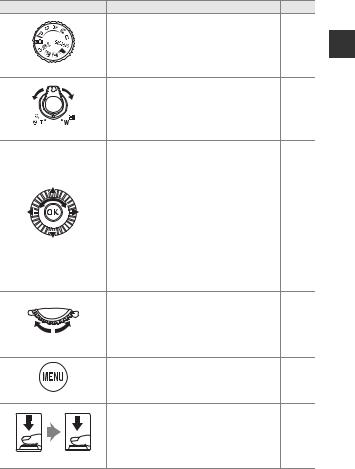
Principle Functions of the Controls
For Shooting
|
Control |
Main Function |
A |
||
|
Change the shooting mode. |
26 |
|||
|
Mode dial |
||||
|
Move toward g(i) (telephoto) to zoom in |
||||
|
closer to the subject, and move toward f |
29 |
|||
|
(h) (wide-angle) to zoom out and view a |
||||
|
Zoom control |
larger area. |
|||
|
• While the shooting screen is displayed: |
55 |
|||
|
Display the following setting screens by |
||||
|
pressing: |
||||
|
— |
Up (H): m(flash mode) |
|||
|
— |
Left (J): n(self-timer/smile timer) |
|||
|
— |
Down (I): D(focus mode) |
|||
|
— |
Right (K): o(exposure compensation) |
|||
|
• When the shooting mode is l or m: |
48, 50 |
|||
|
Rotate the multi selector to set the |
||||
|
Multi selector |
aperture value. |
|||
|
• While the setting screen is displayed: |
8 |
|||
|
Select an item using HIJKor by |
||||
|
rotating the multi selector; apply the |
||||
|
selection by pressing the kbutton. |
||||
|
• When the shooting mode is j: |
48, 50 |
|||
|
Set the flexible program. |
||||
|
• When the shooting mode is kor m: |
48, 50 |
|||
|
Set the shutter speed. |
||||
|
Command dial |
• While the setting screen is displayed: |
8 |
||
|
Select an item. |
||||
|
8, 68, |
||||
|
Display and hide the menu. |
82, 89, |
|||
|
d(menu) button |
91 |
|||
|
When pressed halfway (i.e., if you stop |
||||
|
pressing when you feel resistance slightly): |
||||
|
Set focus and exposure. |
30, 31 |
|||
|
When pressed all the way (i.e., if you press |
||||
|
the button all the way down): Release the |
||||
|
Shutter-release button shutter. |
Functions Main and Camera the of Parts
3
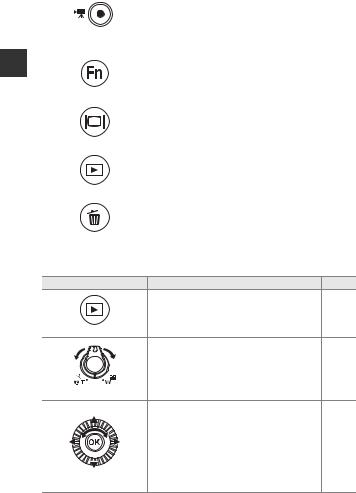
Functions Main and Camera the of Parts
|
Control |
Main Function |
A |
|
Start and stop movie recording. |
85 |
|
|
b(emovie-record) |
||
|
button |
||
|
When the shooting mode is j, k, l, m or |
||
|
M: |
71 |
|
|
Display or close the setting menus such as |
||
|
w(function) button |
Continuous or Vibration reduction. |
|
|
Switch between the monitor and viewfinder. |
7 |
|
|
x(monitor) button |
||
|
Play back images. |
32 |
|
|
c(playback) button |
||
|
Delete the last image that was saved. |
33 |
|
|
l(delete) button |
For Playback
|
Control |
Main Function |
A |
|
|
• |
When the camera is turned off, press and hold |
32 |
|
|
this button to turn the camera on in playback |
|||
|
• |
mode. |
||
|
c(playback) button |
Return to shooting mode. |
32 |
|
|
• |
Move toward g(i) to zoom in on the |
80, 81 |
|
|
image, and move toward f(h) to |
|||
|
display images as thumbnails or the |
|||
|
• |
calendar. |
||
|
Zoom control |
Adjust the volume for voice memo and |
82, 89 |
|
|
movie playback. |
|||
|
• |
While the playback screen is displayed: |
32 |
|
|
Change the displayed image using up |
|||
|
(H), left (J), down (I), right (K), or by |
|||
|
• |
rotating the multi selector. |
||
|
While the setting screen is displayed: |
8 |
||
|
Select an item using HIJKor by |
|||
|
Multi selector |
• |
rotating the multi selector. |
|
|
While an enlarged image is displayed: |
80 |
||
|
Move the display area. |
4
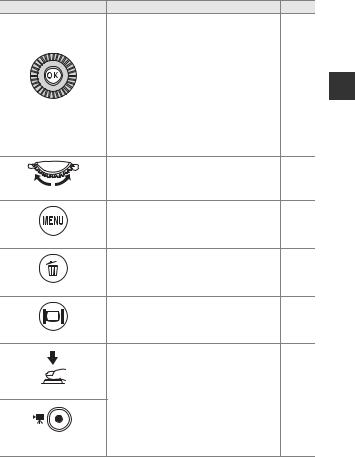
|
Control |
Main Function |
A |
|
|
• Switch the monitor display between the |
32 |
||
|
histogram, tone level and shooting |
|||
|
information display and full-frame |
|||
|
playback. |
|||
|
• Display individual images of a sequence in |
83, |
||
|
full-frame playback mode. |
E5 |
||
|
• Scroll an image shot with Easy panorama. |
43, |
||
|
• |
Play back movies. |
E4 |
|
|
k(apply selection) |
89 |
||
|
• |
Switch from thumbnail playback or |
80, 81 |
|
|
button |
zoomed image display to full-frame |
||
|
playback. |
|||
|
• While the setting screen is displayed, |
8 |
||
|
apply the selection. |
|||
|
Switch the magnification of an enlarged |
80 |
||
|
image. |
|||
|
Command dial |
|||
|
Display and hide the menu. |
8, 82 |
||
|
d(menu) button |
|||
|
Delete images. |
33 |
||
|
l(delete) button |
|||
|
Switch between the monitor and viewfinder. 7 |
|||
|
x(monitor) button |
|||
|
Shutter-release button |
Return to shooting mode. |
– |
|
|
b(emovie-record) |
|||
|
button |
Functions Main and Camera the of Parts
5
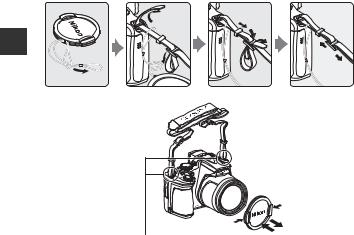
Attaching the Camera Strap and Lens Cap
Attach the Lens Cap LC-CP24 to the strap, and then attach the strap to the camera.
Functions Main and Camera the of Parts
Attach the strap at two places.
B Lens Cap
•At times when you are not shooting images, attach the lens cap to the lens to protect it.
•Do not attach anything other than the lens cap to the lens.
6
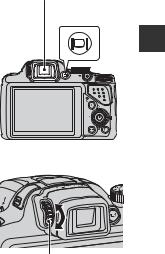
Switching Between the Monitor and Viewfinder
(xButton)
You can use the viewfinder when bright light under the open sky makes it difficult to see the monitor.
Each press of the xbutton switches the display between the monitor and viewfinder.
Viewfinder
x(monitor) button
Diopter Adjustment of the Viewfinder
When the image in the viewfinder is difficult to see, adjust by rotating the diopter adjustment control while looking through the viewfinder.
• Take care not to scratch your eye with your fingertips or nails.
Diopter adjustment control
B Notes About Checking and Adjusting Image Colors
Use the monitor on the back of the camera because the monitor has higher color reproducibility than the viewfinder.
Functions Main and Camera the of Parts
7
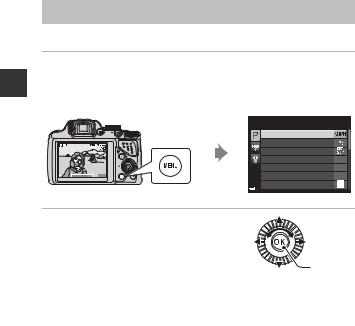
Functions Main and Camera the of Parts
Using Menus (the dButton)
Use the multi selector and kbutton to navigate the menus.
1Press the dbutton.
•The menu that matches the status of the camera, such as shooting or playback menu, is displayed.
Unavailable menu items are displayed in gray and cannot be selected.
Shooting menu
Image quality
Image size
Picture Control
Custom Picture Control 
 White balance

 Metering
Continuous
2 Use the multi selector to select a menu item.
|
• HIor rotation: Select an item above or |
||
|
below. |
Apply |
|
|
• JK: Select an item on the left or right, or |
||
|
selection |
||
|
move between menu levels. |
||
•k: Apply a selection. Pressing Kalso applies a selection.
•See A9 for more information on how to switch tabs.
3After completing the settings, press the dbutton or shutter-release button.
• Press the shutter-release button to display the shooting screen.
C Notes About the Command Dial Operation When a Menu is Displayed
Rotating the command dial when a menu is displayed allows you to select an item.
8
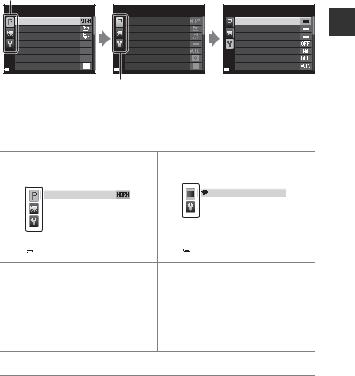
Switching Among Menu Tabs
To display a different menu, such as the setup menu (A91), use the multi selector to switch to another tab.
Tabs
Shooting menu
Image quality
Image size
Picture Control
Custom Picture Control 
 White balance
 Metering
Continuous
Use Jto move to the tabs.
Tab Types
Shooting menu
Image quality
Image size
Picture Control
Custom Picture Control
White balance
Metering
Continuous
Use HIto select a tab, and press the k button or Kto apply the selection.
Set up
Welcome screen Time zone and date
Monitor settings
Print date
Vibration reduction
Motion detection
AF assist
|
For Shooting |
For Playback |
||||||
|
Shooting menu |
Playback menu |
||||||
|
Image quality |
Quick retouch |
||||||
|
Image size |
D-Lighting |
||||||
|
Picture Control |
Skin softening |
||||||
|
Custom Picture Control |
Filter effects |
||||||
|
White balance |
Print order |
||||||
|
Metering |
Slide show |
||||||
|
Continuous |
Protect |
||||||
j tab:
Displays the settings available for the current shooting mode (A27).
Depending on the current shooting ctab:
mode, the tab icon that is displayed
Displays the settings available for the
will be different. etab:
playback mode.
Displays movie recording settings.
ztab:
Displays the setup menu, where you can change general settings.
Functions Main and Camera the of Parts
9
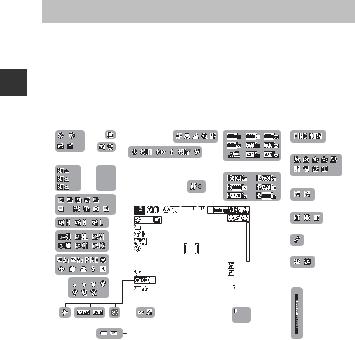
Functions Main and Camera the of Parts
The Monitor
The information that is displayed in the monitor during shooting and playback changes depending on the camera’s settings and state of use. By default, information is displayed when the camera is first turned on and when you operate the camera, and turns off after a few seconds (when Photo info is set to Auto info in Monitor settings (A91)).
For Shooting
|
3 |
7 |
9 |
||||||||||||||||||||||||||||||||||||||
|
37 |
2 |
10 |
36 |
2 |
||||||||||||||||||||||||||||||||||||
|
35 |
8 |
10 |
||||||||||||||||||||||||||||||||||||||
|
34 |
33 HDR1 |
|||||||||||||||||||||||||||||||||||||||
|
1.0 |
5 |
|||||||||||||||||||||||||||||||||||||||
|
0.7 |
HDR2 |
|||||||||||||||||||||||||||||||||||||||
|
32 |
0.3 |
HDR3 |
1 |
4 |
6 |
11 |
||||||||||||||||||||||||||||||||||
|
60 |
120 |
|||||||||||||||||||||||||||||||||||||||
|
12 |
||||||||||||||||||||||||||||||||||||||||
|
31 |
10 |
1000mm |
||||||||||||||||||||||||||||||||||||||
|
30 |
120 |
13 |
||||||||||||||||||||||||||||||||||||||
|
29 |
+1.0 |
16 |
14 |
|||||||||||||||||||||||||||||||||||||
|
+1.0 |
17 |
|||||||||||||||||||||||||||||||||||||||
|
28 |
3200 |
10m 0s |
18 |
|||||||||||||||||||||||||||||||||||||
|
1/250 |
F5.6 |
999 |
||||||||||||||||||||||||||||||||||||||
|
15 |
||||||||||||||||||||||||||||||||||||||||
|
22 |
21 |
20 |
||||||||||||||||||||||||||||||||||||||
|
999 |
||||||||||||||||||||||||||||||||||||||||
|
27 |
26 |
25 |
23 |
9999 |
||||||||||||||||||||||||||||||||||||
|
19 |
||||||||||||||||||||||||||||||||||||||||
|
24 |
||||||||||||||||||||||||||||||||||||||||
10

|
1 |
……………………….Shooting mode |
26, 27 |
|
|
2 |
Flash mode ……………………………………… |
56 |
|
|
3 |
Focus mode…………………………………….. |
61 |
|
|
4 |
Zoom indicator……………………….. |
29, 62 |
|
|
5 |
Focus indicator ………………………………. |
30 |
|
|
6 |
Zoom memory ………………………………. |
70 |
|
|
7 |
Movie options (normal |
||
|
speed movies) |
89 |
||
|
8 |
Movie options (HS movies) |
…………89 |
|
|
9 |
Image quality………………………………….. |
68 |
|
|
10 |
Image size………………………………………… |
68 |
|
|
11 |
Easy panorama ………………………………. |
43 |
|
|
12 |
Noise reduction filter…………………… |
69 |
|
|
13 |
Motion detection icon………………… |
91 |
|
|
14 |
Vibration reduction icon…………….. |
91 |
|
|
15 |
Exposure indicator ……………………….. |
50 |
|
|
16 |
Flash exp. comp…………………………….. |
69 |
|
|
17 |
Exposure compensation value….65 |
||
|
18 |
Movie recording time |
||
|
remaining………………………………….. |
85, 86 |
||
|
19 |
Number of exposures remaining |
||
|
(still images)……………………… |
22, E22 |
||
|
20 |
Internal memory indicator………… |
22 |
|
|
21 |
Aperture value……………………………….. |
48 |
|
|
22 |
Shutter speed…………………………………. |
48 |
|
|
23 |
ISO sensitivity …………………………………. |
69 |
|
|
24 |
Battery level indicator …………………. |
22 |
|
|
25 |
“Date not set” indicator……….. |
24, 91 |
|
|
26 |
Print date………………………………………….. |
91 |
|
|
27 |
………………..Travel destination icon |
91 |
|
|
28 |
Eye-Fi communication |
||
|
indicator ……………………………. |
92, E74 |
||
|
29 |
White balance………………………………… |
68 |
|
|
30 |
COOLPIX Picture Control |
…………….68 |
|
|
31 |
Active D-Lighting………………………….. |
69 |
|
|
32 |
Continuous shooting |
||
|
mode |
44, 69 |
||
|
33 |
Backlighting (HDR)……………………….. |
42 |
|
|
34 |
Exposure bracketing……………………. |
69 |
|
|
35 |
Hand-held/tripod …………………………. |
37 |
|
|
36 |
Multiple exposure ………………………… |
69 |
|
|
Self-timer indicator ………………………. |
59 |
||
|
37 |
Smile timer………………………………………. |
60 |
|
|
Pet portrait auto release…………….. |
44 |
||
Functions Main and Camera the of Parts
11
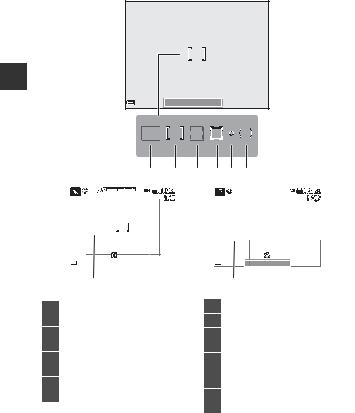
Functions Main and Camera the of Parts
|
500mm |
10m 0s |
|||||
|
1/250 |
F5.6 |
9999 |
||||
|
7 |
||||||
|
8 |
|
1 |
Focus area (target finding AF) |
|
|
69, 71, 76 |
||
Focus area (center/manual)
2………………………………….36, 46, 69, 71, 79
|
3 |
Focus area (face detection, pet |
|
|
detection) |
44, 60, 69, 71, 77 |
|
|
4 |
Focus area (subject tracking) |
|
|
69, 71, |
E41 |
|
|
1/250 |
F5.6 |
10m 0s |
|||||||
|
9999 |
|||||||||
|
9 |
|||||||||
|
5 |
Spot metering area |
………………………. |
69 |
||||||
|
6 |
Center-weighted area…………………. |
69 |
|||||||
|
7 |
View/hide histograms |
||||||||
|
65, 91, |
E62 |
||||||||
|
……………………………………….. |
Framing border (Moon or Bird-
8watching scene mode)
|
……………………………………………………………… |
45 |
||
|
9 |
View/hide framing grid |
||
|
91, |
E62 |
||
12

For Playback
Full-frame playback (A32)
|
1 2 3 4 5 6 7 8 |
9 |
10 |
||||||||||||||||||
|
999/ 999 |
a |
|||||||||||||||||||
|
999/999 |
9999/9999 |
|||||||||||||||||||
|
1m 0s |
b |
|||||||||||||||||||
|
1m 0s |
||||||||||||||||||||
|
11 12 |
||||||||||||||||||||
|
23 |
13 |
|||||||||||||||||||
|
22 |
14 |
15 |
||||||||||||||||||
|
0112.JPG |
||||||||||||||||||||
|
21 |
15/05/2014 15:30 |
16 |
||||||||||||||||||
|
20 |
19 |
18 |
||||||||||||||||||
|
a |
b |
17 |
||||||||||||||||||
|
1 Protect icon…………………………………….. |
82 |
Sequence display (when
2Individual pictures is selected)
|
………………………………………………..83, E54 |
||
|
3 |
Print order icon……………………………… |
82 |
|
4 |
Voice memo indicator………………… |
82 |
|
5 |
Skin softening icon………………………. |
82 |
|
6 |
Filter effects icon…………………………… |
82 |
|
7 |
D-Lighting icon …………………………….. |
82 |
|
8 |
Quick retouch icon………………………. |
82 |
|
9 |
Internal memory indicator ……….. |
21 |
(a)Current image number/ 10 total number of images
(b)Movie length
|
11 |
Small picture icon ………………………… |
82 |
|
12 |
Crop icon…………………………………………. |
80 |
|
13 |
Volume indicator……………………. |
82, 89 |
|
14 |
Image quality…………………………………. |
68 |
|
15 |
Image size……………………………………….. |
68 |
|
16 |
Movie options ……………………………….. |
89 |
|
17 |
Easy panorama indicator…………… |
43 |
|
Easy panorama playback guide |
||
|
……………………………………………..5, 43 ,E4 |
||
|
18 |
Sequence playback guide |
|
|
……………………………………………..5, 34, E5 |
||
|
Movie playback guide………………… |
89 |
|
|
19 |
Time of recording ………………………… |
24 |
|
20 |
Date of recording…………………………. |
24 |
|
(a) Battery level indicator ………….. |
22 |
21(b) Charging AC adapter connection indicator
|
22 |
File number and type………….. |
E80 |
|
23 |
Eye-Fi communication |
|
|
indicator…………………………….. |
92, E74 |
Functions Main and Camera the of Parts
13

Functions Main and Camera the of Parts
Tone level information display1 (A32)
|
4/132 |
1 |
||||||
|
100 |
2 |
||||||
|
+1.0 |
3 |
||||||
|
4 |
|||||||
|
11 |
5 |
||||||
|
10 |
1/250 |
F5.6 |
|||||
|
9 |
8 |
7 |
6 |
||||
|
1 |
Current image number/ |
6 |
Image quality/Image size …………. |
68 |
|||
|
total number of images |
7 |
Aperture value |
48 |
||||
|
2 |
ISO sensitivity…………………………………. |
69 |
8 |
Shutter speed………………………………… |
48 |
||
|
3 |
Exposure compensation value… |
65 |
9 |
Shooting mode…………………………….. |
27 |
||
|
4 |
White balance ……………………………….. |
68 |
10 |
Tone level2 |
|||
|
5 |
COOLPIX Picture Control…………… |
68 |
11 |
Histogram3 |
1You can check for loss of contrast detail in highlights and shadows from the histogram that is displayed, or the flashing display for each tone level. These provide guidelines when adjusting the image brightness with functions such as
exposure compensation.
2The tone level indicates the brightness level. When the tone level to check is selected using the multi selector JK, the area of the image that corresponds to
the selected tone level flashes.
3A histogram is a graph showing the distribution of tones in the image. The horizontal axis corresponds to pixel brightness, with dark tones to the left and bright tones to the right. The vertical axis shows the number of pixels.
14

15

Playback and Shooting of Basics The
The Basics of Shooting and
Playback
Preparation 1 Insert the Battery
1Open the battery-chamber/ memory card slot cover.
2 Insert the battery.
• Push the orange battery latch in the direction indicated by the arrow (1), and fully insert the battery (2).
• The battery locks into place when inserted correctly.
Battery latch
B Be Careful to Insert the Battery in Correct Direction
Inserting the battery upside down or backwards could damage the camera.
3Close the battery-chamber/ memory card slot cover.
16

Removing the Battery
Turn the camera off and make sure that the power-on lamp and the monitor have turned off, and then open the battery-chamber/memory card slot cover.
Move the battery latch in the direction indicated by the arrow (1) to eject the battery (2).
B High Temperature Caution
The camera, battery, and memory card may be hot immediately after using the camera.
Playback and Shooting of Basics The
17

Playback and Shooting of Basics The
Preparation 2 Charge the Battery
1 Prepare the included charging AC adapter.
If a plug adapter* is included with your camera, attach the plug adapter to the plug on the
charging AC adapter. Push the plug adapter firmly until it is securely held in place. Once the two are connected, attempting to forcibly remove the plug adapter could damage the product. * The shape of the plug adapter varies according
to the country or region in which the camera was purchased. This step can be omitted if the plug adapter
comes permanently bonded to the charging AC adapter.
2Make sure the battery is inserted in the camera, and then
connect the camera to the charging AC adapter in order of 1to 3.
•Keep the camera turned off.
•Make sure that the plugs are properly oriented. Do not insert or remove the plugs at an angle when connecting or disconnecting them.
|
Charge lamp |
Electrical outlet |
USB cable (included)
• The charge lamp slowly flashes green to indicate that the battery is charging.
18

|
The charge lamp |
Description |
|
|
Flashes slowly |
The battery is charging. |
|
|
(green) |
||
|
When charging is complete, the charge lamp stops flashing |
||
|
Off |
green and turns off. |
|
|
About 4 hours and 10 minutes are required to charge a fully |
||
|
exhausted battery. |
||
|
• The ambient temperature is not suited to charging. Charge |
||
|
the battery indoors with an ambient temperature of 5°C to |
||
|
Flashes quickly |
35°C (41°F to 95°F). |
|
|
• The USB cable or charging AC adapter is not properly |
||
|
(green) |
||
|
connected, or there is a problem with the battery. Disconnect |
||
|
the USB cable or unplug the charging AC adapter and |
||
|
correctly connect it again, or change the battery. |
||
3Disconnect the charging AC adapter from the electrical outlet and then disconnect the USB cable.
C Turning On the Camera While the Battery is Charging
The camera does not turn on while the charging AC adapter is connected to it even when you press the power switch. Press and hold the c(playback) button to turn on the camera in playback mode and play back images. Shooting is not possible.
C Charging Using a Computer or Battery Charger
•You can also charge the battery by connecting the camera to a computer (A92, 93).
•You can use the Battery Charger MH-61 (available separately; E81) to charge the battery without using the camera.
Playback and Shooting of Basics The
19

Preparation 3 Insert a Memory Card
1Turn off the camera and open the battery-chamber/memory card
slot cover.
Playback and Shooting of Basics The
2 Insert the memory card.
• Slide the memory card in until it clicks into place.
Memory card slot
B Be Careful to Insert the Memory Card in Correct Direction
Inserting the memory card upside down or backwards could damage the camera and the memory card.
3 Close the battery-chamber/ memory card slot cover.
B Formatting Memory Cards
The first time you insert a memory card that has been used in another device into this camera, make sure to format it with this camera. Insert the card into the camera, press the dbutton, and select Format card in the setup menu.
20

Removing Memory Cards
Turn the camera off and make sure that the power-on lamp and the monitor have turned off, and then open the battery-chamber/ memory card slot cover.
Gently push the memory card into the camera (1) to partially eject the card (2).
B High Temperature Caution
The camera, battery, and memory card may be hot immediately after using the camera.
Internal Memory and Memory Cards
Camera data, including images and movies, can be saved either in the camera’s internal memory or on a memory card. To use the camera’s internal memory, first remove the memory card.
Approved Memory Cards
The following Secure Digital (SD) memory cards have been tested and approved for use in this camera.
•Memory cards with an SD Speed Class rating of 6 or faster are recommended for recording movies. When using a memory card with a lower Speed Class rating, movie recording may stop unexpectedly.
|
SD memory cards |
SDHC memory cards2 |
SDXC memory cards3 |
|
|
SanDisk |
2 GB1 |
4 GB, 8 GB, 16 GB, 32 GB |
64 GB, 128 GB |
|
TOSHIBA |
— |
4 GB, 8 GB, 16 GB, 32 GB |
64 GB |
|
Panasonic |
2 GB1 |
4 GB, 8 GB, 16 GB, 32 GB |
64 GB |
|
Lexar |
— |
4 GB, 8 GB, 16 GB, 32 GB |
64 GB, 128 GB |
1If the memory card will be used with a card reader or similar device, make sure that the device supports 2 GB cards.
2SDHC-compliant. If the memory card will be used with a card reader or similar device, make sure that the device supports SDHC.
3SDXC-compliant. If the memory card will be used with a card reader or similar device, make sure that the device supports SDXC.
•Contact the manufacturer for details on the above cards. We
cannot guarantee camera performance when using memory cards made by other manufacturers.
Playback and Shooting of Basics The
21

Playback and Shooting of Basics The
Step 1 Turn the Camera On
1Remove the lens cap.
• See “Attaching the Camera Strap and Lens Cap“ (A6) for more information.
2 Press the power switch.
• If you are turning the camera on for the first time, see “Setting the Display Language, Date, and Time” (A24).
• The monitor turns on.
• To turn the camera off, press the power switch again.
3Check the battery level indicator and the number of exposures remaining.
|
Battery level indicator |
25m 0s |
Number of exposures |
||
|
1/250 |
F5.6 |
840 |
||
|
remaining |
||||
|
Battery level indicator |
||||
|
Display |
Description |
|||
|
b |
The battery level is high. |
|||
|
B |
The battery level is low. |
|||
|
N |
The camera cannot capture images. Recharge the |
|||
|
Battery exhausted. |
battery. |
Number of Exposures Remaining
The number of images that can be taken is displayed.
•Cis displayed when no memory card is inserted in the camera, and images are saved in the internal memory.
22

C The Auto Off Function
|
Flashes |
|||
|
No operations |
No operations |
||
|
performed |
performed |
||
|
3 min |
|||
|
0s |
|||
|
25m |
|||
|
1/250 F5.6 |
840 |
||
|
Camera enters |
Camera turns off. |
||
|
standby mode. |
•The time that elapses before the camera enters standby mode is about 1 minute. The time can be changed using the Auto off setting in the setup menu (A91).
•While the camera is in standby mode, the monitor turns back on if you perform any of the following operations:
—Press the power switch, shutter-release button, cbutton, or b(emovierecord) button.
—Rotate the mode dial.
Playback and Shooting of Basics The
23

Playback and Shooting of Basics The
Setting the Display Language, Date, and Time
When the camera is turned on for the first time, the language-selection screen and the date and time setting screen for the camera clock are displayed.
•If you exit without setting the date and time, Owill flash when the shooting screen is displayed.
1Use the multi selector HIto select the
desired language and press the kbutton.
Language
Български
Čeština
Dansk
Deutsch
English
Español
 Cancel
|
2 Select Yes and press the kbutton. |
Time zone and date |
|
Choose time zone and |
|
|
set date and time? |
|
|
Yes |
|
|
No |
|
|
Cancel |
|
|
3 Select your home time |
|
|
zone and press the k |
London |
|
button. |
Casablanca |
•To enable daylight saving time, press H. When the
|
daylight saving time |
Back |
|
function is enabled, Wis |
displayed above the map.
To turn off the daylight saving time function, press I.
|
4 Select the date format and press |
||||
|
Date format |
||||
|
the kbutton. |
||||
|
Year/Month/Day |
||||
|
Month/Day/Year |
||||
|
Day/Month/Year |
||||
24

5Set the date and time, and press the kbutton.
•Select a field: Press JK(changes between D, M, Y, h, and m).
•Edit the date and time: Press HI. Date and time can also be changed by
rotating the multi selector or command dial.
•Confirm the setting: Select the m field and press the kbutton.
Date and time
D M Y h m
15 05 2014 15 10
 Edit
Edit
6Select Yes and press the k button.
•When settings are finished, the lens extends and the camera switches to shooting mode.
Date and time
15/05/2014 15:10
OK?
Yes
No
C Changing the Language Setting and the Date and Time Setting
•You can change these settings using the Language and Time zone and date settings in the zsetup menu (A91).
•You can enable or disable daylight saving time in the zsetup menu by selecting Time zone and date followed by Time zone. Enabling day light saving time moves the clock forward one hour, and disabling it moves the clock back one hour.
C The Clock Battery
•The camera’s clock is powered by a built-in backup battery.
The backup battery charges when the main battery is inserted into the camera or when the camera is connected to an optional AC adapter, and it can run the clock for several days after about 10 hours of charging.
•If the camera’s backup battery becomes exhausted, the date and time setting screen is displayed when the camera is turned on. Set the date and time again. See step 2 of “Setting the Display Language, Date, and Time” (A24) for more information.
C Imprinting the Shooting Date on Printed Images
•You can permanently imprint the shooting date on images as they are captured by setting Print date in the setup menu.
•If you want the shooting date to be printed without using the Print date setting, print using the ViewNX 2 software (A95).
Playback and Shooting of Basics The
25

Playback and Shooting of Basics The
Step 2 Select a Shooting Mode
Rotate the mode dial to select a shooting mode.
• A(auto) mode is used in this example. Rotate the mode dial to A.
C Notes About the Flash
In situations where a flash is needed, such as in dark locations or when the subject is backlit, make sure to raise the flash (A56).
26
 Loading…
3.0
Rated 3 out of 5
3 out of 5 stars (based on 1 review)
Your overall rating
NIKON COOLPIX P530 (02) PDF MANUAL
Click here to download NIKON COOLPIX P530 (02) PDF MANUAL
NIKON COOLPIX P530 (02) PDF MANUAL
FREE ENGLISH PDF
OPERATING INSTRUCTIONS
USER GUIDE – USER MANUAL
OWNER GUIDE – OWNER MANUAL
REFERENCE GUIDE – REFERENCE MANUAL
INSTRUCTION GUIDE – INSTRUCTION MANUAL
Your overall rating
- YouTube
NIKON COOLPIX P530 (02) PDF MANUAL
NIKON COOLPIX P530 (02) PDF MANUAL